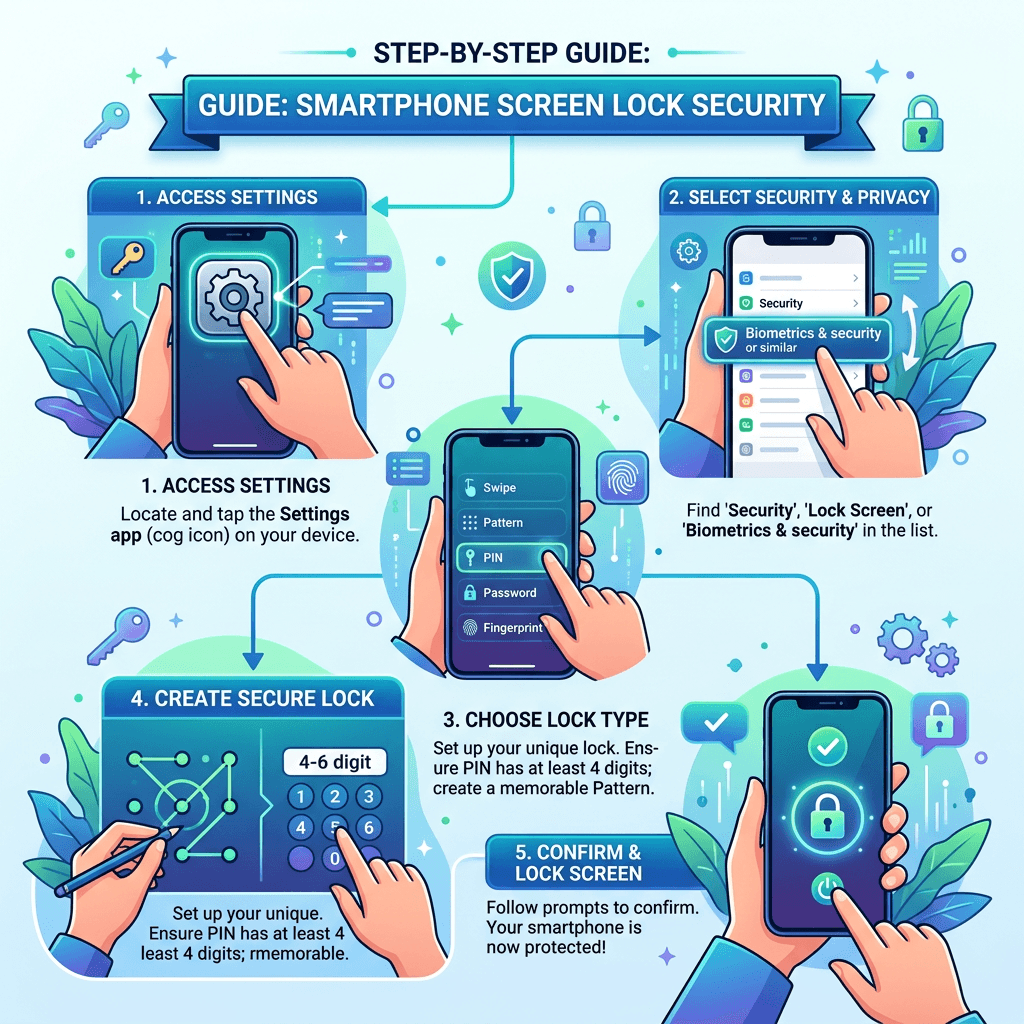
How to Set a Smartphone Screen Lock on Android and iPhone
A smartphone screen lock is one of the simplest ways to protect your personal information from unauthorized access. A PIN, password, pattern, fingerprint, or Face ID can prevent someone who has your phone from immediately accessing your messages, photos, accounts, and other sensitive information.
Whether you use an Android phone or an iPhone, setting up a screen lock only takes a few minutes. This guide explains how to enable one, which lock options are available, and what to do if you have trouble accessing your device.
Why Is a Smartphone Screen Lock Important?
Your smartphone can contain a significant amount of personal and business information, including:
- Emails and messages
- Photos and videos
- Banking and payment apps
- Social media accounts
- Saved passwords
- Business documents
- Contacts
- Authentication apps
Without a screen lock, anyone who gains physical access to an unlocked phone may be able to view this information.
A screen lock provides a basic security barrier even if your phone is lost or stolen. For business users, it is particularly important because smartphones may provide access to company email, cloud storage, customer information, and other business systems.
A screen lock should also be used alongside other security measures such as software updates, device encryption, account protection, and remote-device management.
How to Set a Screen Lock on an Android Phone
The exact menu names can vary depending on the manufacturer and Android version, but the general process is similar.
- Open Settings.
- Look for Security, Security & privacy, or Lock screen.
- Select Screen lock or the relevant lock-screen option.
- Choose a security method such as PIN, password, or pattern.
- Follow the instructions to create your lock.
- Confirm the new security method.
Some Android phones also support fingerprint or face authentication. These features can make unlocking faster while still requiring a secure primary authentication method.
Which Android Screen Lock Should You Choose?
A PIN is a convenient option for most users. A longer PIN is generally preferable to a short, easily guessed combination.
A password can provide stronger protection when it is long and difficult to guess.
A pattern is convenient but may be easier for someone nearby to observe or reproduce.
Fingerprint or facial recognition can provide convenient biometric authentication, but they should be configured alongside a secure PIN or password because Android devices can require the primary authentication method in certain circumstances.
How to Set a Screen Lock on an iPhone
On an iPhone with Face ID:
- Open Settings.
- Tap Face ID & Passcode.
- Tap Turn Passcode On.
- Enter a passcode.
- Confirm the passcode.
- Follow the instructions to configure Face ID if you want to use it.
On an iPhone with Touch ID, the relevant option is generally Touch ID & Passcode.
You can also tap Passcode Options when creating your passcode to choose a different format, such as a custom alphanumeric code.
For stronger protection, avoid easily guessed combinations such as birthdays or simple sequences.
PIN vs. Password vs. Biometrics: Which Is Best?
| Screen lock | Security | Convenience | Best for |
|---|---|---|---|
| PIN | High | High | Most smartphone users |
| Password | Very high | Moderate | Users handling sensitive information |
| Pattern | Moderate | High | Users who prefer visual unlocking |
| Fingerprint | High | Very high | Supported Android devices |
| Face ID | High | Very high | Supported iPhones |
There is no single option that is ideal for everyone. For most users, a strong PIN combined with fingerprint or facial authentication provides a good balance between security and convenience.
How to Make Your Smartphone More Secure
Setting a screen lock is only one part of smartphone security. You can strengthen your device by following a few additional practices.
Use a Strong Passcode
Avoid obvious combinations such as:
- 123456
- 000000
- Your birthday
- Your phone number
- Repeated or sequential numbers
Use a longer PIN or a strong password when appropriate.
Turn On Automatic Updates
Keep your phone’s operating system and apps updated. Security updates can address vulnerabilities that attackers may otherwise exploit.
Enable Find My Device or Find My
Android users can use Google’s Find Hub/Find My Device features, while iPhone users can use Find My.
These services can help you locate a lost device and, depending on the circumstances, secure or erase it remotely.
Protect Your Accounts
A screen lock does not protect you from every type of account compromise. Use strong, unique passwords and multifactor authentication for important accounts.
Be Careful With Lock-Screen Notifications
Your phone may display message previews or other information while the device is locked. Review your notification settings if you do not want sensitive information appearing on the lock screen.
What to Do If You Forget Your Screen Lock
If you forget your PIN, password, or pattern, do not assume that Find My Device or Find My can simply unlock the phone remotely. Modern smartphones are designed to prevent unauthorized bypass of the device passcode.
Recovery options depend on the device, operating system, account configuration, and manufacturer.
In many situations, recovering access may require resetting the device. A reset can erase locally stored data, which is why maintaining current backups is important.
If the phone belongs to a business, contact the organization’s IT administrator before resetting it. A company using mobile device management (MDM) may have additional recovery or security procedures.
What If Fingerprint or Face Unlock Stops Working?
Biometric authentication can occasionally fail because of changes in lighting, positioning, a dirty sensor, wet fingers, or other device conditions.
Try:
- Cleaning the camera or fingerprint sensor.
- Making sure your face or finger is positioned correctly.
- Restarting the phone.
- Checking for available software updates.
- Using your PIN or passcode if biometric authentication continues to fail.
Your phone may intentionally require the PIN or passcode instead of biometric authentication after certain security events or periods of inactivity.
Smartphone Security for Small Businesses
Businesses should consider screen-lock requirements as part of their broader device-security policy.
If employees use smartphones to access company email, cloud applications, customer information, or business documents, organizations can use mobile device management (MDM) to enforce policies such as:
- Required screen locks
- Minimum PIN or password requirements
- Automatic device locking
- Encryption requirements
- Remote device management
- Remote wiping when appropriate
For businesses with multiple devices, managing these settings centrally can be more effective than relying on individual employees to configure their phones correctly.
Archer IT Solutions can help businesses review their device-management and security requirements as part of a broader managed IT services strategy.
Frequently Asked Questions
What is the most secure screen lock for a smartphone?
A strong, unique password or longer PIN generally provides strong protection. Biometrics such as fingerprint or facial recognition can add convenient authentication on supported devices.
Should I use a PIN or fingerprint?
You can use both. A secure PIN provides the underlying authentication method while fingerprint recognition makes everyday unlocking more convenient on supported devices.
Can someone unlock my phone without the passcode?
Modern smartphones are designed to make unauthorized access difficult. However, the exact security depends on the device, software version, and security configuration.
What should I do if I forget my phone passcode?
Use the official recovery procedures provided by your device manufacturer. In some cases, restoring access may require erasing and resetting the device, so maintaining backups is important.
Should business phones have screen locks?
Yes. Businesses should require appropriate screen-lock protection on devices that access company systems or sensitive information.
Final Thoughts
A smartphone screen lock is a basic security measure, but it can make a significant difference if your phone is lost, stolen, or accessed by someone else. Start with a strong PIN or password and enable biometric authentication if your device supports it.
For business-owned devices, screen locks should be part of a wider security strategy that includes updates, backups, account protection, and mobile device management.
If your business needs help securing smartphones, computers, networks, or other IT systems, Archer IT Solutions can help you review your current setup and identify practical improvements.
Contact Archer IT Solutions: https://www.archer-its.com/contact-us/


No responses yet