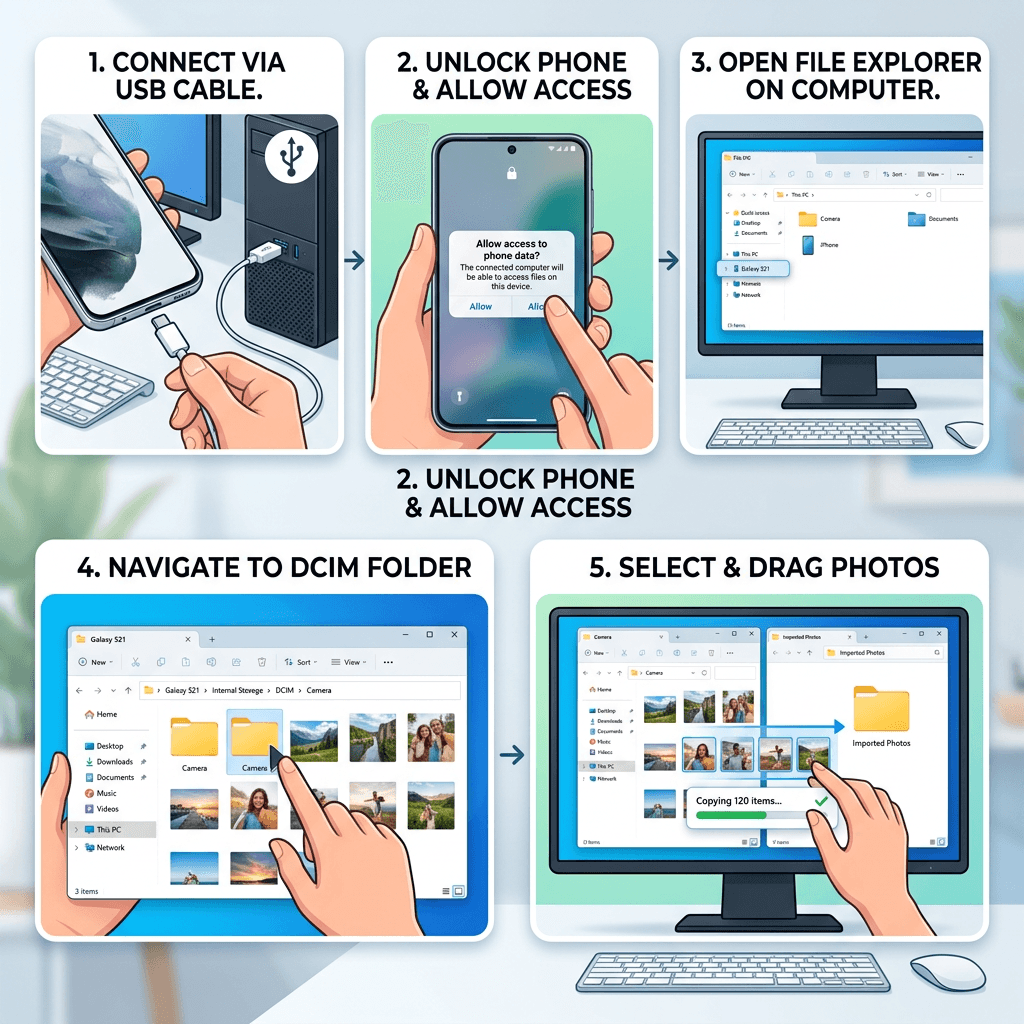
How to Transfer Photos to a Computer: Easy Methods for Android and iPhone
Transferring photos from your smartphone to a computer is useful when you want to free up phone storage, edit pictures on a larger screen, create a backup, or share photos with someone else.
You can transfer photos using a USB cable, cloud storage, Wi-Fi, or other wireless methods. The best option depends on whether you use an Android phone or an iPhone and whether your computer runs Windows or macOS.
How to Transfer Photos from Android to a Windows PC
A USB cable is usually one of the simplest ways to transfer a large number of photos from an Android phone to a Windows computer.
Using a USB cable
- Connect your Android phone to the computer using a USB data cable.
- Unlock your phone.
- Swipe down from the top of the screen to open the notification panel.
- Tap the USB notification.
- Select File Transfer or Android Auto, depending on your device.
- Open File Explorer on your Windows computer.
- Select your Android phone under This PC.
- Open the DCIM folder.
- Find the Camera folder or another folder containing your photos.
- Select the photos you want and copy them to a folder on your computer.
The exact folder names can vary between Android manufacturers and phone models.
Where are Android photos stored?
Photos taken with the phone’s camera are commonly stored in:
DCIM > Camera
However, screenshots, downloaded images, and photos saved by individual apps may be stored in different folders.
How to Transfer Photos from iPhone to a Windows PC
You can transfer photos from an iPhone to a Windows PC using a USB cable or through iCloud.
Using a USB cable
- Connect your iPhone to the PC with a compatible USB cable.
- Unlock the iPhone.
- If prompted, tap Trust or Allow on the iPhone.
- Open the Photos app in Windows.
- Select the option to import photos from a connected device.
- Choose the photos you want to transfer.
- Select the destination and start the import.
You may need to install or update Apple’s device software if Windows does not recognize the iPhone correctly.
How to Transfer Photos from iPhone to a Mac
The process is particularly straightforward when transferring photos between Apple devices.
- Connect the iPhone to the Mac using a USB cable.
- Unlock the iPhone.
- Open the Photos app on the Mac.
- Select the connected iPhone.
- Choose the photos you want to import.
- Select Import Selected or import all available photos.
If you use iCloud Photos, you may not need to connect the phone with a cable at all.
How to Transfer Photos Without a USB Cable
A cable is not your only option. Cloud services can automatically synchronize photos between your phone and computer.
Google Photos
Google Photos can automatically back up photos from an Android phone or iPhone.
Once your photos have been backed up, sign in to Google Photos on your computer using the same Google account. You can then view, download, or organize your photos.
This is particularly useful if you regularly move between your phone and computer.
iCloud Photos
iPhone users can use iCloud Photos to synchronize their photo library across Apple devices.
When iCloud Photos is enabled, photos can become available on other devices signed into the same Apple Account. On Windows, you can use iCloud for Windows to access synchronized photos.
Cloud storage is convenient, but it depends on having a reliable internet connection and sufficient storage space.
OneDrive
Microsoft OneDrive can also automatically back up photos from supported mobile devices.
This can be useful for people who already use Microsoft 365 or OneDrive for storing work documents and other files.
USB vs Cloud Photo Transfer
The best method depends on what you are trying to accomplish.
| Method | Best for | Main advantage | Main limitation |
|---|---|---|---|
| USB cable | Large photo transfers | Fast and does not require internet | Requires a compatible cable |
| Google Photos | Android and cross-platform use | Automatic cloud backup | Requires internet and storage |
| iCloud Photos | iPhone and Apple devices | Seamless Apple integration | Uses iCloud storage |
| OneDrive | Microsoft users | Works well with Microsoft accounts | Requires cloud storage |
| Wireless transfer | Occasional transfers | No cable required | Speed and compatibility vary |
For hundreds or thousands of photos, a USB connection is often more practical than transferring everything wirelessly.
How to Transfer Photos from Your Phone to a Specific Folder
Before transferring your photos, create a folder on your computer where you want to keep them.
For example:
Pictures
- 2026
- Family
- Travel
- Work
- Events
You can also use dates in folder names, such as:
2026-08 Vacation
This makes your photos easier to locate later and can simplify backups.
Avoid leaving large numbers of photos scattered across the desktop or Downloads folder.
Why Your Computer May Not Recognize Your Phone
If your phone does not appear when you connect it to your computer, there are several things you can check.
Try another USB cable
Not every USB cable supports data transfer. Some cables are designed primarily for charging.
Try a different cable that supports data transfer.
Unlock your phone
Some phones require the device to be unlocked before the computer can access its files.
Check the USB connection mode
Android phones may default to Charging only when connected to a computer.
Open the USB notification on the phone and select File Transfer.
Try another USB port
Disconnect the phone and connect it to another USB port on the computer.
Restart both devices
Restarting the phone and computer can resolve temporary connection problems.
Check for software or driver problems
If Windows still does not recognize the phone, check for available system, device, or manufacturer software updates.
For iPhones, make sure the computer has the required Apple software and that you have responded to the Trust This Computer prompt.
What to Do If Photos Are Missing After Transfer
If photos do not appear where you expected them, first check the destination folder you selected.
On Android, remember that photos may be stored in different folders depending on how they were created. Camera photos, screenshots, downloads, and images saved by messaging or social media applications may not all be located in the same place.
If you use cloud synchronization, also check whether the photos have finished uploading before attempting to download them to your computer.
Avoid deleting photos from your phone immediately after transferring them. First open several transferred images on the computer and confirm that the files are intact.
How to Back Up Your Photos Safely
Transferring photos to a computer is not the same as creating a complete backup.
If the only copy of your photos is on your computer, a hard-drive failure, theft, malware infection, or accidental deletion could still result in data loss.
A safer approach is to maintain more than one copy. For important photos, you might keep:
- A copy on your smartphone
- A copy on your computer
- A cloud backup or external backup
For businesses that manage important digital files across multiple devices, a properly planned backup system can provide additional protection. Archer IT Solutions provides managed IT services for businesses that need help managing technology, storage, and backup requirements.
Frequently Asked Questions
What is the easiest way to transfer photos from a phone to a computer?
For a small or large batch of photos, connecting the phone with a USB data cable is usually one of the simplest methods. Cloud services such as Google Photos and iCloud are convenient when you want automatic synchronization.
Can I transfer photos without a cable?
Yes. You can use services such as Google Photos, iCloud Photos, or OneDrive. Other wireless transfer options may also work depending on your phone and computer.
Why won’t my phone show up on my computer?
The phone may be locked, connected in charging-only mode, using a cable that does not support data transfer, or experiencing a software or driver issue. Try unlocking the phone, changing the USB mode, using another cable, or restarting both devices.
Where are photos stored on an Android phone?
Camera photos are commonly found in the DCIM/Camera folder, although the exact location can vary by phone and application.
Can I transfer photos from an iPhone to Windows?
Yes. You can import photos using a USB connection, or use iCloud to synchronize and access your photos on the Windows computer.
Should I delete photos from my phone after transferring them?
Only after confirming that the photos have transferred successfully and that you have another backup if the photos are important. Transferring photos once does not necessarily provide adequate backup protection.
Get Help With Your Computer and IT Setup
Moving photos from a smartphone to a computer is normally straightforward once you choose the right method. A USB cable is a good choice for large transfers, while cloud services are convenient for automatic synchronization and access across multiple devices.
If your business needs help with computer setup, file management, backups, network systems, or broader technology requirements, Archer IT Solutions can provide managed IT support and onsite IT support.
You can also contact Archer IT Solutions if you need assistance with your business technology setup.


No responses yet