How to Rename Files Easily: A Beginner’s Guide
Renaming a file is one of the simplest ways to keep documents, photos, downloads, and work files organized. Whether you use Windows or a Mac, you can rename a file in just a few seconds without changing its contents.
You can also rename multiple files at once when you need to organize a large collection of documents or images.
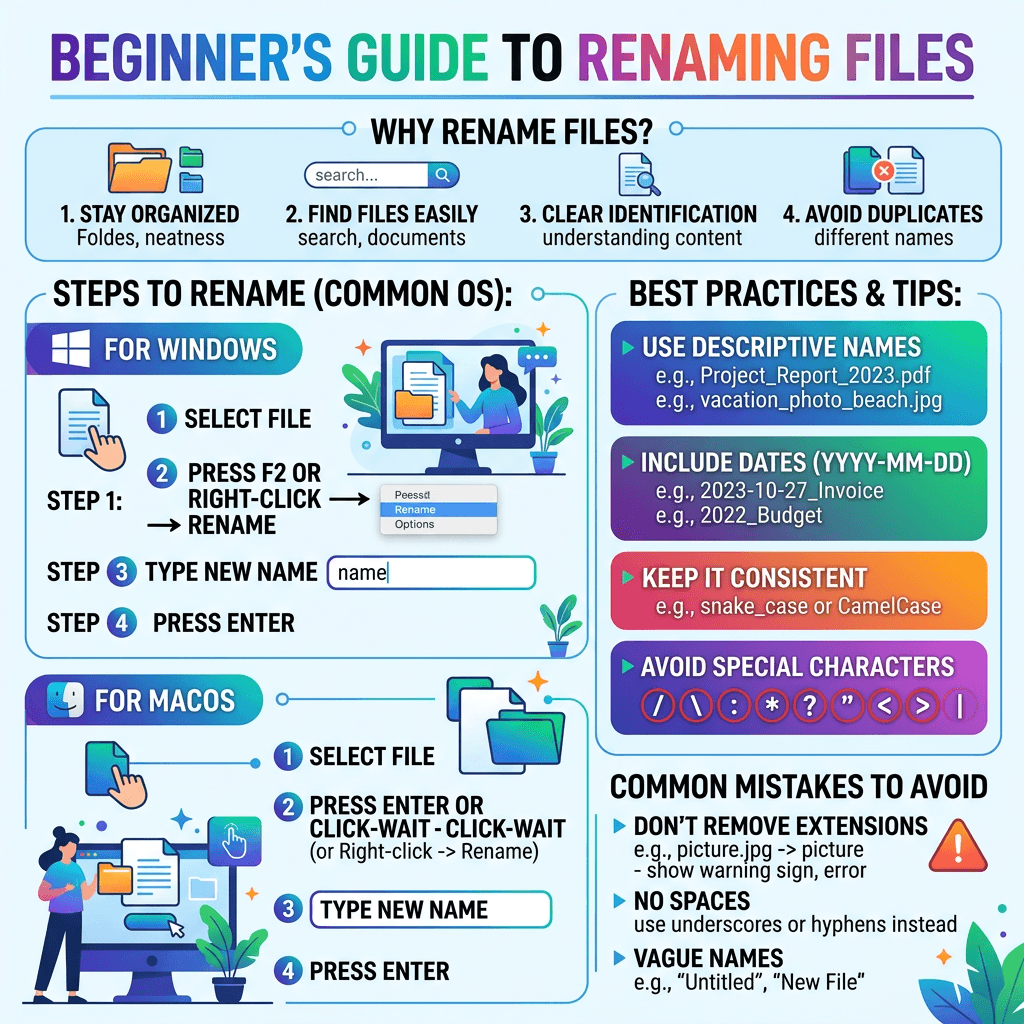
How to Rename a File on Windows
There are several ways to rename a file in Windows.
Method 1: Right-click and Rename
- Open File Explorer.
- Find the file you want to rename.
- Right-click the file.
- Select Rename.
- Type the new name.
- Press Enter.
The file will keep its contents and location. Only its name changes.
Method 2: Use the F2 Keyboard Shortcut
Windows also provides a faster way to rename a file.
- Select the file in File Explorer.
- Press F2 on your keyboard.
- Type the new name.
- Press Enter.
The F2 shortcut is particularly useful when you need to rename several files individually.
How to Rename a File on Mac
Renaming a file on a Mac is just as straightforward.
- Open Finder.
- Locate the file.
- Click the file once to select it.
- Press Return on your keyboard.
- Type the new name.
- Press Return again.
You can also Control-click or right-click the file and select Rename.
How to Rename Multiple Files at Once
If you have a large number of files, renaming them individually can take a lot of time. Windows and macOS both provide built-in options for batch renaming.
Renaming Multiple Files on Windows
- Open File Explorer.
- Select the files you want to rename.
- Right-click one of the selected files.
- Choose Rename.
- Enter a common name.
- Press Enter.
Windows will use the name you enter and add numbers to distinguish the files.
For example, a group of photos could become:
Vacation (1).jpgVacation (2).jpgVacation (3).jpg
Renaming Multiple Files on Mac
Finder also allows you to rename several files at once.
- Select the files in Finder.
- Right-click or Control-click the selection.
- Choose Rename.
- Select the renaming format you want to use.
- Enter the required information.
- Apply the changes.
This can be useful when organizing photographs, project documents, or other files that follow the same naming pattern.
How to Rename a File Without Changing Its Extension
One of the most important things to remember when renaming files is the file extension.
The extension tells the operating system what type of file it is. For example:
report.pdf— PDF documentbudget.xlsx— Excel spreadsheetphoto.jpg— imagepresentation.pptx— PowerPoint presentationdocument.docx— Word document
If you want to rename report.pdf to march-report.pdf, change only the part before .pdf.
Changing the extension does not convert a file into another format. For example, changing photo.jpg to photo.pdf does not turn the image into a PDF.
If your operating system displays a warning when you change a file extension, make sure you understand the consequences before confirming the change.
How to Choose Better File Names
A good file name should tell you what the file contains without requiring you to open it.
For example:
Less useful:
document1.docxnewfile.pdffinalfinal.docxIMG_4587.jpg
More useful:
client-meeting-notes.docxinvoice-march-2026.pdfwebsite-homepage-copy.docxproduct-photo-blue-shirt.jpg
For business files, including a project name, date, client name, or version number can make files much easier to locate.
Use Consistent Dates
If you include dates in file names, use the same format throughout your folders.
For example:
2026-03-15-client-invoice.pdf
The YYYY-MM-DD format makes files easier to sort chronologically.
Avoid Unnecessary Special Characters
Some operating systems and applications restrict certain characters in file names.
Windows, for example, does not allow these characters in ordinary file names:
/ \ : * ? " < > |
Using simple letters, numbers, hyphens, and underscores can make files easier to transfer between different systems.
How to Rename Files for Better Organization
Renaming files works best when it is part of a larger organization system.
For example, a business might organize its documents like this:
Business Documents
- Invoices
2026-01-client-name-invoice.pdf2026-02-client-name-invoice.pdf
- Contracts
client-name-contract-2026.docx
- Reports
monthly-report-january-2026.xlsx
This approach makes files easier to search, share, archive, and back up.
It can also help teams avoid duplicate or confusing versions of the same document.
Common File Renaming Problems
Sometimes Windows or macOS will not allow you to rename a file. Several common issues can cause this.
The File Is Currently Open
If a document, image, or other file is being used by another application, close the application and try renaming the file again.
You Do Not Have Permission
Files stored on shared drives, servers, or other protected locations may require specific permissions before you can rename them.
If you receive an Access Denied message, check whether you have permission to modify the file or contact the person responsible for the shared location.
Another User Is Using the File
On a shared business network, another user may have the file open. Close the file on the other computer before trying again.
The New Name Already Exists
Some systems will prevent you from using the same name as another file in the same folder.
Try adding a date, version number, or other identifier.
For example:
project-report-v1.docxproject-report-v2.docx
What Happens When You Rename a File?
Renaming a file normally changes only its name, not its contents.
For example, if you rename:
meeting-notes.docx
to:
client-meeting-notes.docx
the document itself remains the same.
However, renaming a file can affect shortcuts, links, scripts, or applications that depend on the original file name or location. This is particularly important when working with website files, shared systems, or automated processes.
File Names vs. File Extensions
It is useful to understand the difference between the file name and the file extension.
In:
business-plan.docx
business-plan is the main file name, while .docx identifies the file type.
Changing the main name is generally safe. Changing the extension is a different matter because applications use the extension to determine how the file should be opened.
Frequently Asked Questions
How do I rename a file quickly?
On Windows, select the file and press F2. On Mac, select the file in Finder and press Return. You can then type the new name and confirm it.
Can I rename multiple files at once?
Yes. Windows File Explorer and macOS Finder both provide built-in batch-renaming features.
Does renaming a file change its contents?
No. Renaming normally changes only the file name. The contents remain unchanged.
Why can’t I rename a file?
The file may be open, locked, located in a protected folder, or being used by another user. Check the file’s permissions and make sure it is not open elsewhere.
Can I change a file extension when renaming it?
You can change the extension, but doing so does not convert the file to another format. Changing an extension incorrectly can prevent the file from opening normally.
What is a good naming convention for business files?
Use descriptive names that may include the project, client, document type, date, and version. Consistency is more important than using a complicated naming system.
When You May Need IT Support
Renaming a few files is normally something you can handle yourself. However, file management becomes more complicated when an organization has shared drives, network storage, cloud systems, automated workflows, or hundreds of thousands of files.
In those situations, changing file names without understanding how the system is configured can cause broken links, permission problems, or workflow interruptions.
Archer IT Solutions can help businesses with broader technology and infrastructure needs through managed IT services and onsite IT support.
If you are looking for additional information about managing the technology behind a business website, you can also read Archer IT Solutions’ Complete Guide to Server Administration.
In Conclusion
Learning how to rename files is a small but useful computer skill. The process takes only a few seconds on Windows or Mac, but using clear and consistent names can make a significant difference when you have hundreds or thousands of files.
For the best results, use descriptive names, keep dates consistent, avoid problematic characters, and be careful not to change file extensions accidentally. A simple naming system can make documents easier to find, share, back up, and manage.
If your business has more complex file-management, network, or IT requirements, contact Archer IT Solutions for assistance.


No responses yet