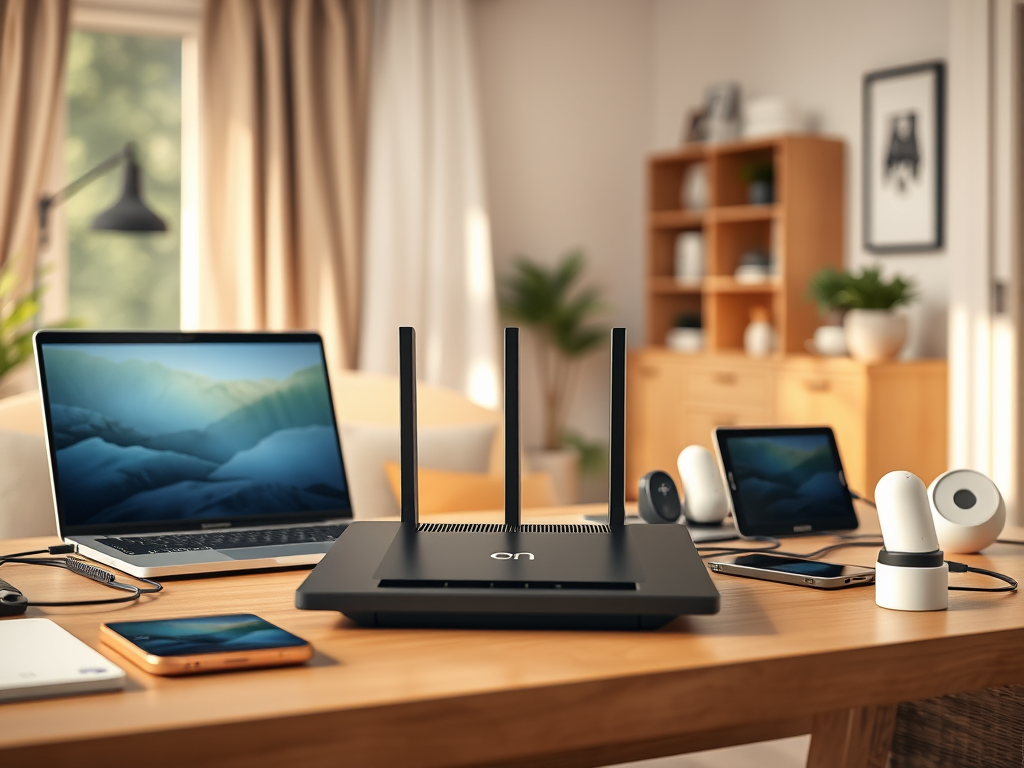
How to Set Up and Secure Your Home Network
A home network connects your computers, phones, smart TVs, gaming consoles, printers, and other devices to the internet and, in many cases, to one another. Setting one up is relatively straightforward, but configuring it properly can improve both performance and security.
A secure home network starts with the right equipment and continues with good router configuration, strong authentication, regular updates, and careful management of connected devices.
Whether you are setting up Wi-Fi for the first time or improving an existing network, the following steps can help you build a more reliable and secure setup.
What You Need to Set Up a Home Network
Before configuring your network, make sure you have the necessary equipment.
A typical home network may include:
- Modem or ONT: Connects your home to your internet service provider.
- Router: Manages the connection between your local devices and the internet.
- Wi-Fi access point: Provides wireless connectivity. Many home routers have this built in.
- Ethernet cables: Used to connect devices directly to the router.
- Mesh Wi-Fi system: An optional solution for larger homes or areas where a single router does not provide adequate coverage.
Some internet providers supply a combined modem and router. This can be sufficient for many households, while others may prefer separate equipment for greater control over network configuration.
Step 1: Connect Your Modem and Router
If you have separate devices, connect the modem or ONT to the internet service provided by your ISP.
Then connect the modem or ONT to the router’s WAN or Internet port using an Ethernet cable.
Power on the equipment and allow a few minutes for the connection to establish.
If your ISP requires specific settings such as PPPoE credentials or VLAN configuration, follow the provider’s instructions.
Step 2: Log In to Your Router
Connect a computer or phone to the router using Wi-Fi or Ethernet.
Open a web browser and enter the router’s management address. The address varies by manufacturer and model, so check the router documentation if you are unsure.
Once logged in, immediately change the router’s default administrator password.
Your Wi-Fi password and router administrator password should be different. The administrator password controls the router itself, while the Wi-Fi password controls access to the wireless network.
Step 3: Change the Default Wi-Fi Settings
Give your wireless network a recognizable but non-sensitive SSID, which is the name displayed when devices search for Wi-Fi networks.
Avoid using personal information such as your full name, home address, or phone number in the SSID.
Next, create a strong and unique Wi-Fi password.
A good password should be long and difficult to guess. Avoid common passwords, dictionary words, or information that someone could easily associate with your household.
Step 4: Choose the Strongest Available Wi-Fi Security
When configuring wireless security, use WPA3 if your router and devices support it.
If WPA3 is not available, WPA2 with AES is generally preferable to older security protocols.
Avoid outdated options such as WEP, which no longer provides adequate wireless security.
If you have older devices that do not support newer security standards, check whether your router offers a compatibility mode or consider replacing the outdated device.
Step 5: Update Your Router’s Firmware
Router manufacturers periodically release firmware updates to address security vulnerabilities, fix bugs, and improve functionality.
Check your router’s administration interface for available updates.
If the router supports automatic firmware updates, enabling them can reduce the chance of important updates being missed.
If automatic updates are not available, check the manufacturer’s support page periodically.
Step 6: Position Your Router Properly
Router placement can have a noticeable effect on Wi-Fi coverage.
For more consistent coverage:
- Place the router in a relatively central location.
- Keep it elevated rather than directly on the floor.
- Avoid enclosing it inside cabinets.
- Keep it away from large metal objects.
- Avoid placing it close to sources of significant wireless interference.
- Keep the router away from thick walls where possible.
If one router cannot provide adequate coverage, a mesh Wi-Fi system or additional access point may be more effective than simply increasing the router’s transmit power.
Step 7: Connect and Organize Your Devices
Connect your devices one at a time and confirm that each can access the internet.
For devices that do not move, such as desktop computers, smart TVs, or gaming consoles, consider using Ethernet where practical. A wired connection can provide more consistent performance and lower latency than Wi-Fi.
For wireless devices, check that they are connected to the correct network.
Your router’s administration page may also show a list of connected devices. Review this list regularly so you can identify devices you recognize and investigate anything unfamiliar.
Step 8: Create a Guest Wi-Fi Network
If your router supports guest networking, consider creating a separate network for visitors.
A guest network can limit access to devices and resources on your primary home network, depending on how the router implements network isolation.
This is particularly useful if you have shared computers, network storage, printers, or other devices that you do not want visitors to access.
Use a separate password for the guest network and avoid sharing your primary Wi-Fi credentials with visitors.
Step 9: Secure Smart Home and IoT Devices
Smart home devices can introduce additional security considerations because many remain connected to the network continuously.
Examples include:
- Smart cameras
- Smart speakers
- Smart TVs
- Smart plugs
- Thermostats
- Doorbells
- Home automation equipment
Keep their firmware and software updated, change default passwords, and remove devices that are no longer being used.
If your router provides a separate IoT or guest network, placing compatible smart devices there can provide an additional layer of network separation.
Step 10: Review Router Security Settings
Your router may provide additional security features that are worth reviewing.
Depending on the model, these can include:
- Firewall protection
- Device access controls
- Guest network isolation
- Parental controls
- Automatic security updates
- DNS filtering
- VPN functionality
- Intrusion or threat detection
Disable router features you do not need, particularly remote administration from the public internet.
If remote management is necessary, use strong authentication and follow the manufacturer’s security recommendations.
Step 11: Test Your Internet Connection
Once the network is configured, test your connection from several locations in your home.
A speed test can provide an indication of download speed, upload speed, and latency.
Compare the results with the service level provided by your ISP, keeping in mind that Wi-Fi performance can vary depending on the device, distance from the router, interference, network congestion, and other factors.
For a more accurate test of your internet connection, connect a computer directly to the router using Ethernet and compare that result with Wi-Fi performance.
Common Home Network Problems and How to Troubleshoot Them
Even a properly configured network can occasionally experience problems.
Wi-Fi Is Connected but There Is No Internet
If a device says it is connected to Wi-Fi but cannot access the internet:
- Check whether other devices have the same problem.
- Restart the affected device.
- Check the modem or router status lights.
- Restart the router if necessary.
- Check whether your ISP is experiencing an outage.
- Verify that the router has received an internet connection.
If every device is affected, the problem may be with the router, modem, ISP connection, or service itself rather than an individual device.
Wi-Fi Is Slow
Slow Wi-Fi can have several causes.
Check:
- Distance from the router
- Physical obstacles
- Wireless interference
- Number of connected devices
- Router capabilities
- Internet service speed
- Network congestion
- Background downloads or streaming
Try testing the connection close to the router and then in the location where the problem occurs. This can help determine whether the issue is Wi-Fi coverage or the internet connection itself.
One Device Cannot Connect
If other devices work normally but one device cannot connect:
- Restart the device.
- Forget and reconnect to the Wi-Fi network.
- Confirm the Wi-Fi password.
- Check whether the device has an IP address.
- Update the device’s network drivers or operating system.
- Check whether access controls on the router are blocking it.
Wi-Fi Keeps Disconnecting
Frequent disconnections can be caused by interference, outdated firmware, weak signal strength, router problems, or issues with the device itself.
Move closer to the router and test the connection. If the problem disappears, coverage may be the primary issue.
If multiple devices disconnect at the same time, investigate the router and internet connection.
Some Rooms Have Poor Wi-Fi Coverage
If Wi-Fi is consistently weak in certain areas, consider repositioning the router or using a mesh Wi-Fi system or additional access point.
A Wi-Fi extender may also help in some situations, although the placement and quality of the connection between the extender and router can affect its performance.
When Should You Use Ethernet Instead of Wi-Fi?
Wi-Fi is convenient, but a wired Ethernet connection can be preferable for devices that require a stable connection.
Consider Ethernet for:
- Desktop computers
- Gaming consoles
- Smart TVs
- Network storage
- Workstations
- Devices that regularly transfer large amounts of data
Using Ethernet for stationary devices can also reduce the number of wireless devices competing for available Wi-Fi capacity.
How to Maintain a Secure Home Network
Setting up your network securely is not a one-time task.
Review your network periodically and:
- Install router firmware updates.
- Replace outdated networking equipment.
- Change compromised passwords immediately.
- Remove devices you no longer use.
- Review connected devices.
- Keep computers, phones, and IoT devices updated.
- Review router security settings.
- Check your guest network configuration.
- Replace equipment that no longer receives security updates.
If a router reaches the end of its manufacturer’s support period, replacing it may be more appropriate than continuing to use outdated firmware.
Optional Tools for Network Troubleshooting
Most households do not need specialized network-analysis software for everyday troubleshooting.
However, some tools can be useful when diagnosing more complicated problems.
Wireshark can capture and analyze network traffic and is primarily intended for more advanced troubleshooting.
DNS filtering services such as Cisco OpenDNS can provide additional DNS-based security and filtering options, depending on the service and configuration.
For ordinary home users, however, starting with the router’s built-in diagnostic tools and basic connectivity checks is usually more practical.
When to Consider Professional IT Support
Many home networks can be configured without professional assistance. However, additional help may be useful when:
- Wi-Fi coverage remains poor despite repositioning the router.
- Multiple devices experience unexplained connectivity problems.
- You need VLANs or network segmentation.
- You are setting up advanced firewall rules.
- Your home office requires a more complex network.
- You need to connect network storage securely.
- You suspect unauthorized devices are accessing the network.
- You need help configuring a mesh or multi-access-point network.
For households with more advanced networking requirements, Archer IT Solutions provides onsite and remote IT support.
Frequently Asked Questions
What is the most important step in securing a home network?
Start by changing the router’s default administrator credentials and Wi-Fi password, then use WPA3 where supported and keep the router’s firmware updated.
Should I use WPA2 or WPA3?
Use WPA3 when your router and devices support it. If WPA3 is unavailable, use an appropriate WPA2 configuration rather than older, insecure wireless protocols.
Should I create a guest Wi-Fi network?
A guest network is useful when you regularly allow visitors to connect to your Wi-Fi. Depending on the router, it can help isolate guest devices from your primary network.
How often should I restart my router?
There is no general requirement to restart a properly functioning router on a fixed schedule. If the router is experiencing connectivity problems, restarting it can be a useful troubleshooting step.
Regular restarts should not be considered a substitute for firmware updates or proper troubleshooting.
Does moving my router improve Wi-Fi speed?
It can improve wireless coverage and signal quality. Router placement affects how well the wireless signal reaches different areas of your home.
Is a mesh Wi-Fi system better than a traditional router?
Not automatically. Mesh systems can be useful for larger homes or properties with difficult coverage areas. A single high-quality router may be sufficient for a smaller home.
Final Thoughts
A secure home network starts with basic configuration choices: use strong and unique passwords, select an appropriate wireless security standard, keep your router updated, and review the devices connected to your network.
Performance also depends on factors such as router placement, wireless interference, device capabilities, and your internet connection.
You do not necessarily need expensive networking equipment or advanced security software to create a safer home network. Start with the fundamentals, monitor how your network performs, and upgrade equipment when your requirements change.
If you need assistance with network configuration, troubleshooting, or a more advanced home-office setup, Contact Archer IT Solutions for onsite and remote IT support.


No responses yet