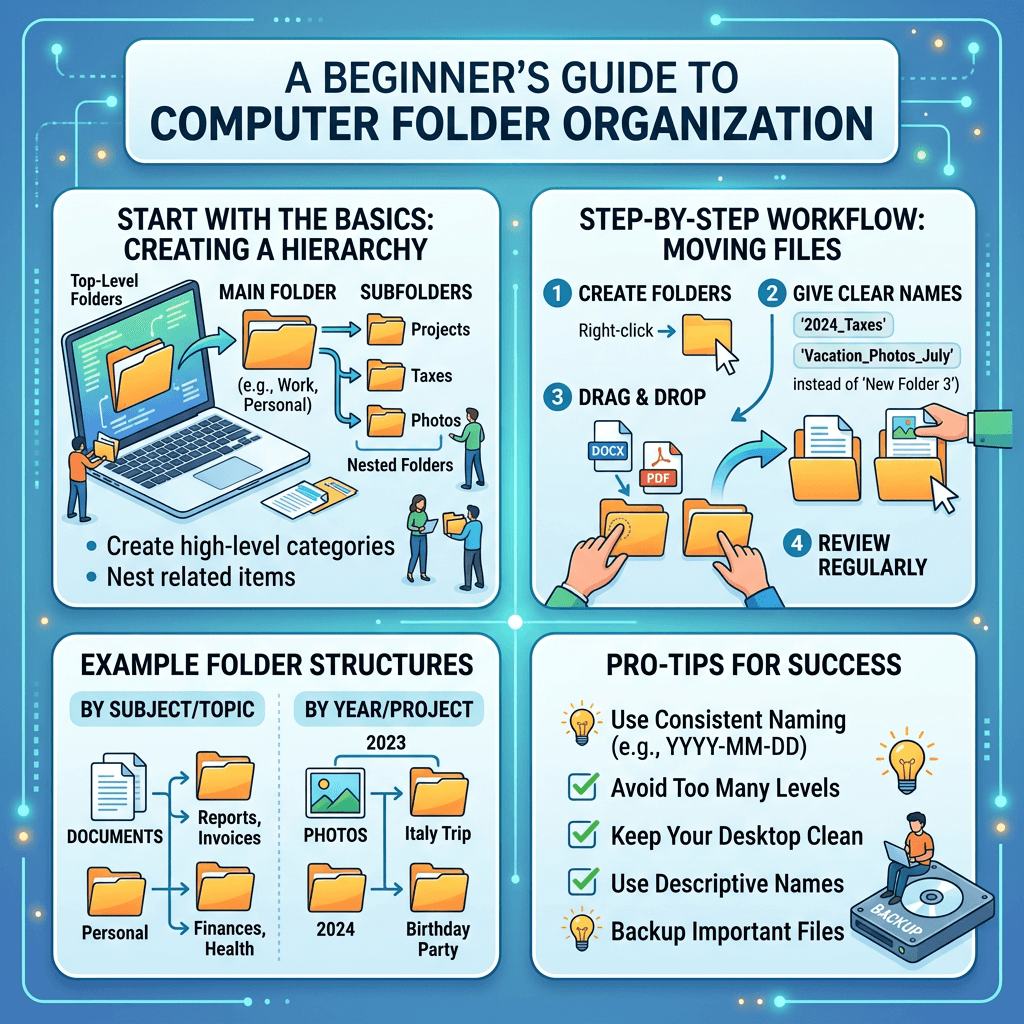
What Is a Folder on a Computer? A Simple Guide for Beginners
A folder on a computer is a digital container used to store and organize files. Folders can contain documents, pictures, videos, spreadsheets, applications, and even other folders called subfolders.
If you have ever wondered why your computer has folders such as Documents, Downloads, Pictures, and Desktop, they all serve the same basic purpose: they give your files a logical place to live.
Understanding folders is one of the simplest ways to become more comfortable using a computer. Whether you are organizing personal documents, managing business files, or trying to find something you downloaded, knowing how folders work can save time and reduce clutter.
What Is a Folder on a Computer?
A folder is a location on a computer where digital files can be stored and organized.
Think of a physical filing cabinet. You might have one folder for bills, another for business documents, and another for personal records. A computer folder works in a similar way, except everything is stored digitally.
For example, you could create a folder called Work and put your business documents inside it. Within that folder, you could create additional folders for individual clients or projects.
A folder might contain:
- Word documents
- PDF files
- Excel spreadsheets
- Photos
- Videos
- Music
- Downloaded files
- Shortcuts
- Other folders
Folders do not normally contain the actual information by themselves. Instead, they provide a structure for organizing the files stored on your computer.
What Is the Difference Between a Folder and a File?
The easiest way to understand the difference is to think of a folder as a container and a file as the item inside the container.
A file contains information. For example:
invoice.pdfis a file.holiday-photo.jpgis a file.report.docxis a file.budget.xlsxis a file.
A folder can hold all of these files.
For example:
Business Documents
invoice-march-2026.pdfsales-report.xlsxclient-contract.docx
The folder provides the organization, while the files contain the actual information.
A folder can also contain another folder. These are commonly called subfolders.
For example:
Business
- Clients
- Client A
- Client B
- Invoices
- Reports
- Marketing
This creates a hierarchy that makes large numbers of files easier to manage.
Why Are Computer Folders Important?
Without folders, all of your files could end up in one long list. Finding a specific document would become increasingly difficult as you create or download more files.
Folders allow you to group related files together.
For example, instead of storing these files randomly:
invoice1.pdfholiday.jpgproject-report.docxtax-document.pdfmeeting-notes.docx
you could organize them into:
Personal
- Holiday Photos
- Tax Documents
Work
- Project Reports
- Meeting Notes
- Invoices
This makes it much easier to locate something later.
Good folder organization can also make file sharing, backups, collaboration, and archiving easier.
Common Computer Folders and What They Are Used For
Most computers already include several folders designed for common types of files.
Documents
The Documents folder is commonly used for text files, PDFs, spreadsheets, presentations, and other work or personal documents.
For example:
- Tax documents
- Business reports
- Resumes
- Letters
- School assignments
Downloads
The Downloads folder usually contains files you download from the internet.
This might include:
- PDFs
- Images
- Software installers
- Documents
- Email attachments
Because downloaded files can accumulate quickly, it is useful to periodically move important files from Downloads into more appropriate folders.
Pictures
The Pictures folder is designed for images and photographs.
You could organize it further using subfolders such as:
Pictures
- 2026
- Family
- Vacations
- Work
- Screenshots
Desktop
The Desktop is also a location where files and folders can be stored. However, using the Desktop as the permanent home for hundreds of files can make your computer difficult to navigate.
A better approach is to move important files into properly organized folders and use the Desktop mainly for items you need to access frequently.
How to Create a Folder
Creating a folder is straightforward on most computers.
Windows
In File Explorer:
- Open the location where you want the folder.
- Right-click an empty area.
- Select New.
- Choose Folder.
- Type the folder name.
- Press Enter.
You can also use the keyboard shortcut Ctrl + Shift + N in File Explorer.
Mac
In Finder:
- Open the location where you want the folder.
- Right-click or Control-click an empty area.
- Select New Folder.
- Enter the folder name.
- Press Return.
Once created, you can move files into the folder by dragging them or using the appropriate copy-and-paste commands.
How to Organize Files Into Folders
A good folder system does not need to be complicated.
Start with broad categories and create subfolders only when necessary.
For example, a small business might organize files like this:
Business
- Clients
- Client A
- Client B
- Accounting
- Invoices
- Receipts
- Tax Documents
- Marketing
- Social Media
- Graphics
- Campaigns
- Projects
- Website
- Product Launch
- Reports
This structure makes it easier to know where new files should be saved.
For personal files, you could use:
Personal
- Documents
- Photos
- Finance
- Travel
- Education
The best folder structure is one that makes sense to you and is easy to maintain.
How to Name Folders Properly
Folder names should be clear enough that you can understand their contents without opening them.
Instead of names such as:
StuffNew FolderThingsMiscFiles 2
use descriptive names such as:
2026 Tax DocumentsClient ProjectsFamily PhotosBusiness InvoicesWebsite Images
If you work with dates, using a consistent format such as 2026-03-15 can also make files and folders easier to sort chronologically.
Avoid creating unnecessarily long names. A good folder name should be clear, specific, and easy to recognize.
Can You Put a Folder Inside Another Folder?
Yes. A folder can contain other folders, allowing you to create multiple levels of organization.
For example:
Projects
→ Website Project
→ Content
→ Blog Images
Here, Projects is the main folder, while Website Project, Content, and Blog Images are progressively deeper subfolders.
Subfolders are useful when you have many related files, but avoid creating too many levels. If you have to open six or seven folders just to reach a document, your structure may be unnecessarily complicated.
What Happens When You Move a File Into a Folder?
Moving a file into a folder changes its location on your computer.
For example, if invoice.pdf is currently on your Desktop and you move it into:
Documents → Business → Invoices
the file remains the same file. Its contents do not change; only its location changes.
This is different from deleting a file. Moving a file simply places it somewhere else.
You can usually move files by:
- Dragging them into a folder
- Using Cut and Paste
- Using Copy and Paste when you want to keep the original
What If You Cannot Find a File?
If you cannot find a file, do not immediately assume that it has been deleted.
Start by checking common locations such as:
- Desktop
- Documents
- Downloads
- Pictures
- OneDrive
- iCloud Drive
- Google Drive
- External drives
You can also search your computer using part or all of the file name.
If you know approximately when you created or modified the file, sorting by Date Modified can also help.
If you accidentally deleted it, check the Recycle Bin on Windows or Trash on Mac before taking further steps.
Common Folder Organization Mistakes
Poor folder organization can become a problem when files start accumulating.
Keeping Everything on the Desktop
Saving every file to the Desktop may seem convenient, but it can quickly create a cluttered workspace.
Move files into appropriate folders once you are finished working with them.
Using Vague Folder Names
A folder called Stuff may make sense today but become confusing several months later.
Use names that describe exactly what the folder contains.
Creating Too Many Subfolders
Organization is useful, but excessive organization can make files harder to reach.
Try to keep the structure simple enough that you can find a file within a few clicks.
Mixing Personal and Business Files
If you use the same computer for work and personal activities, separating the two can make file management much easier.
For example:
Work
- Clients
- Reports
- Invoices
Personal
- Photos
- Finance
- Travel
Not Backing Up Important Files
Folders make organization easier, but they do not automatically protect your files from hardware failure, accidental deletion, malware, or other problems.
Important business and personal files should be backed up using an appropriate backup system.
For businesses that need help with file management, computer systems, backups, or general technology support, Archer IT Solutions provides Managed IT Services and Local IT Support.
Are Computer Folders the Same on Windows and Mac?
The basic concept is the same, although the interface and terminology can differ.
Windows uses File Explorer to browse files and folders, while macOS uses Finder.
Both systems allow you to:
- Create folders
- Rename folders
- Move files
- Copy files
- Delete files
- Create subfolders
- Search for files
Once you understand the basic concept of folders, moving between different operating systems becomes much easier.
Frequently Asked Questions
What is a folder on a computer used for?
A folder is used to store and organize files and other folders. It helps keep documents, photos, videos, and other digital information easier to find and manage.
Is a folder a file?
No. A folder is a container used to organize files. A file contains the actual data, such as a document, image, video, or spreadsheet.
Can a folder contain another folder?
Yes. A folder can contain multiple subfolders, allowing you to create a hierarchical file organization system.
How do I create a folder on my computer?
On Windows, right-click in File Explorer, select New > Folder, and give it a name. On Mac, open Finder, right-click or Control-click, select New Folder, and enter a name.
Can I rename a computer folder?
Yes. Right-click the folder and choose Rename on Windows, or select the folder and press Return on Mac.
What happens if I delete a folder?
Deleting a folder can also delete the files and subfolders stored inside it, depending on the operating system and how the deletion is performed. Always check the contents of a folder before deleting it.
How should I organize business folders?
Use a simple structure based on categories such as clients, projects, accounting, marketing, and documents. Add subfolders when they provide a clear benefit, but avoid unnecessary complexity.
Conclusion
A computer folder is simply a digital container that helps you organize files and other folders. Once you understand the difference between a folder and a file, you can create a simple structure that makes documents, photos, downloads, and business information much easier to manage.
Good folder organization does not require a complicated system. Start with a few clear categories, use descriptive names, avoid unnecessary subfolders, and regularly move or delete files you no longer need.
For businesses, effective file organization is only one part of maintaining a reliable technology environment. If you need help with computer support, file management, backups, hosting, or broader IT services, Archer IT Solutions can help.


No responses yet