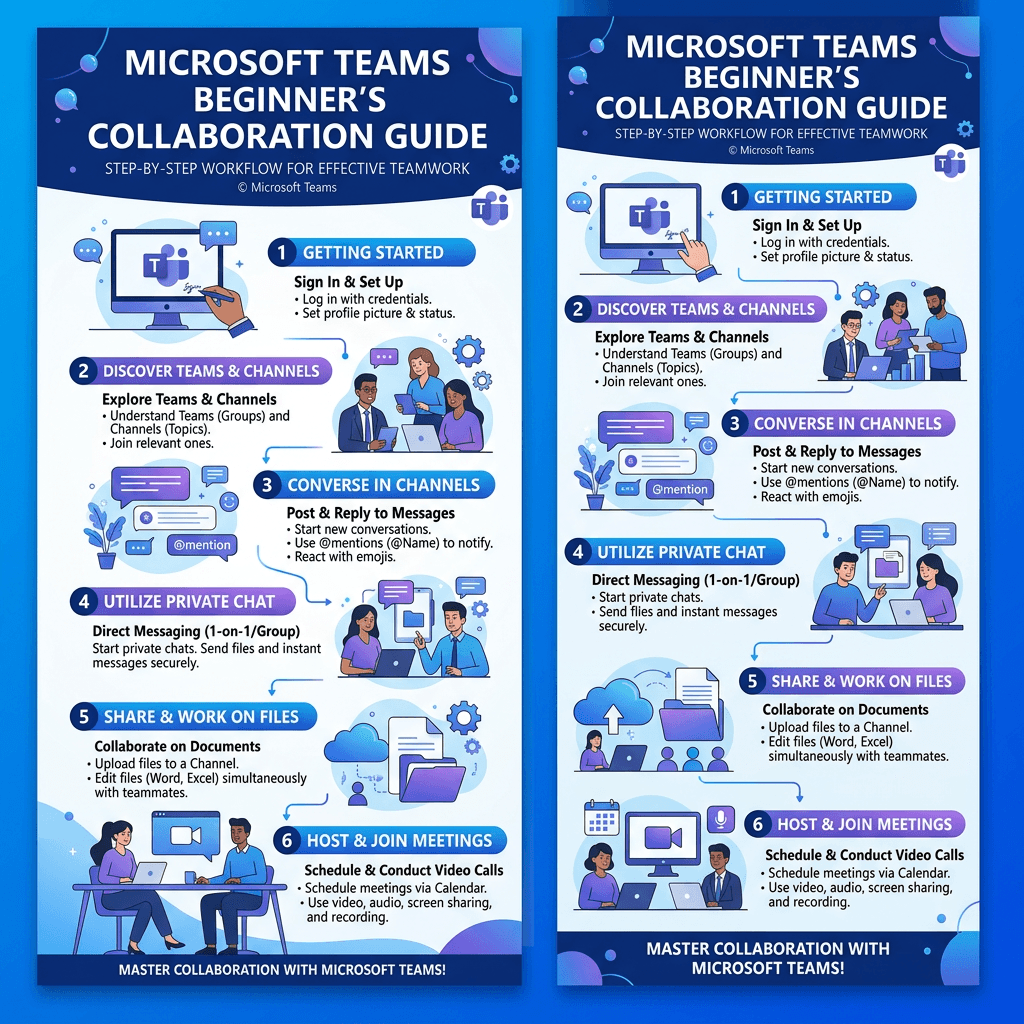
Microsoft Teams Guide: How to Use Teams for Beginners
Microsoft Teams is a collaboration platform that combines chat, meetings, voice and video calls, file sharing, and teamwork tools in one application. It is widely used by businesses, schools, and organizations to communicate and collaborate remotely or from the same office.
If you are new to Microsoft Teams, understanding its basic features can make it much easier to communicate with coworkers, join meetings, share documents, and organize conversations.
This guide explains how Microsoft Teams works, the main features beginners should know, and some common problems you may encounter.
What Is Microsoft Teams?
Microsoft Teams is a communication and collaboration application developed by Microsoft. It is available as part of Microsoft 365 plans, and Microsoft also offers a free version with a different set of features.
Teams allows users to communicate through individual and group chats, participate in online meetings, make calls, share files, and collaborate on documents.
For businesses, Teams can provide a central place for employees to communicate without relying entirely on email.
Teams can be used through a desktop application, mobile app, or web browser.
What Can You Do With Microsoft Teams?
Microsoft Teams includes several tools designed for workplace communication and collaboration.
Chat
Teams allows you to send direct messages to individual coworkers or participate in group conversations.
You can send:
- Text messages
- Files
- Images
- Links
- Reactions
- Mentions
Chat is useful for quick questions and conversations that do not require a formal meeting.
Teams and Channels
The names can be confusing for beginners because Teams and channels are different concepts.
A team is a shared workspace for a group of people, such as a department, project, or organization.
Channels exist within teams and help organize conversations and work around specific topics.
For example:
Marketing Team
- General
- Social Media
- Website
- Campaigns
This structure keeps discussions related to each topic in one place rather than mixing everything into a single conversation.
Microsoft Teams Meetings
Teams can be used to hold online meetings with audio and video.
Depending on the organization’s Microsoft 365 plan and configuration, meeting features can include:
- Video and audio communication
- Screen sharing
- Meeting chat
- Live captions
- Recording
- Participant management
- Background effects
To join a meeting, you will normally receive a Teams meeting invitation or link. You can then join through the Teams application or supported web browser.
File Sharing and Collaboration
Teams integrates with Microsoft’s file and collaboration services, allowing users to work with documents without constantly emailing attachments back and forth.
For example, team members can collaborate on Microsoft Word, Excel, and PowerPoint files.
This can reduce the confusion caused by multiple versions of the same document, such as:
Project-Report-Final.docx
Project-Report-Final-2.docx
Project-Report-Final-Revised.docx
Instead, users can work with shared documents and use Microsoft’s version and collaboration features.
How Microsoft Teams Works With Microsoft 365
One of the major advantages of Teams for organizations already using Microsoft 365 is its integration with Microsoft’s broader ecosystem.
Depending on the organization’s subscription and configuration, Teams can work alongside services and applications such as:
- Microsoft Word
- Microsoft Excel
- Microsoft PowerPoint
- OneDrive
- SharePoint
- Outlook
- OneNote
This integration can make Teams particularly useful for organizations that already rely heavily on Microsoft products.
However, the exact features available depend on the Microsoft 365 subscription, administrator settings, and the version of Teams being used.
How to Get Started With Microsoft Teams
If you are a beginner, you do not need to learn every Teams feature immediately.
Start with these basic functions.
1. Sign in
Open Microsoft Teams and sign in using your Microsoft account or your organization’s account.
If your employer provides Microsoft 365, you may need to use your company email address.
2. Learn the main navigation
Become familiar with areas such as:
- Chat
- Teams
- Calendar
- Calls
- Activity
The exact navigation can vary depending on the version of Teams and your organization’s configuration.
3. Send a chat message
Select Chat, choose a contact, and type your message.
You can also start group conversations when you need to communicate with several people.
4. Join a meeting
Open your meeting invitation and select the meeting link, or find the meeting through your Teams calendar.
Before joining, check your:
- Microphone
- Camera
- Speakers
- Internet connection
5. Learn how channels work
If your organization uses teams and channels, open the relevant team and explore its channels.
Use the appropriate channel when posting information so that coworkers can find the conversation later.
Microsoft Teams vs. Other Collaboration Tools
Microsoft Teams, Slack, and Zoom can all support workplace communication, but they are designed around somewhat different strengths.
| Feature | Microsoft Teams | Slack | Zoom |
|---|---|---|---|
| Direct messaging | Yes | Yes | Yes |
| Group communication | Yes | Yes | Yes |
| Video meetings | Yes | Yes | Yes |
| File sharing | Yes | Yes | Yes |
| Microsoft 365 integration | Strong | Available through integrations | Available through integrations |
| Team/channel organization | Yes | Yes | Available through chat/team features |
The best option depends on the organization’s existing software, communication requirements, budget, security policies, and preferred workflow.
There is no single collaboration platform that is automatically best for every business.
Common Microsoft Teams Problems and How to Fix Them
Even when Teams is configured correctly, users can encounter problems.
Teams won’t sign in
Check that:
- Your internet connection is working.
- You are using the correct Microsoft account.
- Your Microsoft 365 account is active.
- Teams is not experiencing a service outage.
- Your organization has not changed your account permissions.
If the problem continues, your organization’s Microsoft 365 administrator may need to investigate the account.
Your microphone or camera isn’t working
First check whether Teams has permission to access your microphone and camera.
Then check:
- Whether another application is using the device
- Whether the correct microphone is selected
- Whether the camera is physically blocked
- Whether your device drivers are functioning correctly
Leaving and rejoining the meeting can also resolve temporary connection problems.
Teams is running slowly
Try closing unnecessary applications and restarting Teams.
You should also check your internet connection and make sure your computer has sufficient available memory and processing resources.
If Teams consistently performs poorly across multiple users, the problem may require a broader network or system investigation.
You cannot access a file or channel
Your organization may have restricted access to the relevant team, channel, SharePoint site, or document.
In this situation, contact the team’s owner or Microsoft 365 administrator rather than repeatedly attempting to change settings yourself.
Microsoft Teams Security for Businesses
Microsoft Teams should be configured as part of an organization’s broader security strategy.
Businesses should consider:
- Strong account authentication
- Multi-factor authentication
- Appropriate user permissions
- Regular Microsoft 365 updates
- Employee security training
- Controlled external sharing
- Appropriate file-sharing policies
- Protection of sensitive business information
Teams itself does not eliminate security risks. How an organization configures and manages Microsoft 365 has an important impact on its overall security.
For businesses that need assistance managing their broader IT environment, Archer IT Solutions’ managed IT services may be relevant.
Frequently Asked Questions
What is Microsoft Teams mainly used for?
Microsoft Teams is used for workplace communication and collaboration, including chat, online meetings, calls, file sharing, and collaborative work.
Is Microsoft Teams free?
Microsoft offers a free version of Teams, while Microsoft 365 subscriptions provide additional features and capabilities. The features available depend on the specific plan.
Do I need Microsoft 365 to use Teams?
Not necessarily. Microsoft offers a free version of Teams, while businesses can use Teams through eligible Microsoft 365 subscriptions.
Can I use Microsoft Teams on my phone?
Yes. Microsoft Teams has mobile applications for supported Android and iOS devices.
Can I use Teams without installing the desktop application?
In many situations, Teams can be accessed through a web browser. The available features may vary depending on the browser, account, and organization.
Why can’t I join a Microsoft Teams meeting?
Possible causes include an incorrect meeting link, account or permission problems, an internet connection issue, or a problem with Teams itself. Check your connection and meeting invitation first, then contact your organization’s administrator if necessary.
Final Thoughts
Microsoft Teams brings communication and collaboration tools together in one platform. Beginners can start with the basics—chat, meetings, channels, and file sharing—and gradually learn the more advanced features their organization needs.
For businesses already using Microsoft 365, Teams can be particularly useful because it connects with Microsoft’s broader productivity ecosystem.
The key is not to use every available feature simply because it exists. Set up Teams around how your employees actually communicate and work, then establish appropriate permissions and security controls.
If your business needs help with Microsoft 365, collaboration tools, network infrastructure, or ongoing IT management, you can contact Archer IT Solutions for assistance.


No responses yet