How to Print from a Computer: Beginner’s Step-by-Step Guide
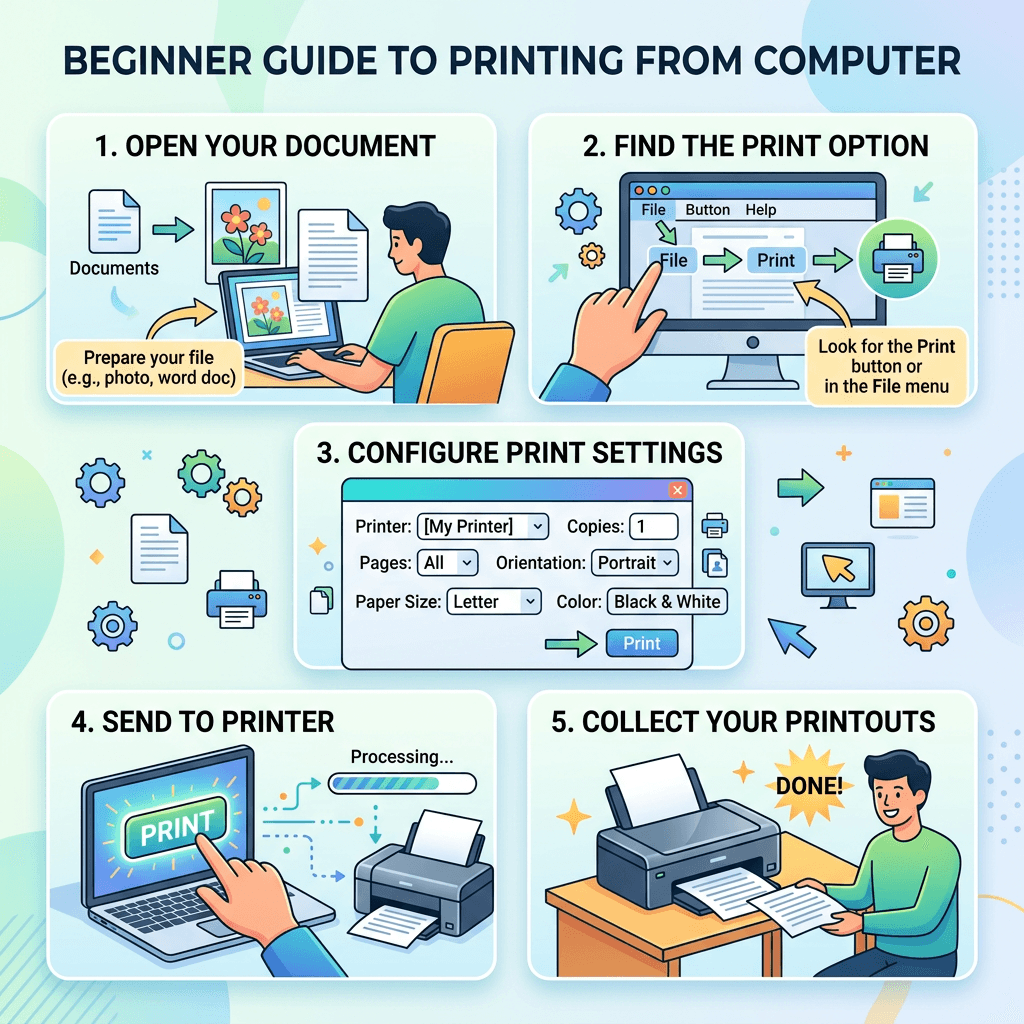
Printing a document from your computer is usually straightforward once your printer is connected and configured correctly. Whether you are printing a Word document, PDF, spreadsheet, photo, or web page, the basic process involves selecting a printer, choosing your print settings, and sending the document to the printer.
This guide explains how to print from a computer, including how to connect a printer, choose print settings, print from Windows and Mac, and troubleshoot common printing problems.
How to Connect a Printer to Your Computer
Before you can print, your computer needs to communicate with the printer. Most printers connect using either a USB cable or Wi-Fi.
Connecting a Printer With USB
A USB connection is one of the simplest ways to connect a printer.
- Turn on the printer.
- Connect the USB cable to the printer and computer.
- Wait for the computer to detect the printer.
- Install the printer software or driver if required.
- Open your computer’s printer settings and confirm that the printer appears.
Some newer printers may automatically install the necessary software when connected. If the printer is not detected, check the manufacturer’s support website for the appropriate driver.
Connecting a Wireless Printer
Wireless printers connect to your computer through your Wi-Fi network.
First, connect the printer to your Wi-Fi network using its display or setup instructions. Then add the printer through your computer’s printer settings.
On Windows, go to:
Settings → Bluetooth & devices → Printers & scanners
Select Add device and follow the instructions.
On Mac, go to:
Apple menu → System Settings → Printers & Scanners
Select Add Printer, Scanner, or Fax and choose your printer.
Your computer and printer generally need to be connected to the same network for network printing to work properly.
How to Print a Document on Windows
Once your printer is connected, printing a document is usually only a few steps away.
- Open the document, image, or webpage you want to print.
- Select File → Print.
- Choose your printer.
- Select the pages you want to print.
- Choose the number of copies.
- Select your preferred paper size and orientation.
- Click Print.
You can also use the keyboard shortcut Ctrl + P in many Windows applications to open the print dialog.
Before confirming the print job, check the preview carefully. This can help prevent accidentally printing the wrong pages or using an incorrect layout.
How to Print from a Mac
The process is similar on macOS.
- Open the document or image.
- Select File → Print.
- Choose the correct printer.
- Select the number of copies and pages.
- Adjust available print settings.
- Review the preview.
- Select Print.
The keyboard shortcut Command + P can also open the print dialog in many Mac applications.
The available options can vary depending on the application, printer model, and installed printer software.
How to Choose the Right Print Settings
The print dialog normally provides several options that affect the final result.
Number of Copies
Choose how many copies you need before sending the document to the printer.
Page Range
You do not always need to print an entire document. You can often select specific pages, such as pages 2–5.
Orientation
Most documents use either:
- Portrait — vertical page orientation
- Landscape — horizontal page orientation
Choose the orientation that best fits your document.
Color or Black and White
If you are printing a document that does not require color, selecting black and white or grayscale can reduce color ink or toner usage.
Print Quality
Many printers provide quality options such as draft, standard, or high quality.
High-quality settings can produce sharper images but may use more ink or toner and take longer to print.
For everyday documents, standard quality is often sufficient.
Paper Size
Make sure the paper size selected in the print settings matches the paper loaded in the printer.
Common paper sizes include:
- Letter
- Legal
- A4
Using the wrong paper size can result in incorrect formatting or printing errors.
How to Print a PDF
PDF files can be printed from applications such as Adobe Acrobat Reader or directly through a web browser.
Open the PDF and select the Print option. Choose your printer, select the required pages and copies, review the print preview, and send the job to the printer.
If the PDF contains multiple pages, check the page range before printing. This is particularly useful when you only need a few pages from a large document.
How to Print a Web Page
You can also print information directly from your web browser.
Press Ctrl + P on Windows or Command + P on Mac, then choose the printer and review the preview.
Web pages can sometimes contain advertisements, navigation menus, or other elements that you do not need. Check the print preview before printing so you do not waste paper and ink.
Some websites also provide a Print or Print-friendly option that produces a cleaner version of the page.
Common Computer Printing Problems and How to Fix Them
Even after setting up a printer correctly, printing problems can occur.
Printer Is Not Detected
If your computer cannot find the printer:
- Check that the printer is turned on.
- Check the USB connection if using a cable.
- Confirm that the printer is connected to Wi-Fi.
- Make sure the computer is connected to the correct network.
- Restart the printer and computer.
- Check whether the printer appears under your computer’s printer settings.
For persistent problems, the printer driver or network configuration may need to be investigated.
Printer Shows as Offline
A printer may appear offline even when it is switched on.
Check the printer’s network connection first. If it is connected through Wi-Fi, confirm that it has not disconnected from the network.
You can also restart the printer and remove and reconnect it through your computer’s printer settings.
Print Job Is Stuck
Sometimes a document becomes stuck in the print queue.
Open your printer settings and check the current print queue. Cancel the stuck document and try sending the print job again.
If several jobs are stuck, clearing the queue and restarting the printer may resolve the problem.
Printer Produces Blank Pages
If the printer produces blank pages, check:
- Ink or toner levels
- Cartridge installation
- Printhead condition
- Paper settings
- Printer maintenance alerts
Inkjet printers may require a printhead cleaning or alignment procedure when print quality deteriorates.
Printed Text or Images Look Poor
Poor print quality can result from low ink or toner, incorrect print settings, unsuitable paper, or a clogged printhead.
Try printing a test page and checking the printer’s maintenance settings. If the problem continues, consult the printer manufacturer’s instructions for your model.
USB vs. Wi-Fi Printing
Both connection methods can work well, but they are suited to different situations.
| Feature | USB | Wi-Fi |
|---|---|---|
| Setup | Usually simple | Requires network setup |
| Mobility | Limited | More flexible |
| Multiple computers | Less convenient | Convenient |
| Internet required | No | No, but local network is required |
| Best for | One computer | Multiple devices |
A USB connection can be useful when you primarily print from one computer. Wi-Fi printing is more convenient when several computers or mobile devices need to use the same printer.
Tips for Easier Printing
A few simple habits can prevent common printing problems.
Check the print preview first.
Make sure the correct pages, orientation, paper size, and number of copies are selected.
Keep printer software updated.
Updates can resolve compatibility and performance problems.
Use the correct paper.
Photo paper, plain paper, labels, and other materials may require different printer settings.
Avoid unnecessary color printing.
For documents that do not require color, grayscale printing can help reduce color ink consumption.
Keep your printer maintained.
Follow the manufacturer’s recommendations for cleaning, cartridge replacement, and other maintenance.
When You May Need IT Support
Basic printer problems can often be resolved at home, but business environments can be more complicated.
For example, an office may have several computers sharing network printers, printers connected through a server, or security policies controlling which employees can access specific devices.
In those situations, troubleshooting may involve network configuration, printer permissions, drivers, or other IT infrastructure.
Archer IT Solutions provides managed IT services and onsite IT support for businesses that need assistance with their technology systems.
Frequently Asked Questions
How do I print from a computer?
Connect your printer using USB or Wi-Fi, open the document you want to print, select File → Print or use Ctrl + P on Windows or Command + P on Mac, choose the printer, adjust the settings, and select Print.
Can I print from a laptop without a cable?
Yes. If your printer supports Wi-Fi, you can connect both the laptop and printer to the same wireless network and add the printer through the computer’s printer settings.
Why is my computer not detecting my printer?
Check that the printer is powered on and connected correctly. For wireless printers, make sure the printer and computer are connected to the appropriate network. You may also need to install or update the printer driver.
Why is my printer showing as offline?
The printer may have lost its network connection, or the computer may be unable to communicate with it. Restarting the printer and checking its network connection can often help.
Why is my print job stuck?
A print job can become stuck because of a temporary software, driver, or printer connection problem. Open the print queue, cancel the stuck job, and try printing again.
Final Thoughts
Learning how to print from a computer is a basic skill that becomes much easier once your printer is properly connected and configured.
Whether you use a USB connection or Wi-Fi, the process generally involves selecting your printer, checking the print settings, reviewing the preview, and sending the document to print.
If printing problems continue despite basic troubleshooting, particularly in a business environment with multiple computers or network printers, professional IT support can help identify whether the underlying problem is related to the printer, computer, network, or software.
For assistance with business IT systems, contact Archer IT Solutions.


No responses yet