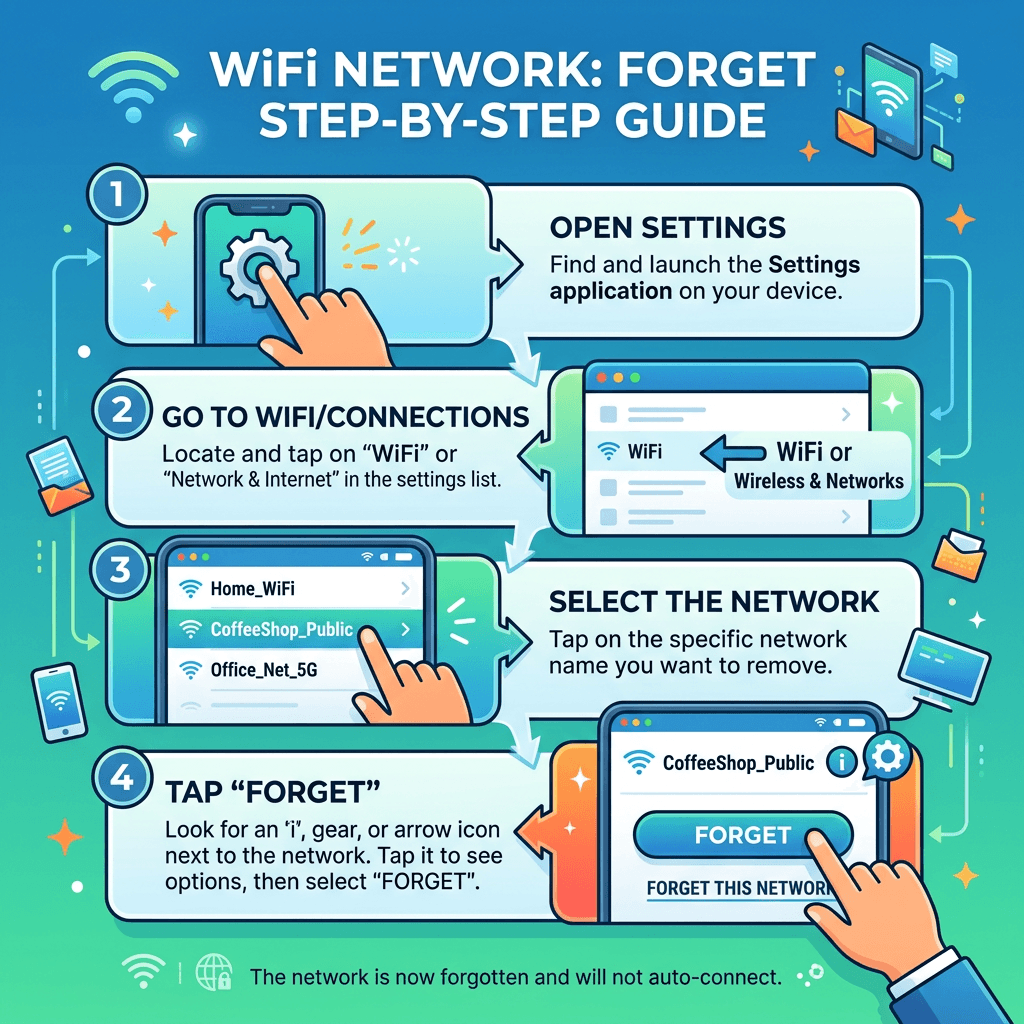
How to Forget a WiFi Network Fast: A Simple Step-by-Step Guide
🔍 Summary Box
This article covers:
- How to quickly forget a WiFi network on Windows, Mac, Android, and iPhone
- Why forgetting old WiFi networks matters
- Troubleshooting if a network won’t disappear
💡 What You’ll Learn
- The fastest way to remove saved WiFi connections
- Device-specific tips for network cleanup
- How this fixes common internet errors
- Why safe network management improves security
👉 Get Professional Help Now: https://www.archer-its.com/contact-us/
⚡ Quick Answer (Featured Snippet)
To forget a WiFi network fast, open your device’s WiFi settings, select the saved network, and tap “Forget” or “Remove.” This deletes the credentials so your device no longer connects automatically.
Ever noticed your device keeps connecting to an old WiFi network that barely works? That’s a common frustration for small business owners, developers, and everyday users. Learning how to forget a WiFi network fast is an essential tech skill that not only saves time but also enhances your device’s performance and security.
At Archer IT Solutions, we understand how tricky connectivity issues can eat into your productivity. This guide will show you precisely how to delete saved networks on your phone, laptop, or desktop — and help you keep your connections clean, secure, and efficient.
Read on for a simple, step-by-step guide you can follow even if you’re not tech-savvy. Let’s make your WiFi experience smarter in minutes.
Quick Steps to Forget a WiFi Network Instantly
Forgetting a WiFi network is easy once you know where to look. Whether you’re on Windows, macOS, Android, or iOS, the steps are nearly identical — navigate to WiFi settings, pick the network, and select “Forget This Network.” This action removes stored login details so your device won’t auto-connect in the future.
On Windows, go to Settings > Network & Internet > WiFi > Manage known networks, choose the specific network, and click “Forget.” For Mac users, head to System Settings > Network > WiFi > Known Networks and remove it. It only takes a few seconds and can immediately solve connection conflicts.
Mobile devices are just as straightforward. On an iPhone, open Settings > WiFi, tap the info (i) icon next to the network, and select “Forget This Network.” On Android, open WiFi settings, press and hold the network name, and tap “Forget.” Done — the network is gone, and your device is free to connect to the right one.
📊 Pros and Cons of Forgetting a WiFi Network
| Pros | Cons |
|---|---|
| Improves network security | Might need to re-enter passwords later |
| Reduces auto-connect errors | Accidental removal may require reconfiguration |
| Helps troubleshoot slow WiFi | Temporary disconnect if forgotten prematurely |
(Supporting image idea: A smartphone showing “Forget Network” option. ALT text: “Phone WiFi settings with forget network option visible.”)
Simple Guide to Remove Saved WiFi Connections
Sometimes, multiple networks cause slow performance because your device keeps “jumping” between connections. Regularly clearing saved WiFi entries keeps your system running smoothly. It also boosts security — old stored credentials can be points of vulnerability if networks were public or previously compromised.
Here’s a structured walkthrough:
- Open WiFi or Network Settings
Navigate to your device’s list of saved connections. - Select the Network to Forget
Look for the one that’s causing issues or that you no longer use. - Tap “Forget” or “Remove”
Confirm the action to delete stored details.
If your computer keeps reconnecting automatically, double-check that the network was actually deleted. Restarting the device often ensures changes take effect.
🔧 Troubleshooting: When a WiFi Network Won’t Disappear
In rare cases, a WiFi network might persist in your list even after deleting it. If this happens, try the following:
- Restart your device: Cached network data may linger until rebooted.
- Run network diagnostics: Windows has a built-in troubleshooter that resets network adapters.
- Reset network settings: On phones, this clears all saved connections and refreshes WiFi drivers.
If connection issues continue, your system might need professional IT care — something Archer IT Solutions specializes in. We provide Managed IT Services to keep your devices secure and optimally configured for stable connectivity.
👉 Fast, Reliable Web Hosting — Starting at $1.99/month
Looking to improve your online presence along with network speed? Archer IT Solutions also provides affordable web hosting designed for speed, uptime, and professional IT support — ideal for small business owners and tech entrepreneurs.
🧰 Comparison Table: Reset vs. Forget WiFi
| Feature | Forget WiFi | Reset Network |
|---|---|---|
| Deletes specific network only | ✅ | ❌ |
| Keeps other network settings | ✅ | ❌ |
| Solves selective connectivity issues | ✅ | ✅ |
| Requires password re-entry | ✅ | ✅ |
| Recommended for minor issues | ✅ | ❌ |
📚 Related Reading
- The Complete Guide to Server Administration
- The Complete Guide to Web Hosting
- External Resources:
💬 Case Study: Client WiFi Issue Resolved
“We helped a small business client whose laptops kept auto-connecting to outdated networks. Within minutes, our team at Archer IT Solutions remotely configured their settings and restored full connectivity.” – Sarah J., Small Business Owner
Forgetting a WiFi network might seem minor, but it’s one of the quickest ways to optimize performance and maintain security. By clearing outdated connections, your devices connect smarter — not harder.
If these steps didn’t fully resolve your connectivity problems, our certified technicians at Archer IT Solutions are ready to help. Whether you need hands-on IT support, network optimization, or managed services, we’ve got you covered.
👉 Contact Archer IT Solutions Now: https://www.archer-its.com/contact-us/
Response guaranteed within 6 hours — let’s get your network running perfectly again.
📝 FAQ: Forget a WiFi Network
1. Will forgetting a network delete my password?
Yes, it clears the saved password, so you’ll need to re-enter it if you reconnect later.
2. Can I undo forgetting a WiFi network?
Not directly. You simply reconnect manually by choosing the network and entering its password again.
3. Does forgetting a network improve speed?
In many cases, yes — your device won’t bounce between multiple old connections.
4. Why does my device keep reconnecting?
You might have cloud-sync enabled for networks. Turn this off to stop automatic reconnections.
5. Should businesses forget public or guest networks?
Absolutely. It prevents unauthorized auto-connections that can expose sensitive data.
🔁 SUMMARY
- Forgetting WiFi networks clears errors and boosts performance.
- It’s fast, secure, and easy across all devices.
- Archer IT Solutions can manage and secure your network for long-term stability.
🚀 FINAL CTA
👉 Request IT Support Now: https://www.archer-its.com/contact-us/
or email support@archer-its.com — we’ll get your connection right, fast.


No responses yet