DNS for Beginners: What It Is, How It Works, and Common Mistakes
DNS can seem complicated because it works behind the scenes every time you visit a website. You type a domain name such as example.com into your browser, and the correct website appears almost instantly. But before that page loads, DNS has to help your device find the right server.
For website owners and small businesses, understanding DNS is important because a simple DNS mistake can make a website inaccessible, interrupt business email, cause SSL problems, or send visitors to the wrong server.
The good news is that you do not need to be a networking expert to understand the basics.
What Is DNS?
DNS stands for Domain Name System. It is essentially the internet’s system for matching easy-to-remember domain names with the IP addresses used by computers and servers.
Think of DNS like the contacts list on your phone. You can save someone’s name instead of memorizing their phone number. When you select their name, your phone looks up the number for you.
DNS works in a similar way.
When you type archer-its.com into your browser, your computer needs to find the IP address of the server hosting that website. DNS provides that information so the browser knows where to send the request.
Without DNS, people would have to remember numerical IP addresses instead of simple domain names.
A Simple Example
Imagine a customer types:
yourbusiness.com
into their browser.
The basic process is:
Domain name → DNS lookup → IP address → Web server → Website
This happens very quickly, usually before you even notice it.
For most website visitors, DNS simply works in the background. But when something is configured incorrectly, the results can be obvious: a website may stop loading, email may stop working, or visitors may be directed to the wrong location.
How DNS Works When You Visit a Website
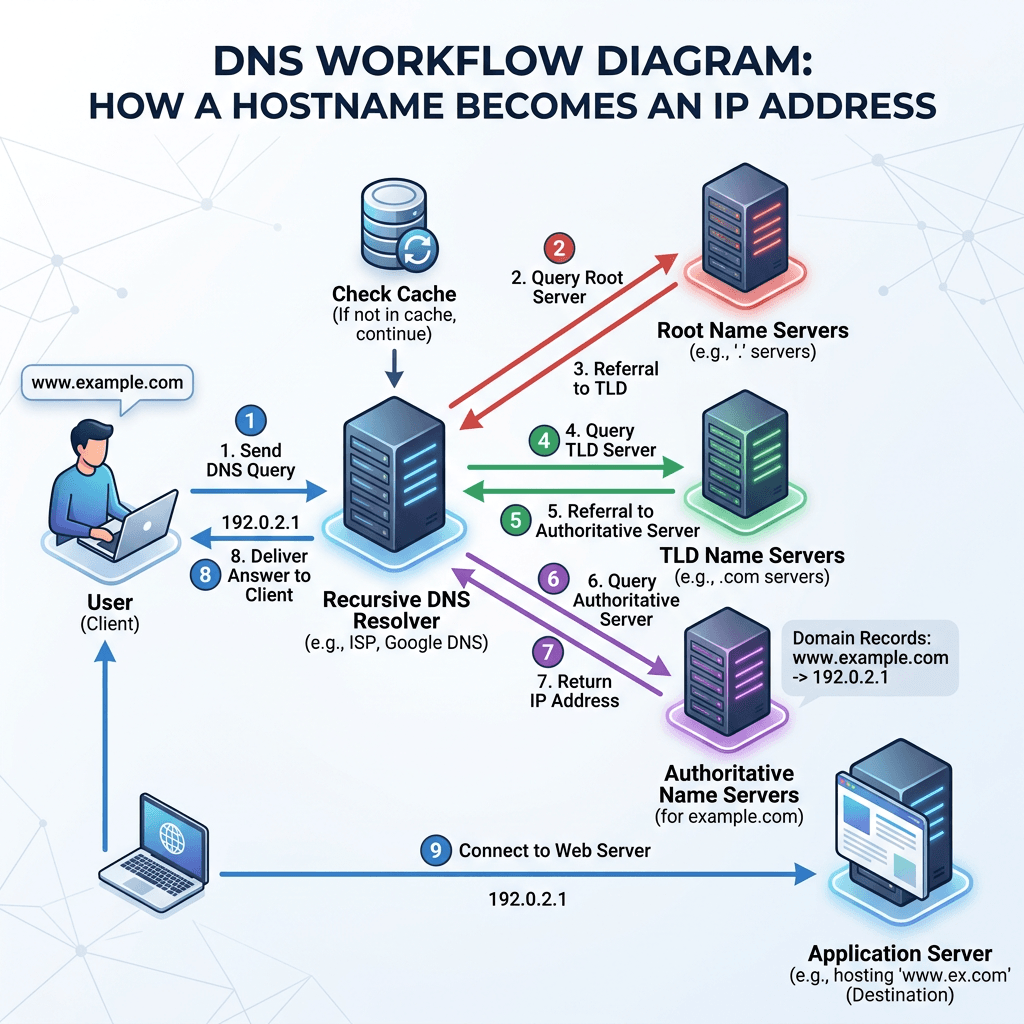
When you enter a domain name into your browser, your device needs to discover where that domain is hosted.
First, your device contacts a DNS resolver. The resolver looks for the information associated with the domain. If it does not already have the answer stored in its cache, it queries the appropriate DNS servers until it finds the correct information.
The DNS system then provides the IP address associated with the domain.
Your browser can now contact the web server and request the website files.
This entire process happens extremely quickly, which is why most users never think about DNS.
The Main DNS Components Beginners Should Know
You do not need to understand every DNS record to manage a website, but several are worth knowing.
| DNS Record | What It Does | Common Use |
|---|---|---|
| A | Points a domain to an IPv4 address | Website hosting |
| AAAA | Points a domain to an IPv6 address | Website hosting |
| CNAME | Points one hostname to another hostname | www, third-party services |
| MX | Specifies mail servers | Business email |
| TXT | Stores text information | SPF, DKIM, verification |
| NS | Identifies authoritative nameservers | DNS management |
| CAA | Controls which certificate authorities can issue SSL certificates | SSL security |
For example, an A record may point your domain to the IP address of your hosting server, while an MX record tells email systems where messages for your domain should be delivered.
What Are DNS Nameservers?
Nameservers are particularly important because they determine where your domain’s DNS information is managed.
Your domain may be registered with one company while your website is hosted with another. Your email might even be provided by a third company.
That is perfectly normal.
However, your domain’s nameservers determine which DNS provider is authoritative for the domain.
This means you need to make DNS changes in the correct location.
For example, you might update an A record at your hosting company’s DNS dashboard while your domain is actually using nameservers from another provider. In that situation, your change may have no effect because the internet is still using the records from the authoritative DNS provider.
Before changing DNS, always confirm which nameservers your domain is using.
What Is DNS Propagation?
One of the most confusing parts of DNS for beginners is propagation.
You might change a DNS record and expect the new setting to work immediately. Sometimes it does. Other times, different users may continue seeing the old information for a while.
This happens because DNS information can be cached by resolvers and other systems.
A setting called TTL (Time to Live) determines how long certain DNS information can remain cached before it needs to be checked again.
As a result, DNS changes can take some time to appear consistently across different networks.
If you have recently moved your website to a new hosting provider, changed nameservers, or modified DNS records, avoid repeatedly changing the settings simply because you do not see the result immediately.
Common DNS Mistakes That Cause Website Problems
DNS problems are often caused by relatively small configuration mistakes.
1. Changing DNS in the Wrong Account
If your domain uses nameservers from one provider but you edit DNS records somewhere else, your changes may not affect the live domain.
Always check your active nameservers first.
2. Pointing the A Record to the Wrong Server
If your A record contains the wrong IP address, visitors may be sent to the wrong server or receive an error instead of your website.
This can happen after changing hosting providers.
3. Forgetting the www Record
A website may work at:
example.com
but fail at:
www.example.com
if the www record has not been configured correctly.
4. Accidentally Removing MX Records
If you delete or change your MX records incorrectly, your business email may stop receiving messages.
This is particularly important when your website and email are provided by different companies.
5. Changing DNS Without a Backup
Before making significant DNS changes, take screenshots or export your DNS records when your provider allows it.
That gives you something to refer back to if a change causes a problem.
6. Making Multiple Changes While Waiting for Propagation
If you change several records repeatedly while waiting for DNS updates, troubleshooting becomes much harder.
Make one change, verify it, and give the DNS system time to update.
DNS Troubleshooting Checklist
If your website or email stops working after a DNS change, work through these steps.
Step 1: Check Your Nameservers
Confirm that your domain is using the nameservers of the DNS provider where you are making changes.
Step 2: Check Your A Record
Make sure the A record points to the correct hosting server IP address.
Step 3: Check Your www Record
Make sure www is configured correctly, usually through a CNAME or another appropriate record.
Step 4: Check Your MX Records
If your website works but email does not, review your MX records before changing anything else.
Step 5: Check for Recent Hosting Changes
If you recently moved your website, changed hosting providers, or changed your domain configuration, DNS may be part of the issue.
Step 6: Allow Time for DNS Updates
Some changes may appear quickly, while others can take longer because of DNS caching and TTL settings.
Step 7: Use DNS Lookup Tools
You can use online DNS lookup tools to see what records are currently being returned for your domain.
For additional DNS education, these resources are useful:
How DNS Affects Your Website, Email, and SSL
DNS does more than help people find your website.
Website Hosting
Your DNS records help direct visitors to the server hosting your website. If those records are incorrect, your website may be unreachable.
Business Email
MX records tell email systems where to deliver messages for your domain.
TXT records can also be used for email authentication systems such as SPF, DKIM, and DMARC.
SSL Certificates
DNS can also be involved in domain verification and SSL certificate management. CAA records can be used to specify which certificate authorities are allowed to issue certificates for your domain.
Website Migrations
When moving a website from one hosting provider to another, DNS is often one of the key parts of the migration process.
If the DNS is updated incorrectly, visitors may continue reaching the old server or encounter errors.
DNS and Web Hosting: Why They Work Together
DNS gets visitors to the right destination, but it does not make the destination itself reliable.
If your hosting server is slow, overloaded, poorly configured, or frequently unavailable, your website can still perform badly even when your DNS is working perfectly.
This is why DNS, hosting, website optimization, and server configuration should be considered together when troubleshooting website performance.
Archer IT Solutions provides web hosting, WordPress hosting, website optimization, managed IT services, and technical support for businesses that need help keeping their online systems reliable.
Explore Archer IT Solutions Web Hosting
You can also read the Complete Guide to Web Hosting for a broader explanation of hosting and website infrastructure.
When Should You Get Help With DNS?
Simple DNS changes can sometimes be handled yourself, especially when your hosting provider gives you clear instructions.
However, be more cautious when DNS is connected to:
- A business website
- Multiple email accounts
- WordPress hosting
- Ecommerce
- SSL certificates
- Microsoft 365 or Google Workspace
- Multiple domains or subdomains
- A website migration
- Business-critical applications
A single incorrect record can affect more than just your website.
If you are unsure which DNS record to change, it is better to confirm the correct setting before making changes.
Archer IT Solutions can help with DNS troubleshooting, hosting, WordPress, server administration, website optimization, and business IT support.
FAQ: DNS for Beginners
What does DNS stand for?
DNS stands for Domain Name System. It translates domain names into information that computers use to locate websites and other online services.
Can DNS make a website go down?
Yes. Incorrect DNS records, wrong nameservers, or deleted records can prevent visitors from reaching your website.
How long do DNS changes take?
Some DNS changes can appear within minutes, while others may take longer because of caching and TTL settings.
Which DNS record controls email?
MX records determine where email for a domain should be delivered. TXT records are also important for email authentication, including SPF, DKIM, and DMARC.
What is the difference between an A record and a CNAME?
An A record points a hostname directly to an IPv4 address. A CNAME points one hostname to another hostname.
Should beginners change DNS themselves?
You can make basic DNS changes if you understand what you are changing and have a backup of the existing records. For a business website or email system, it is safer to confirm the correct settings before making significant changes.
Conclusion
DNS is one of the most important parts of the internet that most people never see.
The basic idea is simple: DNS helps connect a domain name to the correct online service.
Nameservers determine where your DNS is managed, individual records determine where different services are directed, and TTL and caching affect how quickly changes are seen.
Understanding these basics can help you troubleshoot website, hosting, and email problems more confidently. But when DNS is connected to important business systems, guessing can create bigger problems.
If your website is not loading, your email has stopped working, or you are moving your website to a new hosting provider, Archer IT Solutions can help you identify the problem and make the necessary changes safely.
Contact Archer IT Solutions for DNS, hosting, website, and IT support
FAST, SECURE WEB HOSTING FOR YOUR BUSINESS
Reliable web hosting with SSL, professional email, backups, and responsive technical support. Get the performance and support you need to keep your business website online and running smoothly.
Launching a new website or moving from another provider? Archer IT Solutions makes hosting simple, secure, and easy to manage.
WHY CHOOSE ARCHER IT?
Everything You Need to Keep Your Website Running Smoothly
⚡ 99.9% Uptime Guarantee
Keep your website available and accessible with reliable hosting infrastructure.
🔒 Free SSL Certificates
Protect your website and visitors with SSL security included with your hosting.
📧 Professional Business Email
Create professional email addresses using your own business domain.
⚙️ One-Click WordPress Installation
Get your WordPress website up and running quickly with easy installation.
💾 Automatic Daily Backups
Help protect your website data with regular automated backups.
🚀 Fast SSD Storage
Fast storage helps your website load efficiently and provides a smoother experience for visitors.
🛠️ 24/7 Technical Support
Get technical assistance when you need help with your hosting.
🔄 Website Migration Assistance
Move your existing website to Archer IT with assistance from the support team.
HOSTING THAT GROWS WITH YOUR BUSINESS
Whether you’re launching your first website or managing multiple client websites, Archer IT Solutions provides reliable hosting designed to support your business as it grows.
Our hosting solutions provide:
⚡ Fast Performance
🔒 Reliable Security
✓ Dependable Uptime
⚙️ Easy Website Management
🛠️ Local Expert Support
WHY BUSINESSES CHOOSE ARCHER IT HOSTING
Enterprise Security
Protect your website with free SSL certificates, malware protection, and secure hosting infrastructure.
Fast Performance
Optimized SSD storage helps your website load quickly and provides a smoother experience for visitors.
Expert IT Support
Get friendly, knowledgeable assistance when you need help with your hosting or website.
Automatic Daily Backups
Regular backups help protect your website data and make recovery easier when needed.
Professional Business Email
Create professional email addresses using your business domain to build trust with customers.
One-Click WordPress Installation
Get your WordPress website up and running quickly with easy installation.
Reliable Hosting for Your Business
Fast, secure and reliable hosting solutions designed to keep your website online, protected and ready to grow.
Standard Hosting
Fast, reliable hosting with the essential tools your business website needs.
- Fast, reliable hosting
- Free SSL security
- Professional email accounts
- 1-click WordPress setup
- Scalable for growing traffic
Domain Only
Register your domain with simple setup and flexible hosting options.
- Affordable yearly pricing
- Easy setup
- Works with any hosting
- Simple domain management
Reseller Hosting
Start your own hosting business or manage multiple client websites with flexible reseller hosting plans.
Reseller 1
- 10 Domains
- 100 GB Disk Space
- 2TB Bandwidth
- 100 Databases
- 100 Mailboxes
- WordPress Ready
Reseller 2
- 25 Domains
- 300 GB Disk Space
- 6TB Traffic
- 300 Databases
- 300 Mailboxes
- WordPress Ready
Reseller 3
- 50 Domains
- 600 GB Disk Space
- 12TB Traffic
- 600 Databases
- 600 Mailboxes
- WordPress Ready
15-DAY MONEY-BACK GUARANTEE
Try Archer IT Hosting Risk-Free
We’re confident in the reliability of our hosting services. If you’re not completely satisfied within your first 15 days, you can request a full refund.
No hidden fees.
No complicated process.
REAL PEOPLE. REAL SUPPORT.
When you need help, you can reach experienced IT professionals who understand your website and hosting needs.
Our team can assist with website migration, email setup, WordPress support, website troubleshooting, and hosting management.
Our team can help with
- Website migration
- Email setup
- WordPress support
- Website troubleshooting
- Hosting management
FREQUENTLY ASKED QUESTIONS
Find answers to common questions about Archer IT hosting, website migration, WordPress, security, and technical support.
What is web hosting?
Web hosting is a service that stores your website files and makes your website accessible on the internet.
Can you migrate my existing website?
Yes. Archer IT Solutions can help migrate your existing website to Archer hosting with minimal downtime.
Is SSL included?
Yes. Every hosting package includes a free SSL certificate to help protect your website and visitors.
Can I install WordPress?
Yes. Our hosting plans include one-click WordPress installation for quick and easy setup.
What happens if my website grows?
You can upgrade your hosting plan as your business and website requirements grow.
Do you provide IT support?
Yes. In addition to web hosting, Archer IT Solutions provides professional IT support to help keep your systems and technology running smoothly.
READY TO GET YOUR WEBSITE ONLINE?
Give your business a reliable foundation with professional web hosting and responsive IT support from Archer IT Solutions. Let us help you get online with confidence.


No responses yet