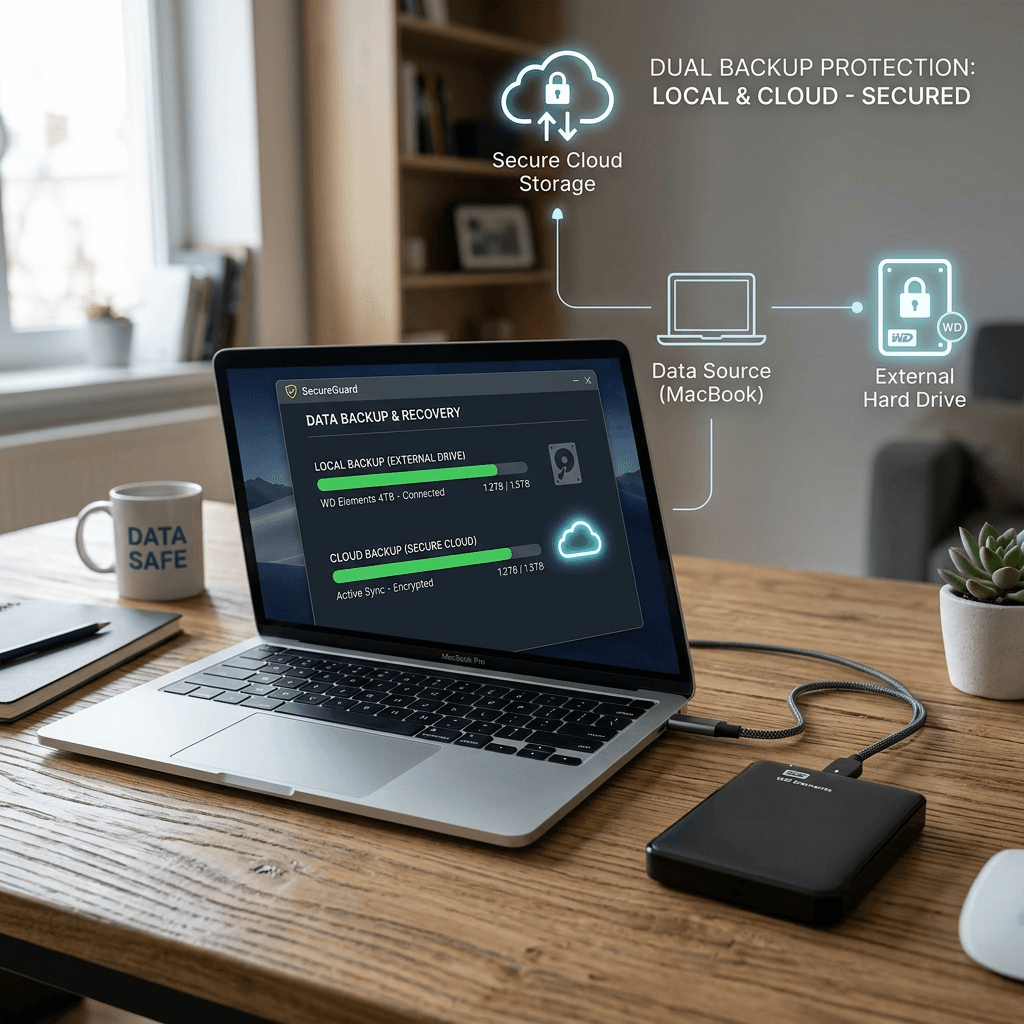
Backup Guide for Beginners: How to Protect Your Important Data
Losing important files can happen unexpectedly. A failed hard drive, accidental deletion, malware infection, ransomware attack, or stolen computer can leave you without access to important documents, photographs, customer records, and other data.
A backup is a separate copy of your important data that can be used to recover your files if something goes wrong. For individuals and small businesses, having an automated and regularly tested backup system can significantly reduce the impact of data loss.
In this guide, we’ll explain the different types of backups, the 3-2-1 backup rule, how often you should back up your data, and common mistakes to avoid.
Why Is Data Backup Important?
Your computer’s hard drive or SSD should never be considered the only safe place for your important files.
Documents, photographs, customer records, financial information, business files, and other data can be lost for many reasons, including:
- Hardware failure
- Accidental deletion
- Theft or loss of a device
- Malware or ransomware
- Software problems
- Power or system failures
- Fire, flooding, or other physical damage
For a home user, losing important photographs or personal documents can be frustrating. For a business, losing customer records, accounting files, or operational data can result in significant downtime and financial loss.
A good backup gives you another way to recover your information when something goes wrong.
What Is the 3-2-1 Backup Rule?
One of the simplest ways to understand a good backup strategy is the 3-2-1 rule.
The traditional approach recommends keeping:
- 3 copies of your important data
- On 2 different types of storage
- With 1 copy stored offsite
For example, a small business could have:
- The original files on its computers or server
- A backup on an external storage device or local backup system
- An additional backup stored securely offsite or in the cloud
The purpose is to avoid having one problem destroy every copy of your data.
For example, if your computer and an external backup drive are both located in the same office and the office experiences a fire, both copies could be lost.
Local Backup vs. Cloud Backup
There are several ways to back up your data, and each has advantages and disadvantages.
| Feature | Local Backup | Cloud Backup |
|---|---|---|
| Storage location | External drive, NAS or local server | Remote data center |
| Internet required | Usually no | Yes |
| Large-file recovery | Often faster locally | Depends on internet speed |
| Offsite protection | Requires separate location | Usually built in |
| Automation | Depends on setup | Commonly available |
| Physical damage risk | Yes, if stored nearby | Lower for local disasters |
| Ongoing cost | Usually hardware purchase | Usually subscription-based |
For many businesses, using both local and offsite/cloud backups provides stronger protection than relying on only one method.
Backup vs. Cloud File Synchronization
One common mistake is assuming that storing files in Google Drive, OneDrive, or another cloud service automatically means you have a complete backup.
Cloud synchronization and backup serve different purposes.
Synchronization keeps files available across multiple devices. If you delete or modify a synchronized file, that change may also be synchronized.
A dedicated backup system is designed specifically to maintain recoverable copies of your data and provide restoration options.
For important business data, don’t assume that synchronization alone is sufficient. Review the provider’s retention, version history, recovery, and backup capabilities.
How to Create a Simple Backup Plan
If you are a beginner, start with the files that would be difficult or impossible to replace.
These might include:
- Business documents
- Customer records
- Financial files
- Photos and videos
- Contracts
- Project files
- Website files
- Important emails
- Databases
Then decide where those files will be backed up.
A basic approach could include:
Step 1: Identify important data
Make a list of the files and folders that must be protected.
Step 2: Choose your backup method
You could use an external drive, NAS, cloud backup, or a combination.
Step 3: Automate the process
Whenever possible, schedule backups rather than relying on yourself to remember to run them manually.
Step 4: Keep a separate copy
Maintain an offsite copy so that a physical disaster does not destroy both your original data and backup.
Step 5: Test your backups
A backup that has never been tested should not automatically be assumed to be recoverable.
Periodically restore a few files—or perform a test recovery—to confirm that the backup system is working correctly.
How Often Should You Back Up Your Data?
The right frequency depends on how often your data changes and how much data you can afford to lose.
For example:
- Personal photographs: daily, weekly, or automatic cloud backup
- Business documents: daily or more frequently
- Critical databases: potentially several times per day
- Less frequently changing archives: less frequent scheduled backups
A useful question is:
How much recent work could we afford to lose?
If losing one day’s work would cause a serious problem, a weekly backup may not be enough.
Common Backup Mistakes to Avoid
1. Keeping only one backup
One backup can fail. Having multiple copies provides additional protection.
2. Keeping all backups in the same location
A backup stored beside the original computer may be lost in the same physical disaster.
3. Never testing the backup
A backup is only useful if you can successfully recover the data.
4. Relying entirely on manual backups
People forget. Automated backups reduce the risk of human error.
5. Ignoring ransomware
Some ransomware can affect connected files and storage. Backup systems should be configured with appropriate security and recovery protections.
6. Forgetting about important systems
Don’t protect only the documents folder. Consider email, databases, website files, accounting data, configurations, and other business-critical information.
What Should Small Businesses Back Up?
For a small business, the backup plan should extend beyond individual employee computers.
Depending on the business, important data may include:
- Customer information
- Accounting and financial records
- Microsoft 365 or Google Workspace data
- Databases
- Website files
- WordPress content
- Business documents
- Employee files
- Server data
- Application configurations
The exact backup strategy should depend on the business’s systems, data volume, security requirements, and recovery needs.
What Happens If Your Computer Fails?
Suppose an employee’s computer suddenly stops working and contains several days of important work.
Without a backup, the business may need to attempt data recovery from the damaged device—and there is no guarantee that everything can be recovered.
With a properly configured backup system, the business can potentially restore the affected files or recover the system from a previous backup.
This is why backup and disaster recovery should be considered part of an overall IT strategy rather than something to think about only after data has already been lost.
When Should You Consider Professional Backup Support?
A simple external drive may be enough for some personal users.
Businesses with multiple computers, servers, cloud applications, customer information, or other critical systems may need a more structured approach.
Professional IT support can help businesses:
- Identify critical data
- Configure automated backups
- Set appropriate backup schedules
- Maintain offsite copies
- Monitor backup jobs
- Test restoration procedures
- Improve security
- Develop a disaster recovery plan
If you’re unsure whether your current backup system would allow you to recover after a major failure, that’s a good reason to have it reviewed.
Archer IT Solutions can help businesses evaluate their current backup strategy and identify areas that need improvement.
Frequently Asked Questions
What is the best backup method for beginners?
For many users, combining an automated local backup with a separate cloud or offsite backup provides stronger protection than relying on a single copy.
How often should I back up my computer?
It depends on how frequently your data changes and how much data you can afford to lose. Important business data may require daily or more frequent backups.
Is Google Drive or OneDrive a backup?
Cloud storage and synchronization can help protect and access files, but they should not automatically be treated as a complete backup strategy. Check the service’s recovery and retention features and consider dedicated backup where appropriate.
What is the 3-2-1 backup rule?
The 3-2-1 rule recommends keeping three copies of your data, using two different storage types, with one copy stored offsite.
How do I know if my backup is working?
Check backup logs and periodically perform a test restoration. A successful backup job is not enough—you should verify that the data can actually be recovered.
Final Takeaway
Backing up your data is one of the simplest ways to reduce the impact of hardware failure, accidental deletion, ransomware, and other unexpected problems.
The key is not simply having a backup. You need a backup strategy that is:
- Automated
- Separate from your original data
- Protected from physical and security threats
- Regularly monitored
- Tested for successful recovery
For businesses, a well-designed backup and disaster recovery strategy can mean the difference between a temporary IT problem and a prolonged interruption to operations.
Need help reviewing your business backup strategy? Contact Archer IT Solutions for IT support and backup assistance.


No responses yet