How to Delete Apps on Android and iPhone: Easy Guide
If your phone is running low on storage, feels cluttered, or contains apps you no longer use, deleting unused apps is a simple way to clean things up. The process is slightly different on Android and iPhone, and some apps may need to be disabled or offloaded rather than completely removed.
This guide explains how to delete apps safely, what to check before removing them, and what to do if an app refuses to uninstall.
How to Delete Apps on Android
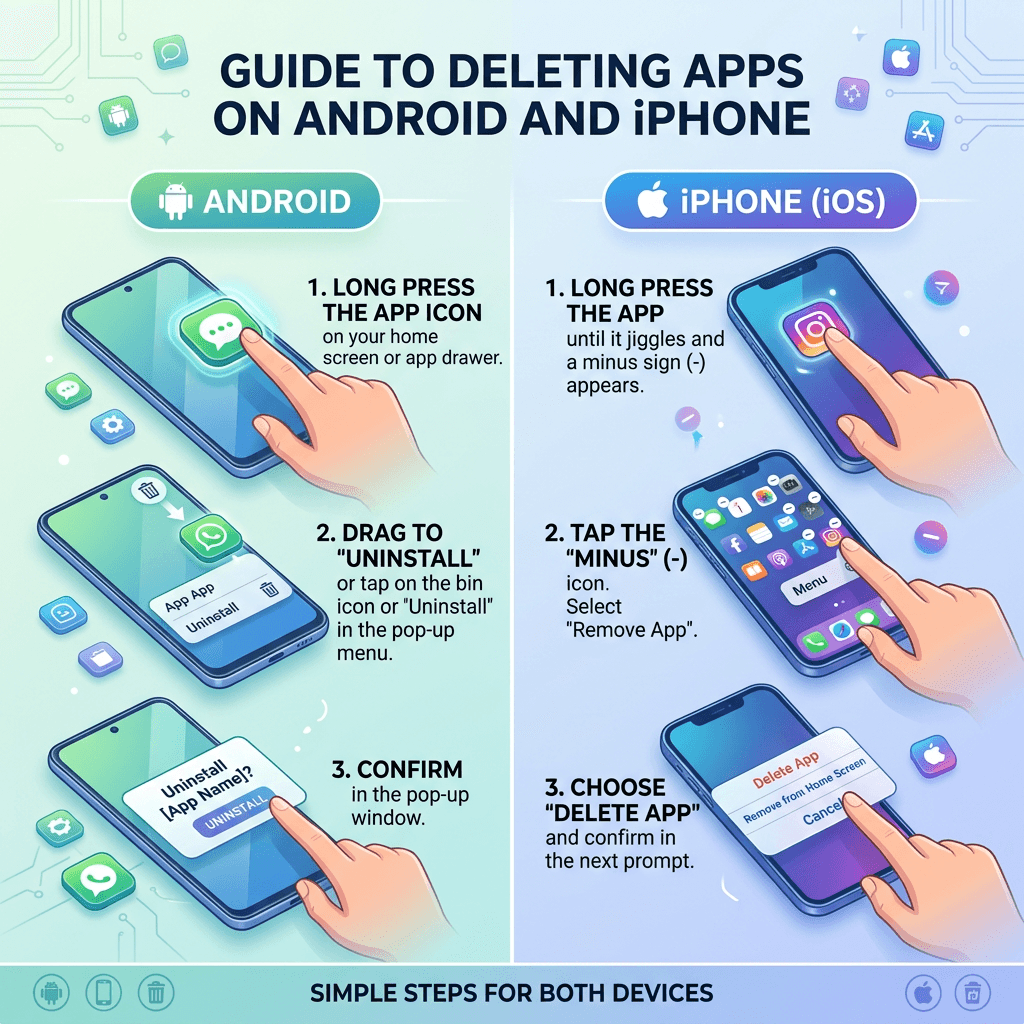
Deleting an app on most Android phones takes just a few seconds.
Method 1: Delete an App From the Home Screen
- Find the app you want to remove.
- Press and hold the app icon.
- Select Uninstall.
- Confirm that you want to remove the app.
The exact wording can vary depending on your phone manufacturer and Android version. Some phones may require you to drag the app toward an Uninstall option.
Method 2: Delete an App Through Settings
If you do not see an uninstall option from the home screen:
- Open Settings.
- Select Apps or Apps & Notifications.
- Find and select the app.
- Tap Uninstall.
- Confirm the removal.
This method is particularly useful when an app is not appearing correctly on your home screen or when you are troubleshooting an application.
Can You Delete Every Android App?
No. Some Android phones include system apps that cannot be completely removed. Depending on the device, you may be able to disable these apps instead.
Disabling an app prevents it from running normally without completely removing it from the device. Avoid disabling system apps unless you know what they do, as some are required for important phone functions.
For official Android guidance, see Google Play Help.
How to Delete Apps on iPhone
Removing an app from an iPhone is also straightforward.
Delete an App From the Home Screen
- Find the app you want to remove.
- Press and hold the app icon.
- Tap Remove App.
- Select Delete App.
- Confirm the deletion.
Be careful not to select only Remove from Home Screen. That option removes the icon from the Home Screen but keeps the app installed in the App Library.
Delete an App Through iPhone Storage
You can also manage apps through your iPhone’s storage settings:
- Open Settings.
- Tap General.
- Select iPhone Storage.
- Choose the app you want to remove.
- Select Delete App.
- Confirm the deletion.
This option is useful when you want to see how much storage each app is using before deciding what to remove.
Apple also provides official guidance through Apple Support.
Delete vs. Offload: What’s the Difference on iPhone?
If you need more storage but may want to use an app again later, Offload App can be a better option than deleting it completely.
Offloading an app removes the application itself while keeping its documents and data on your iPhone. If you reinstall the app later, your saved information can usually be restored.
Deleting an app removes the app and its associated local data.
This makes offloading useful for apps you rarely use but may need again.
| Option | What Happens | Best For |
|---|---|---|
| Delete App | Removes the app and local data | Apps you no longer need |
| Offload App | Removes the app but keeps its data | Apps you may use again |
| Disable Android app | Prevents certain apps from running | Some pre-installed system apps |
What to Check Before Deleting an App
Deleting an app is usually safe, but take a moment to check whether you need anything stored inside it.
Before you delete an app:
- Back up important files or data.
- Make sure you know your login details.
- Check whether the app stores files locally.
- Confirm that you do not need the app for work, banking, security, or authentication.
- Check whether the app has an active subscription.
- Make sure important photos, documents, notes, or other information are synced.
Some apps store information in the cloud, while others may keep important files directly on your device. Checking first can prevent accidental data loss.
Does Deleting an App Cancel a Subscription?
No. Deleting an app does not necessarily cancel its subscription.
For example, if you delete a streaming, fitness, storage, or productivity app, the associated subscription may continue billing you.
Check your subscriptions through the relevant Apple, Google Play, or service-provider account and cancel the subscription separately if necessary.
This is an important step before deleting paid apps you no longer intend to use.
What to Do If an App Will Not Delete
Sometimes an app may refuse to uninstall. Try these troubleshooting steps:
1. Restart Your Phone
A simple restart can resolve temporary software problems that prevent an app from being removed.
2. Try Settings Instead
If deleting the app from the Home Screen does not work, use the app management or storage settings instead.
3. Check Restrictions
On an iPhone, Screen Time restrictions can prevent apps from being deleted.
On Android, certain apps may have administrator privileges that prevent normal removal.
4. Update Your Phone
Check for available Android or iOS updates. An outdated operating system can sometimes cause unexpected app-management problems.
5. Check Whether It Is a System App
If an Android app came pre-installed with your phone, you may not be able to uninstall it. Look for a Disable option instead.
If the problem continues or multiple devices are affected, professional IT support may be more appropriate than repeatedly changing settings.
Archer IT Solutions provides Managed IT Services and Local IT Support for businesses that need help managing devices and technology.
Does Deleting Apps Make Your Phone Faster?
Deleting unused apps can help when your device is running low on storage, but it is not a guaranteed solution for every performance problem.
Removing unnecessary apps can:
- Free storage space
- Reduce clutter
- Remove apps running unwanted background processes
- Make it easier to manage your device
- Reduce potential security risks from apps you no longer use
However, if your phone remains slow after cleaning up apps, the problem may involve insufficient storage, an outdated operating system, battery health, background processes, or aging hardware.
Android vs. iPhone: How App Deletion Compares
| Feature | Android | iPhone |
|---|---|---|
| Delete from Home Screen | Yes | Yes |
| Delete through Settings | Yes | Yes |
| Offload unused apps | Varies by device | Yes |
| Disable some system apps | Yes | Generally no |
| Check storage usage | Yes | Yes |
Frequently Asked Questions
Can I delete apps without losing my data?
Sometimes. Apps that synchronize information with an online account may keep your data in the cloud. However, locally stored files or information may be lost when an app is deleted. Always check backup options first.
Why can’t I delete some apps on Android?
Some apps are built into the Android operating system or installed by the phone manufacturer or carrier. These may not be removable, although you may be able to disable them.
What is the difference between removing and deleting an app on iPhone?
Remove from Home Screen keeps the app on your iPhone in the App Library. Delete App removes the app from the device.
Does deleting an app free up storage?
Yes. Removing an app generally frees the storage used by the application, although associated data may be handled differently depending on the device and app.
Should I delete apps I no longer use?
If you no longer need an app and have checked that important data is backed up, deleting it can free storage and reduce unnecessary clutter.
Can Archer IT Solutions help with device problems?
Yes. Archer IT Solutions provides IT support and managed technology services for businesses experiencing device, software, network, and other technical problems.
Helpful Resources
For official information about managing applications and devices, these resources are useful:
- Apple Support
- Google Play Help
- CISA for cybersecurity and device security guidance
You can also explore Archer IT Solutions’ Managed IT Services, Local IT Support, and Web Hosting Services.
Need Help With Your Devices?
Deleting unused apps is one of the easiest ways to clean up your phone, but persistent device problems may point to a larger issue.
If you need help with device management, software problems, business technology, network troubleshooting, or other IT issues, contact Archer IT Solutions or submit a support ticket.


No responses yet