How Routers Enhance Your Home Network
A router is one of the most important devices in a home network. It connects your local devices to the internet and helps manage how data moves between computers, phones, printers, smart devices, and other equipment.
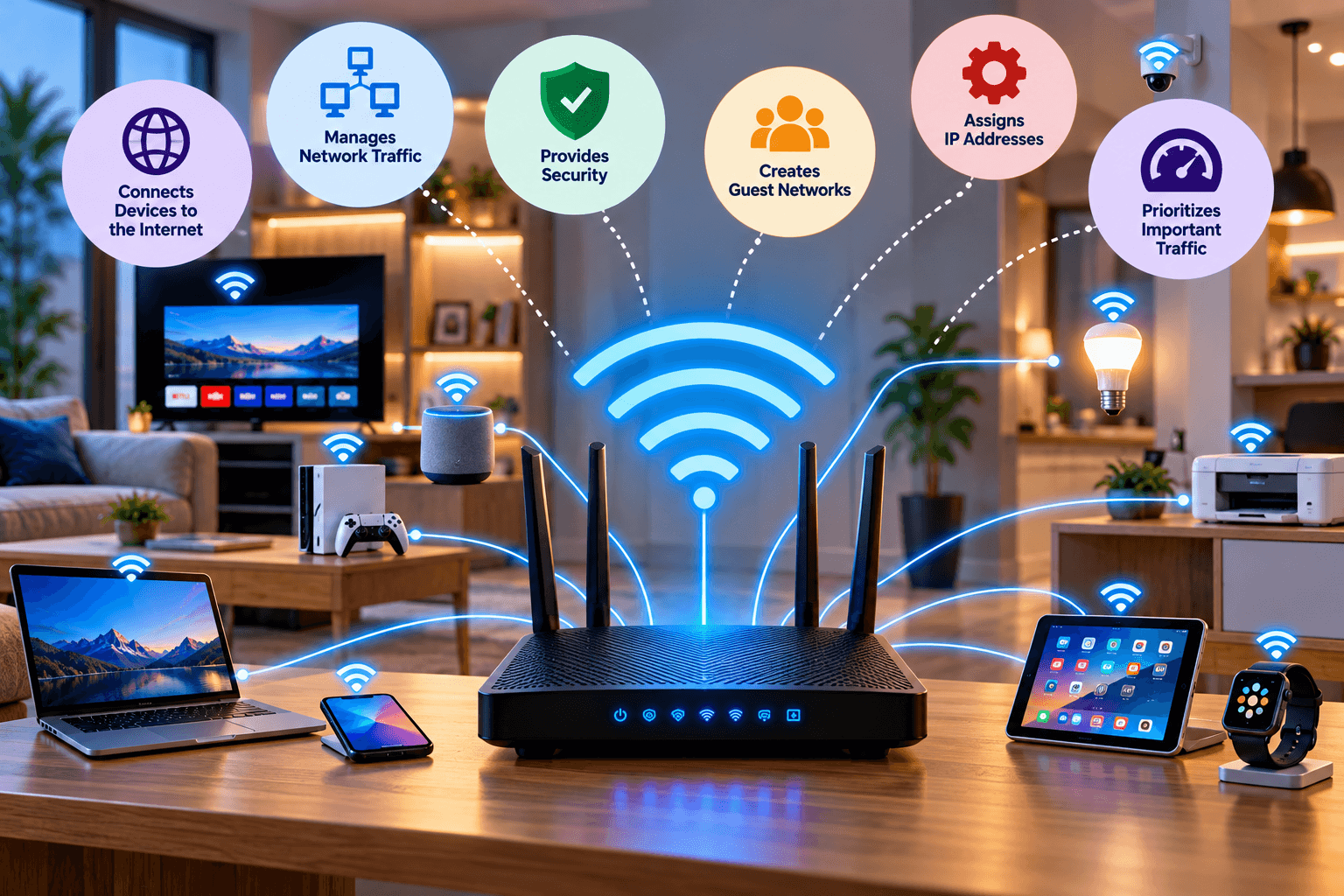
Modern routers do much more than simply provide Wi-Fi. Depending on the model, a router can assign IP addresses, manage network traffic, provide security features, create guest networks, and prioritize certain types of traffic.
Here are some of the main ways a router enhances a home network.
1. Connect Multiple Devices
A router allows multiple devices to share a single internet connection.
For example, a typical home network might include:
- Laptops and desktop computers
- Smartphones and tablets
- Smart TVs
- Printers
- Game consoles
- Security cameras
- Smart home devices
Instead of requiring a separate internet connection for every device, the router manages connectivity between these devices and the internet.
The number of devices a router can effectively support depends on the router’s capabilities, available bandwidth, wireless technology, and network usage.
2. Direct Network Traffic
One of a router’s fundamental functions is directing traffic between different networks.
When a device sends information to the internet, the router determines where that traffic needs to go and forwards it toward the appropriate destination.
The router also receives incoming traffic and determines where it belongs within the local network.
This routing function allows multiple devices to communicate with external networks while maintaining the structure of the local network.
For a broader explanation of how routers work, see Archer IT Solutions’ guide to routers.
3. Provide Network Security
Many consumer routers include security features designed to help protect the local network from unwanted traffic.
Depending on the router, these can include:
- Firewall functionality
- Access controls
- Guest networks
- Security filtering
- Network address translation (NAT)
- Wireless encryption options
However, a router should not be treated as the only layer of cybersecurity. Devices connected to the network still need appropriate security measures such as software updates, strong passwords, and malware protection.
For additional information, see Archer’s guide on how to improve website security. While website security and home-network security are different areas, both benefit from a layered approach to security.
4. Assign Local IP Addresses
Routers commonly use DHCP (Dynamic Host Configuration Protocol) to automatically assign local IP addresses to devices joining the network.
For example, when a new smartphone connects to your home Wi-Fi, the router can assign it a local IP address without requiring you to configure the address manually.
DHCP makes managing a typical home network considerably easier, particularly when several devices connect and disconnect regularly.
5. Enable Wireless Connections
Wireless routers allow devices to connect without Ethernet cables.
This provides flexibility for devices such as:
- Smartphones
- Laptops
- Tablets
- Smart speakers
- Smart TVs
- Wireless printers
The actual wireless coverage and performance depend on factors such as router placement, Wi-Fi generation, building materials, interference, antenna configuration, and the capabilities of connected devices.
If you are experiencing weak wireless coverage, Archer’s guide on weak Wi-Fi and router placement covers some practical factors that can affect Wi-Fi performance.
You can also learn more about the different types of wireless networks.
6. Prioritize Important Network Traffic
Some routers provide Quality of Service (QoS) features.
QoS allows network administrators to prioritize certain types of traffic or applications.
For example, a router may be configured to prioritize latency-sensitive traffic such as:
- Voice calls
- Video conferencing
- Online gaming
This can be useful when several devices are using the network simultaneously.
However, QoS cannot create additional internet bandwidth. It simply helps determine how available network resources are allocated.
7. Create a Guest Network
Many modern routers support guest Wi-Fi networks.
A guest network allows visitors to connect to the internet without necessarily giving them access to the same local network used by your computers, printers, storage devices, and other equipment.
This can be useful when you regularly have visitors or when you want to separate less-trusted devices from your primary network.
The exact level of isolation depends on the router’s configuration, so check the manufacturer’s documentation rather than assuming that every guest network provides identical protection.
8. Manage Network Traffic
Routers can provide information and controls that help you understand how your network is being used.
Depending on the model, you may be able to see:
- Connected devices
- Data usage
- Network activity
- Connection status
- Wireless clients
- Bandwidth consumption
Some routers also allow administrators to establish access schedules, apply parental controls, or restrict particular devices.
These features can be useful for identifying devices that are consuming substantial bandwidth or troubleshooting network performance.
9. Connect Your Home Network to the Internet
A router acts as a gateway between your local network and external networks such as the internet.
Your internet service provider provides the connection to the wider network, while your router manages connectivity between that connection and devices inside your home.
This is why the router is often positioned between the internet connection and the local devices on the network.
The exact arrangement can vary depending on whether your ISP provides a modem, ONT, gateway, or combined modem/router device.
Router vs. Wi-Fi: Are They the Same Thing?
Not necessarily.
A router performs network-routing functions, while Wi-Fi is a wireless networking technology.
Many consumer devices combine several functions into one physical unit, including:
- Router
- Wireless access point
- Ethernet switch
- Firewall
- DHCP server
This is why people often use “Wi-Fi router” and “router” interchangeably in everyday conversation.
Understanding the distinction becomes more important when designing larger networks where these functions may be provided by separate devices.
How to Get More From Your Router
Simply owning a modern router does not guarantee a fast or secure network.
Consider these practical steps:
Position the Router Properly
Place the router in a reasonably central and elevated location where possible. Avoid unnecessarily surrounding it with large objects or placing it inside enclosed cabinets.
Keep Firmware Updated
Router manufacturers release firmware updates that can address security vulnerabilities, bugs, and compatibility issues.
Check the manufacturer’s instructions to determine whether updates are automatic or need to be installed manually.
Use Modern Wi-Fi Security
Use a modern security protocol supported by your router, such as WPA3 where available. If WPA3 is not supported, use an appropriate WPA2 configuration rather than outdated protocols such as WEP.
Archer’s article on WEP and wireless security provides additional background on why older wireless security standards should not be relied upon for modern networks.
Review Connected Devices
Periodically check the router’s connected-device list. If you see something you do not recognize, investigate it rather than assuming it is harmless.
Change Default Credentials
Change default router administrator credentials and use a strong, unique password.
The router’s administrator password should also be different from the Wi-Fi password where the equipment allows this.
When Should You Consider Replacing Your Router?
A router does not necessarily need to be replaced simply because a newer model exists. However, an upgrade may be worth considering if:
- The router no longer receives firmware updates.
- It does not support modern Wi-Fi security.
- Your wireless coverage is inadequate.
- It regularly becomes unstable.
- It cannot handle your number of connected devices effectively.
- Your internet connection is significantly faster than the router can support.
- You need features that your current router does not provide.
Before purchasing a new router, identify the actual problem first. Poor Wi-Fi performance, for example, may be caused by router placement, interference, building construction, or an issue with the internet connection rather than the router’s age.
Final Thoughts
A router is the central connection point for many home networks. It allows multiple devices to share an internet connection, directs traffic, assigns local IP addresses, provides wireless connectivity, and may offer additional security and traffic-management features.
Getting the most from your router involves more than simply connecting it and turning on Wi-Fi. Proper placement, modern security settings, firmware updates, sensible network configuration, and regular monitoring can all contribute to a more reliable home network.
If you need help troubleshooting or managing your network, Archer IT Solutions provides IT support and networking services. You can also contact Archer IT Solutions for assistance.


Comments are closed