What Is the Start Menu? A Simple Beginner Guide
Quick Answer
The Start Menu is the main navigation area in Microsoft Windows. It helps you open apps, search for files, access settings, shut down your computer, and find important tools quickly. For beginners and small businesses, the Start Menu makes everyday computer tasks simpler, faster, and easier to manage.
The Start Menu is one of the first things most people use when they turn on a Windows computer, yet many beginners are not fully sure what it does. If you have ever wondered where to find your apps, settings, or power options, the Start Menu is usually the answer. For small businesses, website owners, and everyday users, learning this simple feature can save time and reduce frustration. In this guide, we will explain what the Start Menu is, why it matters, and how it can help you work more efficiently.
What Is the Start Menu and Why Does It Matter?
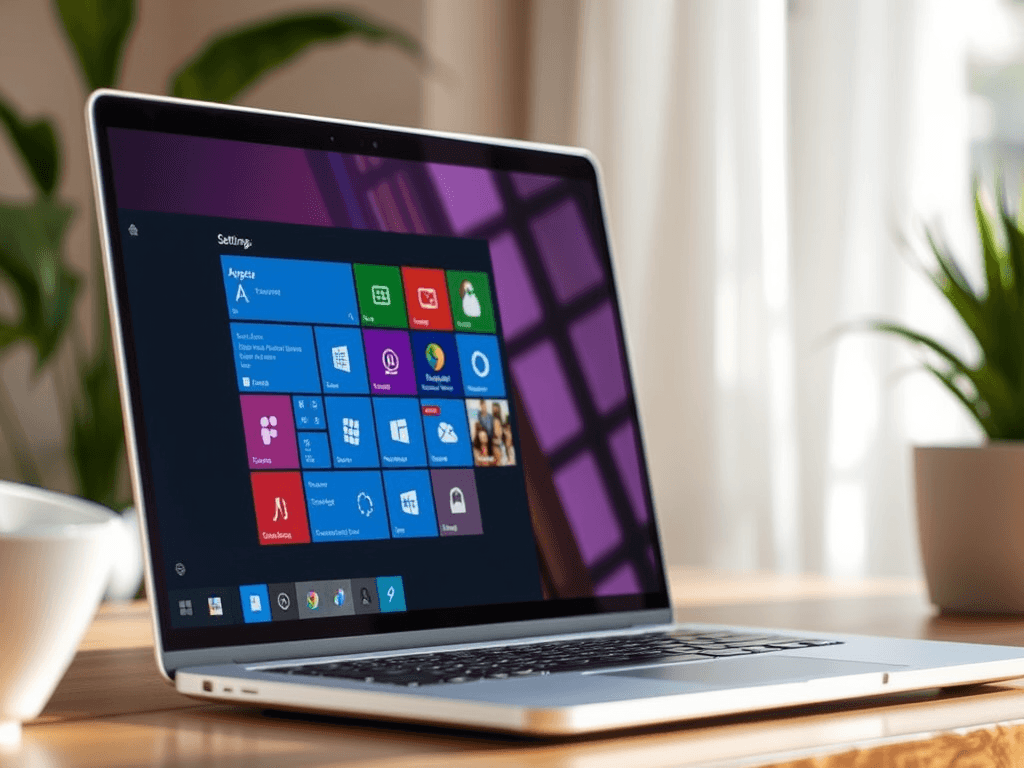
The Start Menu is a built-in feature in Microsoft Windows that acts like a central control panel for your computer. It is usually found by clicking the Windows icon on the taskbar, often in the lower-left corner of the screen. From there, you can open programs, search your computer, access settings, and restart or shut down the device.
For beginners, the Start Menu matters because it removes the need to remember where everything is stored. Instead of clicking through folders or searching the desktop for icons, you can use one simple menu to get where you need to go. That makes Windows easier to learn, especially for people who are new to computers or helping run a small business.
For business users, the Start Menu is also a productivity tool. Staff members can pin important apps, search for documents, and quickly access system tools without wasting time. If your team needs help setting up computers for smoother day-to-day use, Archer IT Solutions offers Local IT support and remote computer help for businesses and beginners alike.
What you can do from the Start Menu:
- Open installed apps
- Search for files and folders
- Access Windows Settings
- Shut down, restart, or sleep your PC
- Pin favorite programs for quick access
- Reach tools like File Explorer and Control Panel
Pros of the Start Menu:
- Easy for beginners to understand
- Saves time finding apps and files
- Keeps common tools in one place
- Can be customized to fit your workflow
Cons of the Start Menu:
- Can feel cluttered if too many apps are pinned
- Some users may not know all its features
- Layout changes slightly between Windows versions
Simple comparison: Start Menu vs Desktop shortcuts
| Feature | Start Menu | Desktop Shortcuts |
|---|---|---|
| Best for | Finding many tools in one place | Fast access to a few favorite items |
| Beginner friendly | Yes | Yes, but can become messy |
| Search function | Built in | No |
| Customization | High | Limited |
| Keeps screen organized | Better | Often cluttered |
If you are trying to make computers easier for your employees or your home office, it can help to understand more than just the basics. You can also explore the Archer IT Solutions About Us page to learn how our team supports businesses and users who want dependable technology guidance.
Helpful external resources:
How the Start Menu Helps You Work Faster
The Start Menu helps you work faster by reducing the number of steps it takes to reach what you need. Instead of opening several folders or searching manually, you can click the Start Menu and type the name of an app, file, or setting. In seconds, Windows shows likely matches, which is especially useful when you are busy or multitasking.
Another major benefit is customization. You can pin the apps you use most often, such as a browser, email program, accounting software, or design tools. For a small business owner, that means less time hunting for tools and more time getting real work done. Even simple changes, like pinning your web browser or remote meeting app, can make daily computer use smoother.
The Start Menu also supports better organization. If your desktop is full of files and icons, the Start Menu gives you a cleaner way to reach important programs. This is useful for website owners, office teams, and beginner users who want a simple layout. If your systems feel slow, disorganized, or hard to use, Archer IT Solutions can help through managed IT services or direct assistance through our support ticket page.
Ways the Start Menu improves speed:
- Search instead of browsing manually
- Pin favorite apps for one-click access
- Open settings quickly
- Find power options without confusion
- Access work tools in one place
Need help making your office computers easier to use? Archer IT Solutions provides Local IT support and remote help for beginners, teams, and growing businesses. Contact us here to get friendly assistance.
Troubleshooting common Start Menu problems
Sometimes the Start Menu may stop responding, open slowly, or fail to show search results. This can happen because of software glitches, outdated system files, or background performance issues. For beginners, this can be frustrating, but many common issues are fixable.
Start with the simplest steps. Restart your computer first, because many temporary Start Menu issues disappear after a reboot. If the problem continues, check for Windows updates and install them. You can also restart Windows Explorer through Task Manager, which often refreshes the interface.
If the issue still remains, it may be time for expert support. Small businesses should not lose work time over a basic Windows issue. Archer IT Solutions can help diagnose these problems quickly and reduce downtime.
Basic Start Menu troubleshooting checklist:
- Restart the computer
- Install Windows updates
- Restart Windows Explorer
- Check for corrupted user profiles
- Scan for malware or system file issues
- Contact IT support if the problem continues
Helpful external resource:
Suggested YouTube video:
YouTube: Windows Start Menu Basics for Beginners
FAQ
What is the Start Menu in simple words?
The Start Menu is the main menu in Windows that helps you open apps, search for files, change settings, and turn off your computer. It is designed to make navigation easy.
Where do I find the Start Menu?
You usually find the Start Menu by clicking the Windows icon on the taskbar. Depending on your Windows version, it may be in the center or lower-left corner.
Why is the Start Menu important?
The Start Menu saves time and helps users find tools quickly. It is especially helpful for beginners and busy businesses that want a simpler computer experience.
Can I customize the Start Menu?
Yes. You can pin your most-used apps, remove items you do not need, and organize shortcuts for faster access.
What should I do if the Start Menu is not working?
Restart your PC first. If that does not fix it, run updates, restart Windows Explorer, and contact professional support if needed.
The Start Menu may seem like a small part of Windows, but it plays a big role in helping users stay organized and productive. For beginners, it is the easiest way to find apps, files, and settings. For small businesses, it can save valuable time and reduce confusion for staff. If you want help improving your computers, solving Windows problems, or getting reliable Local IT support, Archer IT Solutions is here to help. Contact us today or submit a support ticket to get started.
Discover more from Archer IT Solutons
Subscribe to get the latest posts sent to your email.

No responses yet