What Is a Folder on a Computer Explained Simply
Have you ever looked at your computer screen and seen icons called folders but weren’t quite sure what they did? Don’t worry—you’re not alone. Understanding what a folder on a computer is can make your digital life easier, more organized, and less stressful. Whether you’re running a small business, managing a website, or just sorting out your personal files, this simple concept is key to using your computer efficiently.
In this guide, we’ll break down what folders actually are, why they matter, how they help you stay organized, and what to do when they don’t behave as expected. You’ll also find practical tips, examples, and resources that can improve your workflow—and maybe even save you time at work or at home.
Folders may seem basic, but understanding them well is the foundation of good IT habits. By the end of this article, you’ll see how something so simple can make a big difference, especially for users in business, web hosting, or local IT support environments like those served by Archer IT Solutions.
Understanding What a Folder on a Computer Is
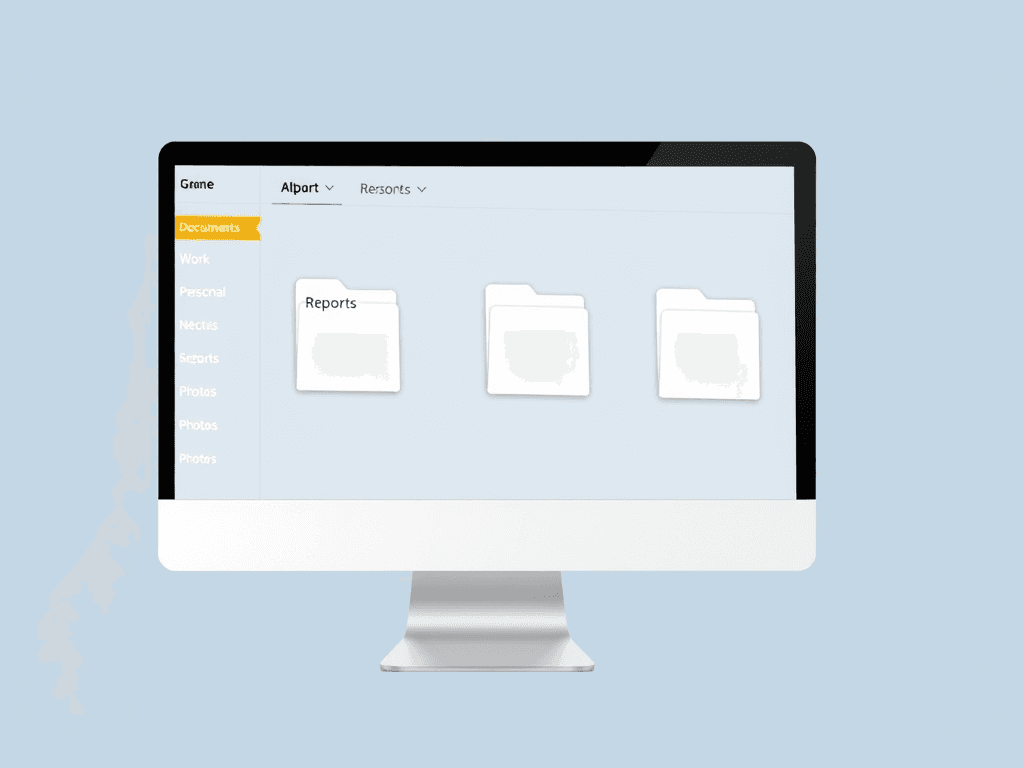
A folder on a computer works just like the manila folders in an office filing cabinet. It’s a virtual container that holds your digital files—documents, photos, videos, or programs. Instead of keeping papers on a desk, folders help you group and separate files so you can locate them easily. In digital terms, folders live on your computer’s hard drive, cloud storage, or external drives, and they keep your data organized.
Think of your Documents folder as your office drawer and the subfolders inside it as labeled file dividers. For example, you might have a folder named “Invoices” for your business receipts and another called “Projects” for your client work. Each folder can contain subfolders to create a structured hierarchy, making it easier to locate and manage data—this concept is essential in environments like managed IT services and web hosting.
Folders also play a crucial role in system organization. Your operating system (Windows, macOS, or Linux) uses hidden folders to manage files required for running applications or your computer itself. Understanding where user-created and system-created folders exist helps in troubleshooting computer performance or managing storage space more effectively.
Example Diagram: Folder Structure
Documents
 ├── Work
 │    ├── Reports
 │    └── Meetings
 ├── Personal
 │    ├── Photos
 │    └── Travel
 └── Archive
This simple diagram shows how folders help build an organized hierarchy, similar to how a company might manage department files.
How Folders Help You Organize Files Easily
Folders are the backbone of digital organization, especially when it comes to improving productivity. Instead of searching through hundreds of files scattered across your desktop, you can keep related files grouped in one place. This helps reduce clutter and makes backups easier—a big plus for those managing remote or onsite support data.
Using folders efficiently is especially important for website hosting or web design professionals who deal with multiple project directories. For example, a web developer might create a folder called “Client Websites,” and inside it, have one subfolder for each customer. This structure keeps assets, databases, and design components accessible and secure. Good folder organization even supports smoother collaboration among team members in managed IT or WordPress hosting environments.
If you’ve ever lost a file because it wasn’t stored properly, that’s a clear sign you need a folder system. To start, create main folders by category—such as Work, Personal, or Finance—then add subfolders for different projects. This layered approach mirrors how professional IT systems handle large volumes of data and can also be replicated on cloud storage services like Google Drive, Dropbox, or Microsoft OneDrive.
Benefits of Using Folders
- Organized Data: Everything is categorized logically.
- Faster Access: Save time searching for documents.
- Better Backups: Easier to manage your file-saving process.
- Improved Security: Specific folders can have restricted access for privacy.
- Cleaner Workspace: Reduce clutter on your desktop or drives.
Troubleshooting Folder Issues
Sometimes, folders don’t behave as expected—they may disappear, become inaccessible, or show errors. Here are a few common problems and quick fixes:
- Missing Folders: Use your system’s search tool or open File Explorer’s “Recent files” option.
- File Permission Errors: Right-click, choose Properties → Security Tab (Windows) or Get Info → Sharing & Permissions (Mac).
- Corrupted Folders: Try renaming the folder or moving it to a new location; then run a system error check.
For persistent issues or data recovery assistance, use local IT support or Archer IT Solutions’ Remote Support Services and get 10% off with code “support.”
Suggested Chart: Folder Efficiency Impact
| Task Type | With Folders | Without Folders |
|---|---|---|
| File Search Time | 30 seconds | 5 minutes |
| Backup Organization | Structured | Disordered |
| Collaboration Ease | High | Low |
| Stress Level | Low | High |
Interactive Tip
Try creating a new folder on your desktop right now—name it “Testing Organization.” Inside it, drag three files or screenshots into it. Notice how much cleaner your screen looks. Small steps like this improve computer efficiency daily.
Related Articles to Explore
- The Complete Guide to Web Hosting
- The Complete Guide to Server Administration
- 5 Easy Ways to Keep Your Computer Running Fast
- Beginner’s Guide to File Management
- How to Use Cloud Storage Effectively
Folders may seem simple, but they form the foundation of your computer’s storage and organization. Understanding what a folder on a computer is—and how to use folders wisely—can save time, reduce confusion, and protect your important data. Whether you’re managing digital content for your business, improving your web hosting projects, or just keeping your family photos organized, folders make your computer work smoother.
If you find file organization difficult or experience folder errors, reach out to local IT support or Archer IT Solutions for professional help. Their team offers onsite and remote assistance to optimize your workflow.
Take your next step today: organize your files, explore your folder structure, and keep your digital workspace as clean as your physical one. A little structure now can save you countless hours later—making your computer experience simpler, faster, and more productive.
FAQs: What Is a Folder on a Computer?
1. Can folders hold other folders?
Yes. These are called subfolders, and they help create a hierarchical structure for easy navigation.
2. Do folders take up space?
The folder itself doesn’t, but the files inside it do.
3. Can I delete a folder without deleting its contents?
Not typically—when you delete a folder, its contents usually go to the Recycle Bin or Trash as well.
4. Are cloud storage folders the same as computer folders?
Yes, their concept is the same—though they’re stored online instead of locally.
5. What’s the best folder structure for small businesses?
Start with main folders like Clients, Projects, Invoices, and Archives, then add subfolders for each category.
Next Step:
If you need help setting up digital organization or improving productivity with structured file systems, contact Archer IT Solutions for expert support.
Image Suggestion:
A simple labeled diagram of a folder tree structure with arrows showing hierarchical levels (Alt text: “What is a folder on a computer diagram”)
Video Suggestion:
Embed a short YouTube video explaining file organization basics (non-selling): File and Folder Basics for Beginners
Discover more from Archer IT Solutons
Subscribe to get the latest posts sent to your email.


No responses yet