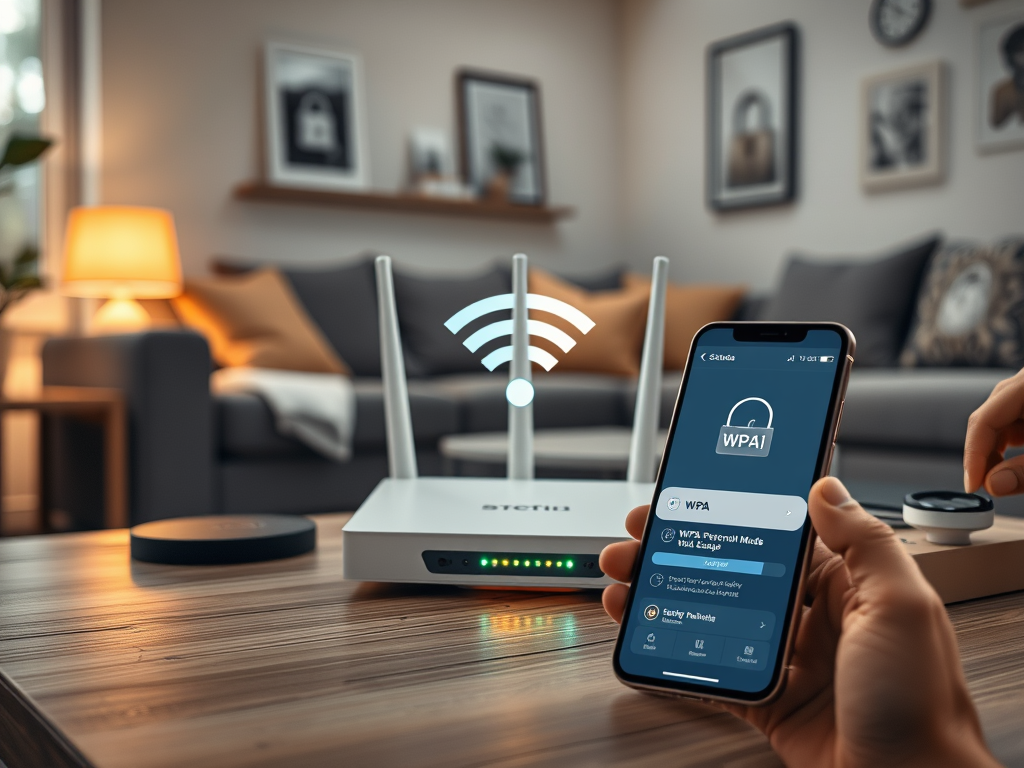
Understanding WPA Personal Mode Authentication Methods
Meta Description: Learn WPA Personal Mode authentication and setup.
Meta Topic: WPA Personal Mode authentication, setup guide, troubleshooting, and security best practices.
SEO Title: WPA Personal Mode Guide

In today’s digital era, securing wireless networks is not just a technical preference but a necessity. WPA Personal Mode, also known as WPA-PSK (Wi-Fi Protected Access Pre-Shared Key), offers a balance of strong encryption and user-friendly setup. It’s the go-to standard for home and small business networks aiming for practical, secure connectivity.
Exploring WPA Personal Mode Authentication Basics
WPA Personal Mode uses Pre-Shared Key (PSK) authentication—a simple yet robust approach designed primarily for private or small network environments. This authentication method employs a shared password among users, which is used to derive encryption keys dynamically, ensuring that every data packet transmitted is protected. According to a 2023 report by Statista, over 60% of home networks globally rely on WPA2 and WPA3 Personal modes for security, underlining its reliability.
Unlike WPA Enterprise Mode, which depends on a RADIUS server for authentication, WPA Personal eliminates the complexity of centralized management. This makes it accessible to users without deep IT knowledge while maintaining strong AES (Advanced Encryption Standard) encryption. However, the security strength largely depends on the complexity of the shared password—weak passwords can compromise even the strongest encryption.
Pros and Cons of WPA Personal Mode:
- ✅ Pros: Easy setup, no server required, supports strong AES encryption.
- ❌ Cons: Vulnerable to weak passwords, less scalable for corporate use, shared passwords among users.
Key Takeaway: WPA Personal Mode is ideal for small-scale networks where simplicity and robust encryption converge. Strong password practices markedly improve its defense against attacks.
Step-by-Step Guide to Secure WPA Setup and Usage
Setting up WPA Personal Mode is streamlined across most modern routers. Begin by accessing your router’s admin interface, typically through 192.168.1.1 or via the manufacturer’s app. Choose WPA2 Personal or WPA3 Personal as the security type, then create a strong, unique password—ideally at least 16 characters long, combining letters, numbers, and symbols. This password should never be reused across different devices or platforms.
To maximize security, update your router’s firmware regularly. Outdated firmware often holds known vulnerabilities that hackers exploit. Enable automatic updates if your device supports them. For users of hybrid networks (both old and new hardware), enabling the WPA2/WPA3 mixed mode ensures compatibility without sacrificing protection. For advanced monitoring, consider visiting Wi-Fi Alliance’s official guide or Cybersecurity & Infrastructure Security Agency for up-to-date resources.
Troubleshooting Common Issues:
- Connection drops: Reboot your router or update firmware.
- Plugin compatibility errors: Restart connected devices; update wireless drivers.
- Password not accepted: Reset the key and ensure correct WPA version selection.
Summary: Proper setup and maintenance ensure long-term stability and protection for your network. Secure passwords and regular updates are your best defenses against intrusion.
WPA Personal Mode authentication offers a balance between usability and security, making it an excellent choice for homes and small businesses. Whether you’re setting up a new Wi-Fi network or looking to enhance security, understanding WPA’s PSK approach empowers you to make informed decisions.
For users requiring expert assistance, Archer IT Solutions provides:
Reach out at 📧 support@archer-its.com or create a ticket at www.archer-its.com/ticket. Most inquiries are answered within 24 hours or less.
Reflect on your network’s needs—could your setup be more secure? Now’s the time to invest in professional guidance and peace of mind. Secure your digital foundation today with Archer IT Solutions.
Discover more from Archer IT Solutons
Subscribe to get the latest posts sent to your email.


No responses yet