Understanding Which Network Type Is a Wireless LAN
Wireless Local Area Networks, or WLANs, are an essential part of modern connectivity, linking computers, smartphones, and smart devices using radio signals instead of wired connections. Understanding which network type is a wireless LAN helps users configure their devices, troubleshoot network issues, and maximize performance. This article explores the fundamentals of WLANs, how to identify them, and tips to ensure a stable and secure wireless experience.
Exploring the Basics of Wireless LAN Connections
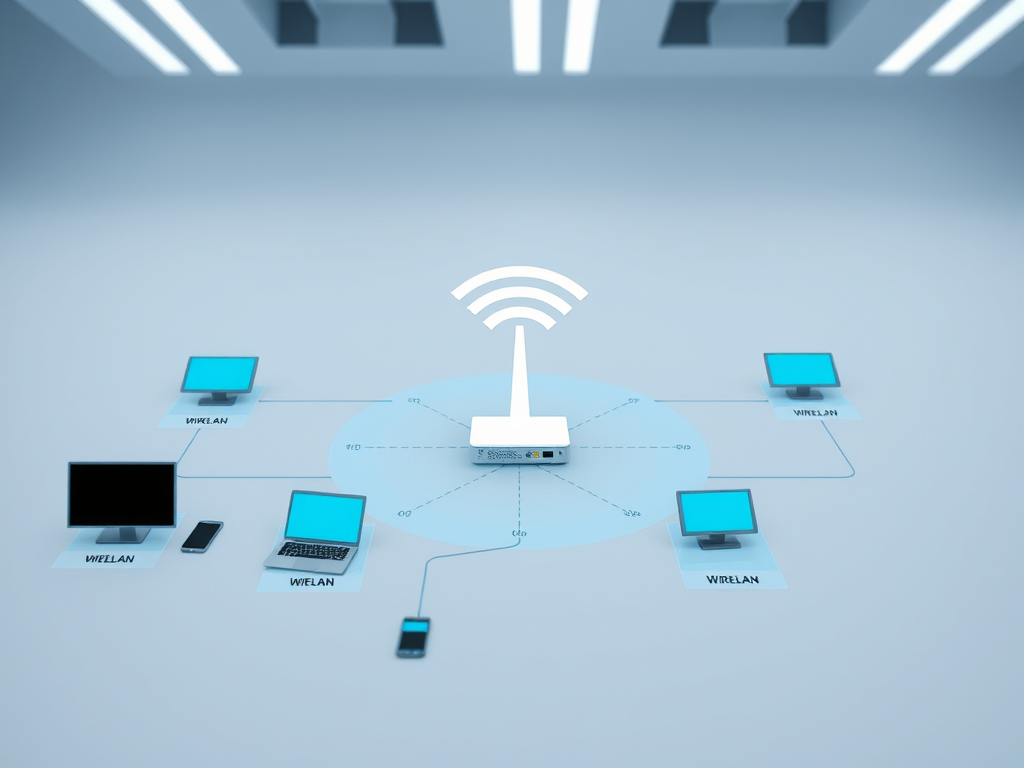
A Wireless LAN (WLAN) is a network that allows devices to connect and communicate wirelessly within a specific area such as a home, office, or public space. Unlike wired LANs that depend on Ethernet cables, WLANs use radio frequency technologies, like Wi-Fi, to transmit data between devices and the network. This wireless connectivity offers flexibility, mobility, and convenience—enabling users to move freely while staying connected.
WLANs typically follow the IEEE 802.11 standards, which define how wireless communication occurs between devices, routers, and access points. Wi-Fi is the most common implementation of a WLAN and can operate within a range determined by the strength of the router and interference in the environment. Whether in a café or corporate setting, when you connect your device to a “Wi-Fi network,” you’re essentially joining a wireless LAN.
Some advantages of WLANs include reduced wiring costs and easier network scalability. However, there are also downsides such as potential security risks and signal interference from other wireless devices or physical obstacles. By understanding these pros and cons, users can make informed decisions when setting up or maintaining their wireless networks.
(Image suggestion: A labeled diagram showing the difference between wired LAN and wireless LAN networks.)
How to Identify and Troubleshoot Wireless LAN Types
Identifying a WLAN is simple once you know what to look for. When your device scans for available networks and lists names (SSIDs), each of those entries is part of a wireless LAN. You can distinguish one WLAN from another based on its SSID name, security protocol (like WPA2 or WPA3), and signal strength. Additionally, home users often connect via a single wireless router, while business WLANs may incorporate multiple access points for broader coverage.
Despite its convenience, users may face occasional connectivity issues. Common problems such as dropped connections, slow speeds, or inability to detect a network can often be resolved by restarting the router, updating firmware, or adjusting the router’s channel frequency. Compatibility issues between network cards and routers also arise—especially if older hardware doesn’t support modern wireless standards. In such cases, upgrading network adapters or firmware may help maintain a reliable connection.
If you encounter persistent WLAN problems, Archer IT Solutions offers onsite or remote technical support services that can assist with diagnostics and network troubleshooting. You can submit a ticket directly through their official Support Portal or reach out via email at support@archer-its.com. Their support team typically responds within 24 hours and helps both individuals and small businesses streamline their IT connectivity needs.
(Image suggestion: Screenshot or illustration of Wi-Fi settings panel showing different network types and signal strengths.)
Understanding which network type qualifies as a wireless LAN is key to managing your connectivity with confidence. WLANs, built on Wi-Fi technology, deliver the freedom of movement and convenience that define modern computing. By learning how to identify your network type, recognize potential issues, and know where to seek support, you can ensure your wireless experience remains secure and efficient.
For more IT advice, hosting, or network support, visit www.archer-its.com or explore their Managed IT Services for ongoing professional guidance.
Discover more from Archer IT Solutons
Subscribe to get the latest posts sent to your email.


No responses yet