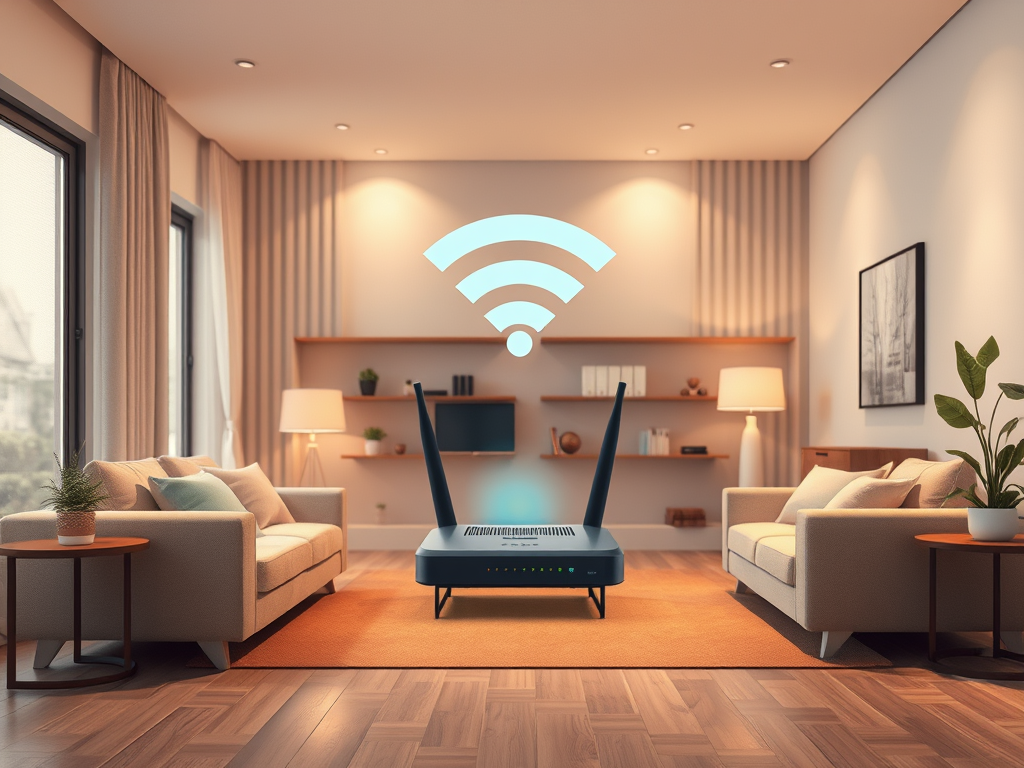
Understanding the Indoor Range of WiFi 5 Networks
WiFi 5 (IEEE 802.11ac) is one of the most commonly used wireless networking standards today, offering high-speed connectivity and strong performance in modern homes and offices. However, understanding its indoor range and the factors that influence it is key to ensuring a stable and efficient wireless experience. In this article, we’ll explore how WiFi 5 performs indoors, what can reduce its range, and how you can troubleshoot connection problems effectively.
Key Factors That Affect Your WiFi 5 Indoor Range
WiFi 5 (AC) networks typically offer an indoor range of around 35 to 115 feet (10 to 35 meters), depending on environmental conditions. The range can vary widely based on the building’s structure, the number of users, and the placement of the router. Unlike outdoor coverage, indoor WiFi must travel through walls, floors, and household objects, which can significantly weaken its strength. Knowing these limitations helps users plan the optimal router placement and avoid unnecessary performance loss.
Several factors play a crucial role in determining WiFi performance indoors. Building materials such as concrete, brick, or metal strongly absorb radio frequencies, reducing signal reach. Interference from other wireless devices like cordless phones, Bluetooth gadgets, or even microwave ovens can also distort signals. Additionally, the number of devices connected to the same network can cause bandwidth congestion, resulting in slower speeds. Using 5GHz frequencies provides faster data rates but offers less penetration through obstacles compared to 2.4GHz.
Pros of WiFi 5 Networks:
- High-speed data transfer (up to 3.5 Gbps)
- Reduced latency for streaming and gaming
- Improved performance in multi-device environments
Cons:
- Reduced range at 5GHz frequencies
- Signal interference from physical barriers
- Limited compatibility with older devices

Illustration showing how WiFi strength weakens through indoor barriers.
Troubleshooting Common WiFi 5 Signal Issues
When WiFi 5 signal drops or performance slows, simple troubleshooting steps can often resolve the issue. Start by relocating your router to a central and elevated position in your home or office. Avoid placing it near thick walls, metal appliances, or enclosed cabinets. You should also verify that the firmware of your router is up to date — outdated firmware can limit performance and security.
If your devices regularly lose connection, consider adjusting your router’s channel settings to reduce interference. WiFi analyzer tools such as NetSpot or inSSIDer can help identify crowded frequencies. For large spaces, WiFi range extenders or mesh systems can effectively improve indoor coverage and maintain strong connectivity across multiple rooms.
When all else fails, professional assistance can help diagnose more complex issues. Archer IT Solutions (www.archer-its.com) offers onsite and remote IT support through managed services and onsite assistance. If you need help optimizing your WiFi setup, contact their support team at support@archer-its.com. For web hosting clients, visit www.archer-its.com/web-hosting for hosting optimization and configuration support.
Understanding the indoor range of WiFi 5 and the variables that affect it helps ensure seamless connectivity in your home or office. By positioning routers wisely, minimizing interference, and keeping network configurations updated, you can make the most of your WiFi’s capabilities. If connectivity issues persist, remember that expert support from Archer IT Solutions is only an email away. Don’t let weak WiFi slow you down — take proactive steps to optimize your network today!
Call to Action:
👉 Need professional help optimizing your WiFi or IT systems? Contact Archer IT Solutions at info@archer-its.com or open a ticket at www.archer-its.com/ticket/.
More Reading:
Discover more from Archer IT Solutons
Subscribe to get the latest posts sent to your email.


No responses yet