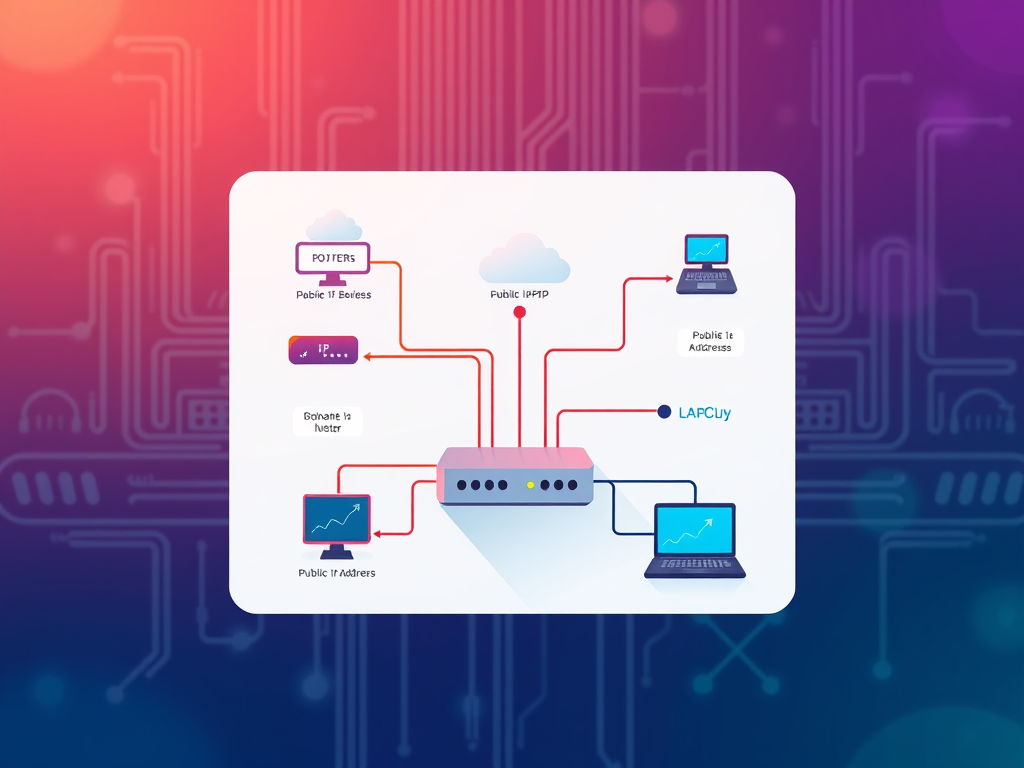
Understanding How Your Computer Appears on a Network
In today’s connected world, understanding how your computer is seen on a network can help you secure your data, manage connectivity issues, and safeguard against external threats. Whether it’s a home Wi‑Fi network or a small business setup, each device on that network plays a role in communication and visibility. This article will walk you through how computers are identified locally and how they can appear to the outside world through external access points.
How Computers Are Identified Within a Local Network
When your computer connects to a local area network (LAN), it’s given a unique identity by the router. This typically involves two identifiers: an IP address and a hostname. The IP address acts like your computer’s street address within the network, while the hostname is a readable label that’s easier to remember. Modern routers use a process called Dynamic Host Configuration Protocol (DHCP) to automatically assign these identifiers without user intervention.
Computers on the same network communicate using these identifiers, allowing data packets to travel between devices efficiently. For example, when you print a document over Wi‑Fi, your computer sends the file to the printer’s local IP address. You can view all active devices by logging into your router’s management page or using network scanning tools like Advanced IP Scanner or Nmap.
Key Takeaways:
- Each device is given an IP address and a hostname on a local network.
- DHCP automates network identification processes.
- Tools like Nmap can help visualize network structure.
Summary:
Your computer’s local identity allows it to communicate effectively with nearby devices. Understanding these identifiers makes troubleshooting easier and enhances your overall network management skills.

Exploring Public Visibility and External Access Points
From an external perspective, your entire local network usually appears as one entity — your public IP address. This address is provided by your Internet Service Provider (ISP) and represents how others on the internet “see” you. All your devices, regardless of the number, connect to the internet through this single gateway. Tools such as WhatIsMyIP can help you identify your public-facing address.
External visibility becomes relevant when you host a website, run remote desktop connections, or use security cameras accessible via the internet. However, this visibility also introduces vulnerabilities if not managed properly. Open ports and weak passwords can allow unauthorized access, which is why security measures like firewalls, strong authentication, and virtual private networks (VPNs) are essential.
Pros and Cons of External Access:
- Pros: Enables remote work, easy file access, and online hosting.
- Cons: Increases exposure to cyber threats if misconfigured.
Summary:
Your public IP defines your network’s visibility to the outside world. Balancing convenience and security ensures that you stay connected without unnecessary risk.

Troubleshooting Common Issues and Plugin Compatibility
Sometimes, visibility or access issues are caused by incompatible software, outdated plugins, or misconfigured firewalls. For instance, certain security plugins may block legitimate connection requests if they misinterpret them as threats. Regular updates help ensure compatibility between your operating system, browsers, and network management tools.
If your computer doesn’t appear on the network or loses visibility, try verifying network adapters, checking firewall settings, or resetting your router. Also, keep in mind that some VPN plugins may reroute traffic, temporarily hiding your device from the local network. When in doubt, contacting IT support or referring to trusted help portals such as Microsoft Network Troubleshooter and Cisco Networking Basics can be beneficial.
Summary:
Maintaining plugin compatibility and updating security settings keeps your system visible where it should be and protected from unwanted access. Small configuration steps go a long way toward ensuring reliable network performance.
Understanding how your computer appears on both local and public networks empowers you to manage visibility, security, and connectivity with confidence. For professional support or deeper insights into web hosting and managed IT solutions, reach out to Archer IT Solutions at www.archer-its.com or submit a request at www.archer-its.com/ticket.
Reflect on your own connectivity setup — do you fully understand how your devices communicate and appear online? Taking time to evaluate this today could prevent major headaches tomorrow.
Discover more from Archer IT Solutons
Subscribe to get the latest posts sent to your email.


No responses yet