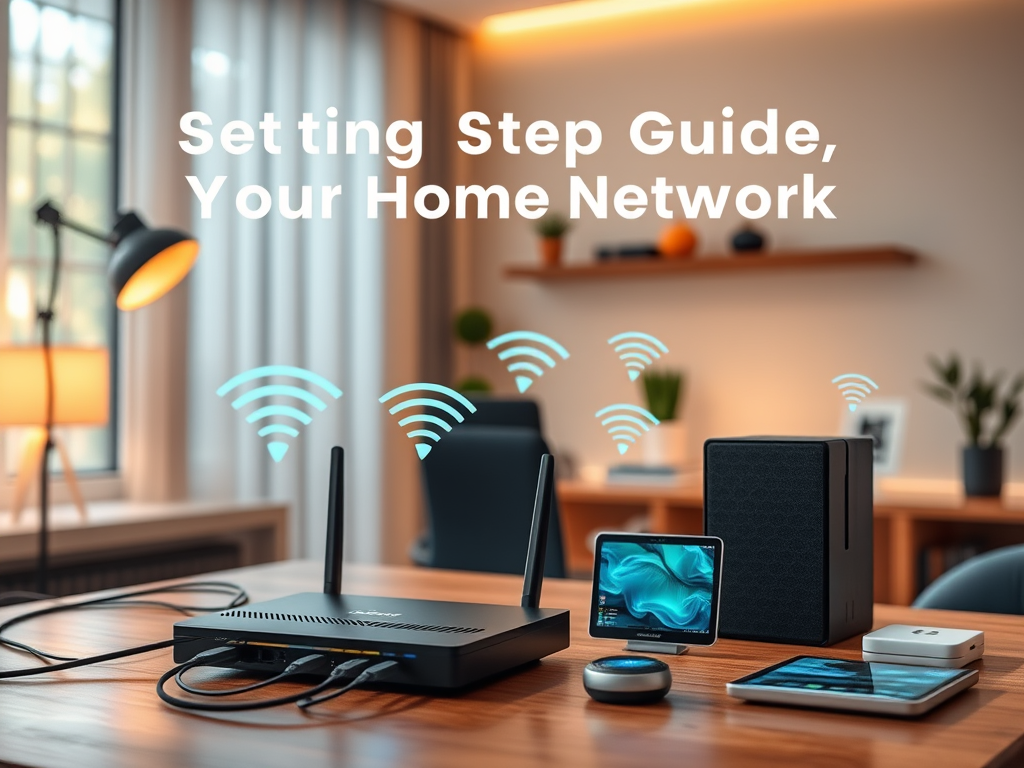
Step by Step Guide to Setting Up Your Home Network
Setting up a home network can seem intimidating at first, especially with the many devices and security considerations involved. However, understanding the key steps and having a clear process dramatically simplifies the task. This article walks you through the essentials—from planning your network to securing it—with practical, beginner-friendly advice and clear visual flow for easy scanning.
Understanding the Basics of Your Home Network Setup
A home network connects multiple devices—such as computers, smartphones, smart TVs, and gaming consoles—so they can share data and internet access. At the heart of the setup is your router, which distributes internet connectivity to devices through cables (Ethernet) and wireless signals (Wi-Fi). Knowing what each device does helps eliminate confusion later when troubleshooting or expanding your network. A simple visual map of your devices can clarify how everything interacts.
Before diving into cables and configurations, identify your connectivity type: DSL, cable, or fiber optic. This determines the kind of modem you’ll need. The modem connects directly to your Internet Service Provider (ISP) while the router distributes that connection across your home. For small homes, a single standard router often suffices; for larger homes, the use of Wi-Fi extenders or mesh systems ensures broader coverage.
Pros: Full control over network performance, enhanced security, and cost savings compared to commercial installations.
Cons: Requires technical setup knowledge and occasional updates.
To reduce complexity, consider consulting a professional such as Archer IT Solutions for remote or onsite assistance. Their experts can help configure routers, manage firewalls, and ensure stable connectivity—especially useful for first-time users or small business environments.
Step-by-Step Instructions for Building a Secure Network
Step 1: Connect Your Hardware
Start by plugging your modem into your ISP’s connection point, then connect the router using an Ethernet cable. Power both devices and check for lights indicating connectivity. If using mesh routers, set up the primary node first, followed by secondary ones to cover more areas. Place the router in a central, elevated spot to optimize signal reach and reduce dead zones.
Step 2: Configure Router Settings
Once connected, access your router’s configuration page using its IP address (usually found on the device label). Set up your SSID (network name) and create a strong password. Change default admin credentials to strengthen network security. Enable WPA3 or WPA2 encryption and keep firmware updated regularly to protect against vulnerabilities. For advanced users, setting up guest networks can isolate devices and keep main data safe.
Step 3: Test and Troubleshoot Connectivity
Verify that all your devices can connect smoothly. If you experience connectivity drops or slow speeds, check for firmware issues, signal interference, or outdated network adapters. Compatibility conflicts often arise from older hardware—updating drivers resolves many issues. If you’re stuck, Archer IT Solutions Support offers remote troubleshooting assistance to quickly restore functionality.
For ongoing maintenance, schedule periodic firmware updates and monitor network performance through your router’s dashboard. Make backups of configuration settings, so you can easily restore them after a reset. If you’re hosting websites or business data, Archer IT Solutions Web Hosting provides secure and reliable hosting environments.
Setting up a home network doesn’t have to be daunting when approached step by step. By understanding the fundamentals and carefully securing your network, you can enjoy dependable and safe internet connectivity throughout your home. For added support or professional setup, Archer IT Solutions offers tailored IT and networking services to keep your system optimized and secure.
Discover more from Archer IT Solutons
Subscribe to get the latest posts sent to your email.


No responses yet