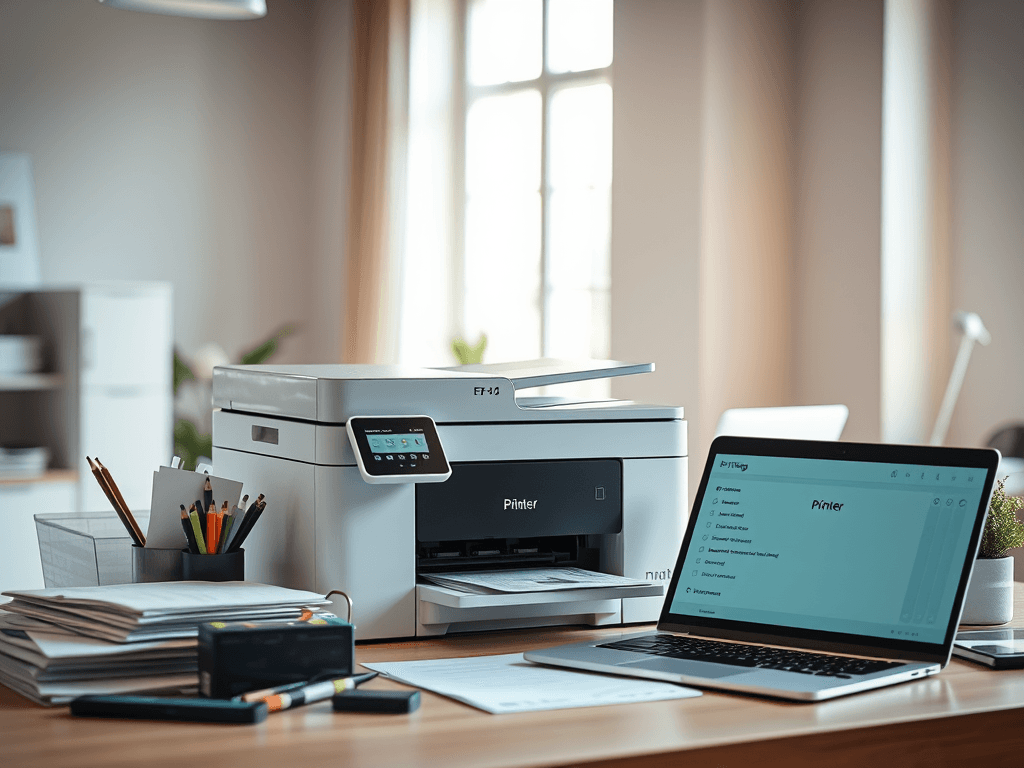
Printer Problems Guide: Fix Common Issues Fast Today
Quick Answer
A good printer problems guide starts with the basics: check power, paper, ink or toner, Wi-Fi or USB connections, and error lights. Most printing issues come from jams, offline status, low supplies, or outdated drivers. If simple fixes do not work, Archer IT Solutions can provide local IT support remotely or onsite.
Printer issues always seem to happen at the worst time—right before an invoice, a school paper, or a client meeting. The good news is that many common printer problems can be fixed in a few minutes without replacing the printer or waiting on hold with support.
At Archer IT Solutions, we regularly help home users and small businesses solve everyday tech headaches quickly. This printer problems guide is designed to be easy to scan, simple to follow, and practical for beginners and busy office teams alike. If you want a fast path from “printer not working” to “back to printing,” start here.
Printer Problems Guide: What to Check First?
The first step in any printer problems guide is to check the obvious items before digging deeper. Make sure the printer is powered on, the display screen is active, and there are no blinking warning lights. If the printer looks off or stuck, unplug it for 30 seconds, plug it back in, and restart both the printer and your computer.
Next, confirm the printer has the basics it needs to work. Look for paper loaded correctly in the tray, check for low ink or toner warnings, and inspect for paper jams. Even a small torn piece of paper inside the rollers can stop a job completely. Open every access panel carefully and remove jammed sheets slowly to avoid damage.
Finally, verify the connection. For USB printers, make sure the cable is fully connected and try another USB port. For wireless printers, confirm the printer is connected to the same Wi-Fi network as your computer. If your printer shows as “offline,” it may simply need to reconnect to the network or be set as the default printer again.
Quick first checks
- Is the printer turned on?
- Is there paper in the tray?
- Are ink or toner levels low?
- Is there a paper jam?
- Is the printer connected to Wi-Fi or USB?
- Is the correct printer selected on your computer?
- Is the printer showing as offline?
Common symptoms and likely causes
| Problem | Likely Cause | Fast Fix |
|---|---|---|
| Printer offline | Network or device issue | Restart printer and reconnect |
| Paper jam | Misfed or torn paper | Remove jam and reload tray |
| Blank pages | Empty ink, clogged heads | Check cartridges and run cleaning |
| Slow printing | Large file or poor connection | Lower print quality or reconnect |
| Faded output | Low toner or ink | Replace cartridge |
| Won’t print at all | Queue stuck or driver issue | Clear queue and update driver |
Before moving on, it also helps to print a test page directly from the printer menu. If the test page works, the problem is likely with the computer, driver, or print queue rather than the printer hardware itself. That simple test can save a lot of guesswork.
Fix Common Printer Issues Before Calling Support
If your printer still will not work, the next step in this printer problems guide is troubleshooting specific issues one by one. Start by clearing the print queue on your computer. A single stuck job can block every job behind it. Cancel all pending documents, then restart the printer spooler service or simply reboot your computer and try again.
Another common issue is poor print quality. If pages come out streaky, faded, or missing colors, use the built-in maintenance tools in your printer software. Most printers include options like printhead cleaning, nozzle check, and alignment. These tools often fix quality problems without needing a new printer. If ink or toner is nearly empty, replacing supplies is usually the fastest fix.
Driver and firmware problems are also very common, especially after system updates. Visit your manufacturer’s support page to download the latest printer driver and firmware. For trusted manufacturer help, see HP Support, Canon Support, or Epson Support. Updated software can fix compatibility issues, offline errors, and failed print jobs.
Troubleshooting steps
- Clear stuck print jobs
- Restart the printer and computer
- Run the printer troubleshooter in Windows or macOS
- Reinstall or update printer drivers
- Print a test page
- Run cleaning and alignment tools
- Reconnect the printer to Wi-Fi
- Try printing from another device
Pros and cons of DIY printer troubleshooting
Pros
- Fast for simple problems
- No service wait time
- Saves money on minor fixes
- Helps prevent repeat issues
Cons
- Can take time if the cause is unclear
- Some hardware issues need a technician
- Driver and network problems can be frustrating
- Wrong fixes may make setup more confusing
If your printer is used for a business, downtime costs more than just inconvenience. That is where local IT support can make a real difference. Archer IT Solutions offers help for offices and home users who need quick, practical support without the guesswork. You can request service through our support ticket page or learn more about our onsite computer support services.
What Is the Best Way to Prevent Printer Problems?
A smart printer problems guide should not only help fix issues but also help prevent them. One of the best habits is using the printer regularly. Inkjet printers especially can develop clogged printheads if they sit unused for long periods. Printing a simple test page once every week or two can help keep ink flowing properly.
It is also important to use the right paper and store supplies correctly. Damp paper, wrinkled sheets, or the wrong media type can lead to jams and poor print quality. Ink and toner should be stored in a cool, dry area and installed carefully. Small mistakes here often create bigger headaches later.
Businesses should go one step further with basic maintenance and support planning. Keeping printer drivers updated, checking supply levels before they run low, and having a clear process for troubleshooting can reduce downtime. If your office relies heavily on printers, working with a managed support provider can save time and keep your team focused.
Prevention checklist
- Print a test page regularly
- Keep drivers and firmware updated
- Use the right paper type
- Store paper in a dry place
- Replace low ink or toner early
- Clean rollers and trays periodically
- Keep the printer on a stable network
- Document common fixes for staff
For broader business tech support, Archer IT Solutions also provides managed IT services for companies that want dependable help beyond a single printer issue. If you want to understand more about our team and approach, visit our About Us page.
Simple printer troubleshooting flow
Printer not working
   ↓
Check power and error lights
   ↓
Check paper, jam, ink, toner
   ↓
Check USB or Wi-Fi connection
   ↓
Clear print queue
   ↓
Print test page
   ↓
Update driver/firmware
   ↓
Contact support if issue remains
We have helped small offices recover quickly from printer failures that stopped daily operations. In one recent case, a local business could not print invoices because their wireless printer kept dropping offline. Our team reset the network connection, updated the driver, and restored printing the same day. That kind of fast response is why many clients rely on Archer for local IT support.
FAQ
What is the first thing to do when a printer stops working?
Start with power, paper, ink or toner, and connections. Then check for error lights and restart the printer. These quick steps solve many common issues without advanced troubleshooting.
Why does my printer say offline when it is on?
This usually means a connection problem, a stuck print queue, or a driver issue. Restart the printer, reconnect to Wi-Fi or USB, and make sure it is set as the default printer.
How do I fix a printer that prints blank pages?
Check ink or toner levels first. Then run the printer’s cleaning or nozzle check utility. Blank pages are often caused by empty cartridges or clogged printheads.
When should I call for professional printer support?
Call for help if the printer has repeated jams, hardware error codes, connection issues that keep returning, or if it is affecting your business operations. Fast service can reduce downtime and frustration.
Can Archer IT Solutions help with printer issues?
Yes. Archer IT Solutions can help diagnose and resolve printer problems for home users and businesses. For support-related issues, open a ticket here: https://www.archer-its.com/ticket/
Related Resources
- Related guide: The Complete Guide to Server Administration
- Service page: Onsite or Remote Computer Support
- Supporting blog/company info: About Archer IT Solutions
- External resource: HP Printer Support
- External resource: Canon Support
- External resource: Epson Support
Testimonials
“Our office printer kept going offline every morning. Archer IT Solutions got it fixed fast and explained the issue in plain English.”
— Small Business Client“We needed a simple answer, not a complicated tech lecture. Archer solved our printing and network issue the same day.”
— Local Office Manager
Free Guide / Request Service
Want more practical IT help for your home office or business?
- Free Guide: Small Business IT Setup Guide
- Request service: https://www.archer-its.com/contact-us/
- Support ticket: https://www.archer-its.com/ticket/
- Sales questions: sales@archer-its.com
Need help? 👉 https://www.archer-its.com/contact-us/
Printer issues can feel urgent, but most problems have simple causes and quick fixes. By following this printer problems guide, you can check the essentials, solve the most common errors, and know when it is time to bring in expert help.
If your printer problems are slowing down your home workflow or business operations, Archer IT Solutions is ready to help with dependable local IT support. Whether you need remote troubleshooting or onsite computer repair, our team can get you back up and running faster.


No responses yet