Keyboard Shortcuts Explained Simply for Beginners
Keyboard shortcuts explained simply — this phrase might sound technical, but really, it’s all about saving time on your computer or laptop. Whether you are managing your WordPress hosting site, handling business emails, or browsing the web, learning shortcuts can save you valuable minutes daily. For beginner computer users, these combinations of keys can transform the way you work — improving efficiency and reducing strain. In this article, we’ll cover what keyboard shortcuts are, why they matter, and how you can start using them right away.
Jump to:
- Understanding What Keyboard Shortcuts Really Are
- Why Keyboard Shortcuts Matter for Everyday Computer Use
- Troubleshooting Shortcut Issues
- FAQ
- Next Steps
Understanding What Keyboard Shortcuts Really Are
When we say keyboard shortcuts, we’re referring to small key combinations that perform actions quickly without needing to move your mouse around. For example, pressing Ctrl + C (on Windows) or Command + C (on Mac) copies selected text or images. In simple terms, shortcuts are pre-programmed commands that your operating system or software recognizes instantly. Instead of searching through multiple menus, you use a few keys to get the same result within seconds.
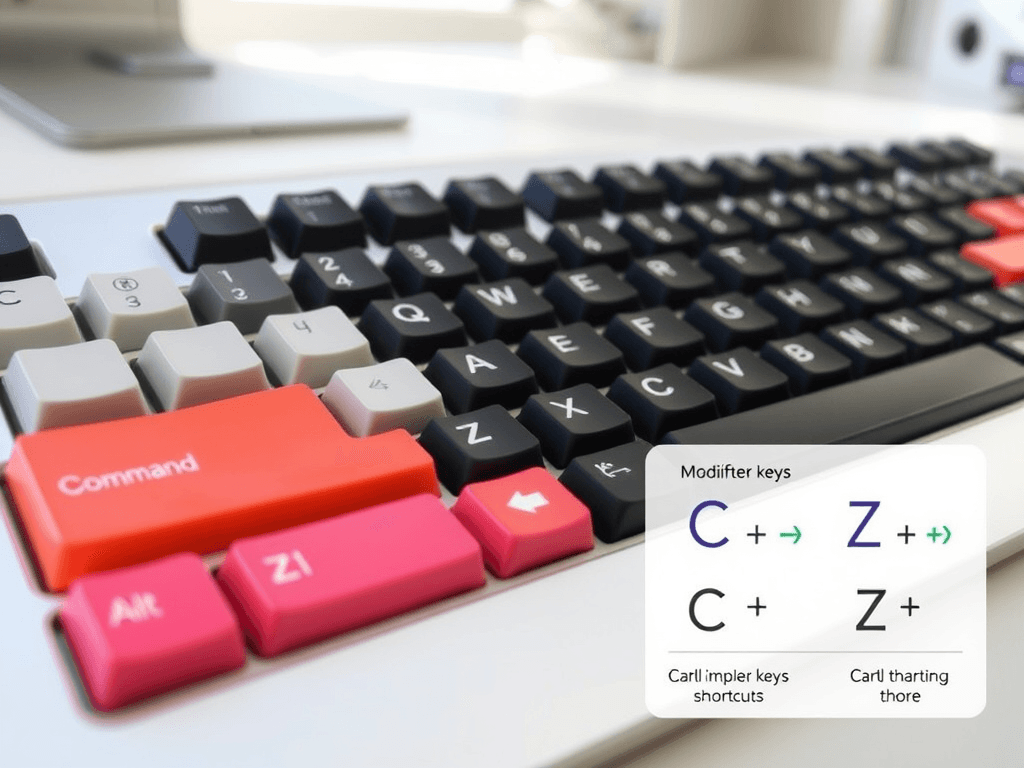
To visualize this better, imagine a diagram showing keys like Ctrl, Alt, Shift, or Command — these are called modifier keys. When held together with another key, they activate special functions. For instance, Ctrl + S saves a file, Alt + Tab switches windows, and Ctrl + Z undoes mistakes. Here’s an example image you might find useful:
Shortcuts make daily computer tasks quicker and reduce fatigue from long hours of pointing and clicking. Beginners often hesitate to use them because they seem hard to remember. But you can start small — learn a few basic shortcuts per week, and soon they’ll feel as natural as typing your name. Once you understand the essentials, you’ll notice how much smoother your workflow becomes, especially in web applications or tools like Microsoft Word, Excel, or your web hosting dashboard.
Why Keyboard Shortcuts Matter for Everyday Computer Use
The true power of keyboard shortcuts explained is not just speed but consistency. If you’re constantly switching between browser tabs while managing your hosting cPanel or working on WordPress design projects, using shortcuts like Ctrl + T (new tab) or Ctrl + W (close tab) can make your workflow seamless. For employees and local IT support teams, these small efficiencies compound quickly over time.
There’s also the ergonomic benefit. Constantly reaching for the mouse leads to repetitive strain injuries or hand fatigue, especially during longer sessions. Shortcuts allow you to perform all tasks with minimal movement, creating a healthier work environment. If you’re working remotely, or managing web hosting and domain configurations, this advantage becomes essential. At Archer IT Solutions, we often advise our customers to adopt these habits as part of their day-to-day computer training program.
Another major reason to use shortcuts is productivity in multitasking. Whether you’re editing text documents or updating your website layout, shortcuts like Alt + Tab (switch windows) or Ctrl + Shift + Esc (open Task Manager) give you instant control. The more you use them, the more intuitive your computer feels — just like driving a car once you learn where everything is. To keep learning, you can explore Microsoft’s full list of keyboard shortcuts here or Mac’s list here.
Troubleshooting Shortcut Issues
Even though keyboard shortcuts are simple, some problems can occur, like shortcuts not responding. The first step in troubleshooting is to check whether your keyboard is properly connected. For external devices, plug it into another port or system. On laptops, ensure that the “Fn” function key lock isn’t interfering with typical shortcuts like Ctrl + C or Ctrl + V.
Sometimes, programs may disable or override certain shortcuts. Web browsers, for example, have their own combinations that can conflict with operating system ones. If you experience this, go to the application’s settings to customize key bindings. Alternatively, restart your computer to clear minor system errors that might block recognition.
If you continue having issues, don’t hesitate to contact Archer IT Solutions for assistance. Our remote IT support can resolve software and input device conflicts efficiently — plus, new customers get 10% off with code “support”. Learn more or book a session at https://www.archer-its.com/onsite-service.
Visual Guide – Common Keyboard Shortcuts
| Function | Windows Shortcut | Mac Shortcut |
|---|---|---|
| Copy | Ctrl + C | Command + C |
| Paste | Ctrl + V | Command + V |
| Undo | Ctrl + Z | Command + Z |
| Save | Ctrl + S | Command + S |
| New Window | Ctrl + N | Command + N |
| Switch Tabs | Ctrl + Tab | Command + Option + → |
Tip: Bookmark this table for quick access when working on WordPress hosting dashboards, spreadsheets, or design apps.
Pros and Cons of Using Keyboard Shortcuts
Pros:
- Saves time and improves workflow
- Reduces repetitive strain from mouse use
- Enhances productivity and multitasking
Cons:
- Requires memorization
- Some shortcuts vary between operating systems
- Can conflict with specialized software
The benefits clearly outweigh the drawbacks when used wisely. Once you’ve built the habit, you’ll rarely want to go back to the slower mouse-only workflow.
Related Resources (Non-Selling)
Internal Resources (Archer IT Solutions)
- Web Hosting Services
- Managed IT Services
- Remote Support
- About Archer IT Solutions
- Contact Us for Custom IT Solutions
FAQ
Q1: What is a keyboard shortcut?
A keyboard shortcut is a combination of keys that performs an action automatically without using your mouse.
Q2: How do I learn them faster?
Start by memorizing 3–5 new shortcuts weekly. Practice them daily until they feel natural.
Q3: Why aren’t my shortcuts working?
Check your keyboard connections, software settings, or restart your system to fix potential conflicts.
Q4: Can I create my own shortcuts?
Yes! Most operating systems and applications let you set custom shortcuts in their accessibility or preferences panels.
Q5: Is using shortcuts safe?
Absolutely. Shortcuts are built-in features in all major systems and do not affect security.
Next Steps
- Download a printable keyboard shortcut cheat sheet from sources like ShortcutsDesign.
- Practice shortcuts during daily tasks like composing emails or browsing your hosting dashboard.
- Contact Archer IT Solutions if you need help improving your setup or automating workflows.
Mastering keyboard shortcuts doesn’t require you to be a tech wizard — it just takes consistency. The more you use them, the more comfortable and faster you’ll become. For businesses or individuals managing local IT support, WordPress hosting, or web design services, small improvements like these scale into significant productivity gains. To learn more or get technical help, connect with Archer IT Solutions at https://www.archer-its.com/contact-us/.
Suggested Related Posts for Continued Learning:
- The Complete Guide to Web Hosting
- The Complete Guide to Server Administration
- How to Set Up Remote IT Support for Your Business
- Understanding Managed IT Services
- Building a Faster Website with WordPress Hosting
Discover more from Archer IT Solutons
Subscribe to get the latest posts sent to your email.

No responses yet