How to Organize Folders for Beginners Easily
If your computer desktop looks like a digital junk drawer filled with random files, screenshots, and downloads, you’re not alone. Many beginners struggle with keeping their documents in neat, logical folders — which can cause wasted time and frustration. In this guide, we’ll explore how to organize folders for beginners, offering a simple and effective system to tidy your digital life. Whether you’re a website hosting owner, small business professional, or new computer user, learning this skill will improve your workflow and reduce digital clutter.
Simple Folder Structure Tips for Complete Beginners
Start with Purpose and Planning
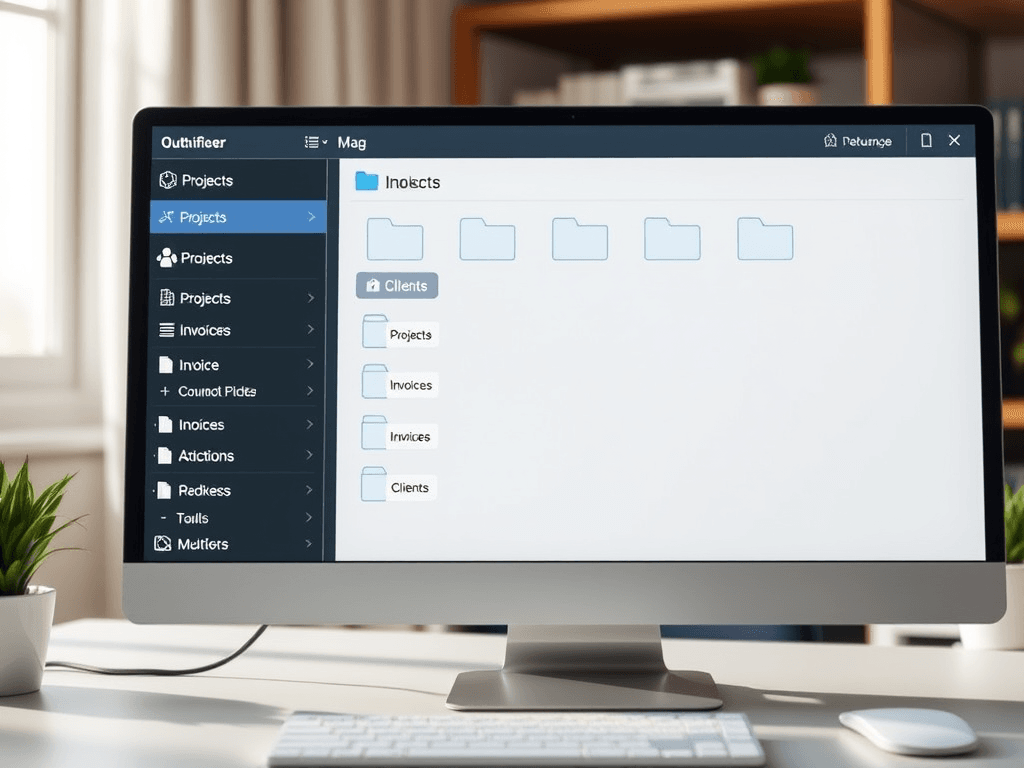
Before diving into folder creation, think about your overall goal. Do you want to manage business documents, web design project files, or personal media? Having a clear purpose helps you group content more naturally. For instance, if you run a small business or handle WordPress hosting, your top-level folders might be named “Projects,” “Invoices,” “Clients,” and “Marketing.” Each main folder can then hold subfolders for clarity.
A well-thought-out folder structure mirrors your actual workflow. Imagine your folders like a digital filing cabinet where every drawer and section has a label. For web hosting owners or local IT support teams, naming consistency matters — use descriptive, simple labels such as “Client_Reports” or “Server_Backups.” This prepares your system for quick search and easy automation through cloud services or backups.
To visualize this, draw a basic tree diagram first. For example:
Documents
│
├── Work
│   ├── Invoices
│   └── Clients
│
└── Personal
    ├── Photos
    └── Receipts
You can also explore free visuals or templates from Google Workspace Learning Center or Microsoft 365 File Management Guide.
Use Automation and Cloud Storage
Embrace cloud storage tools like Google Drive, OneDrive, or Dropbox. Not only do they keep your data safe, but they also make it easier to sync organized folders across devices. You can connect structured folders directly to your Archer IT Solutions web hosting or managed IT environments for seamless data access.
Automation can further simplify folder maintenance. Tools such as IFTTT or Windows’ “Automate Folder Rules” sort downloads or screenshots into designated folders automatically. For example, every PDF downloaded from your browser could be sorted into the “Invoices” folder, while photos go into “Media.”
By mastering automation early, you reduce repetitive tasks and keep your storage effortlessly neat. This helps beginners focus on creativity, productivity, and client projects instead of cleaning up disorganized folders manually.
Example Folder Setup for a Beginner
Imagine a scenario — you’ve just started a freelance web design business. You can structure your workspace like this:
Web_Design_Business
│
├── Clients
│   ├── Website_Projects
│   ├── Contracts
│   └── Feedback
│
├── Financials
│   ├── Invoices
│   └── Taxes
│
└── Marketing
    ├── Logos
    ├── Social_Media
    └── Videos
This layout ensures your files are intuitive to find and easy to back up through managed IT support or remote assistance at Archer IT Solutions. It also keeps your website hosting data clean, saving both time and cloud space. Beginners can start with only a few main folders and expand as needed.
Easy Step-by-Step Guide to Organize Files Efficiently
Step 1: Declutter and Categorize
Start by cleaning up the mess. Move all loose files on your desktop or download folder into one temporary directory, such as “To Sort.” From there, open each file and identify its purpose — work, personal, media, or reference. This categorization step is crucial before implementing how to organize folders strategies.
Delete duplicates, outdated downloads, or what’s no longer relevant. For example, old zipped project files or screenshots from months ago should go to the trash. Windows and macOS both have built-in search tools to help you find files by type and delete unnecessary duplicates.
A great pro tip: Schedule a monthly “digital cleanup day.” Setting a reminder once a month to declutter helps your file system stay consistent without becoming overwhelming.
Step 2: Build a Logical Folder Tree
Now, create the foundation of your folder structure. At the top level, keep broad categories like:
- Work (client projects, invoices, reports)
- Personal (photos, receipts, hobby documents)
- Education (courses, notes, certificates)
- Archive (old or completed files)
Use subfolders to maintain depth only where needed. For example, your “Work” folder may contain directories by year and then by client. Avoid long folder paths that make navigation frustrating. Remember the golden rule: “Three-click access.” Ideally, any document should be reachable within three clicks from your root folder.
If you need help designing folder systems, review examples from Norton File Organization Tips or HowToGeek File Management Guide.
Step 3: Maintain and Back Up Regularly
The best folder system in the world won’t help if you don’t maintain it. Regular maintenance means going through your folders, removing clutter, renaming inconsistent files, and updating backups. One way to automate this is by scheduling cloud sync with systems supported by Archer IT Solutions’ onsite service:
https://www.archer-its.com/onsite-service
Make backups at least once a week — local and cloud-based. If your business depends on uptime (especially in web hosting or data management), automated backups should be non-negotiable. Tools like SyncBackFree or Google Backup & Sync ensure safety in case of system crashes or ransomware.
Finally, document your organization system. Save a note file describing your folder naming conventions. This helps team members, clients, or managed IT providers easily navigate your storage setup without confusion.
Troubleshooting Common Folder Organization Problems
Problem 1: Forgetting Where Files Are Saved
We’ve all experienced the dreaded “Where did I save that?” scenario. Fortunately, you can fix this by strategic naming. Every filename should include the project name, date, and version number (e.g., “ClientA_Invoice_March2024_V1”). Use searchable keywords that reflect content type. Modern operating systems allow quick keyword searches, ensuring you never lose a document again.
If this happens frequently, integrate file tagging through Windows File Explorer or macOS Finder. Tag by type (e.g., Contract, Finance, Media) so search results appear instantly.
Problem 2: Too Many Subfolders
Beginners often overcomplicate folder hierarchies. Four layers deep might sound organized, but it reduces accessibility. The fix: flatten your structure. Combine folders if categories overlap. For instance, merge “Client_Design” and “Client_Development” into one “Client_Projects” folder.
When managing website hosting, this principle applies to organizing your FTP directory too. Keep logical but limited levels for backups, public_html, logs, and databases. A tidy backend leads to better maintenance of your WordPress hosting or any CMS environment.
Problem 3: Outgrown Folder System
As your digital workload increases, your existing setup might feel cramped. Review your structure quarterly. Check which categories become too full, and split them logically — like turning a single “Projects” folder into yearly versions (e.g., Projects_2023, Projects_2024).
Use modern tools like Notion or Trello to visually track project assets linked to your folders. These can act as dashboards that connect documents, images, and progress notes across teams.
Additional Resources & Interactive Tools
Internal Links (Archer IT Solutions):
FAQ: How to Organize Folders
Q1: What’s the easiest way to organize folders for beginners?
Start small — with just three main folders: “Work,” “Personal,” and “Misc.” Build subfolders only when necessary.
Q2: Should I use dates in folder names?
Yes. Dates help maintain version control especially for accounting or client-based projects.
Q3: How often should I back up files?
At least weekly. For mission-critical business data, daily automated cloud backups via local IT support are recommended.
Q4: Can I use the same structure on mobile devices?
Absolutely! Cloud services like Google Drive sync folders across smartphones, ensuring easy access.
Learning how to organize folders isn’t just about digital tidiness — it’s about working smarter. Beginners who master this early save hours each week, prevent data loss, and boost productivity. Whether you manage client web hosting files, personal projects, or business documents, a simple structure that fits your workflow keeps chaos away. Visit Archer IT Solutions to discover more tools and local IT support strategies that help you maintain an efficient and protected digital workspace.
Next Step: Explore our detailed article The Complete Guide to Web Hosting to connect your organized file system with reliable hosting environments.
(©2026 Archer IT Solutions. All Rights Reserved.)
Discover more from Archer IT Solutons
Subscribe to get the latest posts sent to your email.

No responses yet