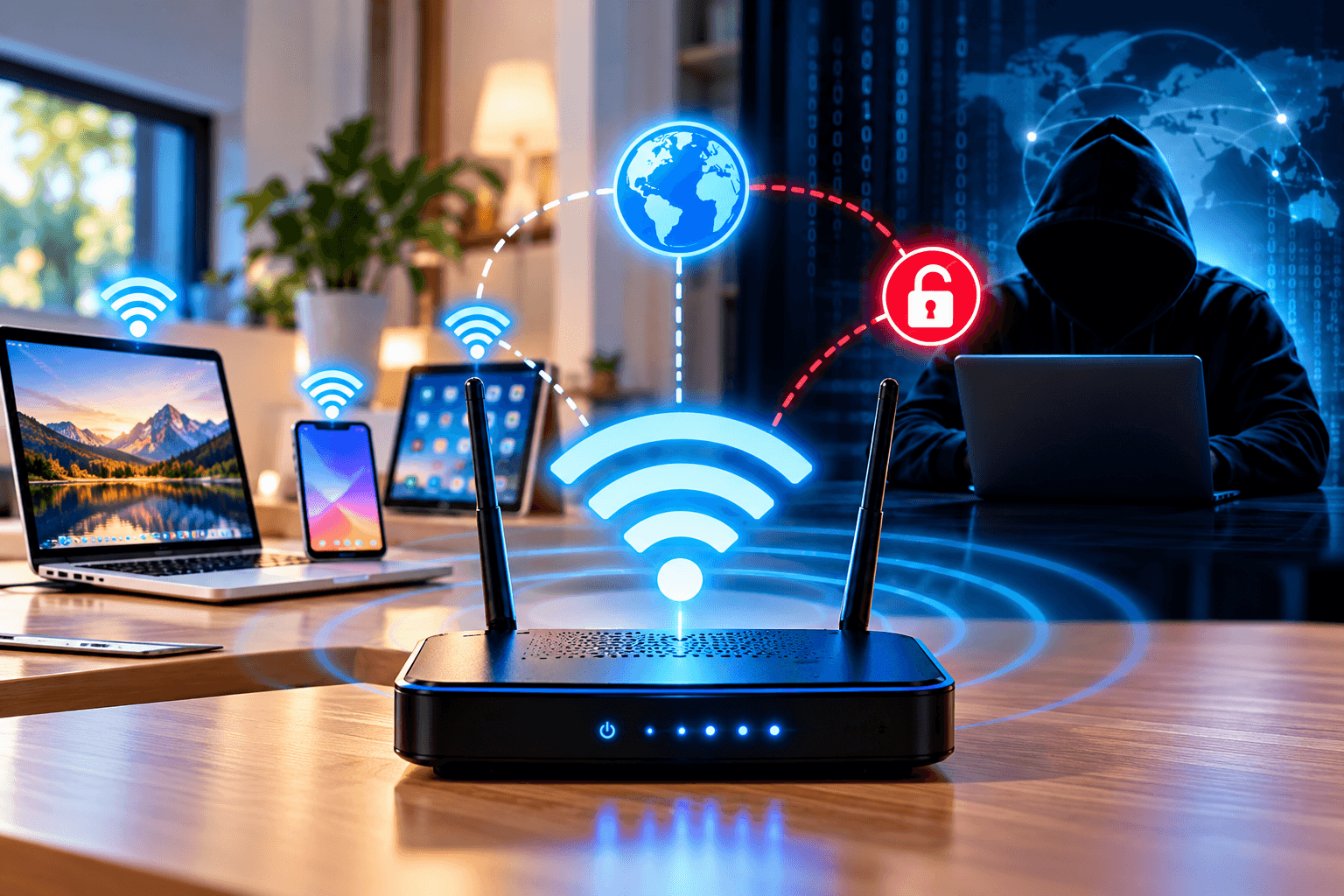
Can Your Wi-Fi Be Accessed Remotely? What You Need to Know
Many people assume that a Wi-Fi network can only be accessed by someone physically close to the router. In reality, unauthorized access can happen through several different routes, particularly when the router, Wi-Fi credentials, or connected devices are poorly secured.
However, there is an important distinction: someone accessing your internet connection is not necessarily the same as someone remotely controlling your router or accessing every device on your network. The method of attack and the security controls in place determine what an unauthorized person may be able to do.
Here are the main risks to understand and the steps you can take to protect your network.
Can Someone Access Your Wi-Fi Remotely?
There are several ways an attacker could gain unauthorized access to a network.
1. Weak or Outdated Wi-Fi Security
Your Wi-Fi password is one of the first lines of defense.
A short, predictable, or reused password can make unauthorized access easier, particularly if an attacker is within wireless range.
The encryption protocol used by your router also matters. Older protocols such as WEP have well-known security weaknesses and should not be used when modern alternatives are available.
Where supported, use WPA3. If your router does not support WPA3, WPA2 with a strong password is generally preferable to outdated security protocols.
For more background on older wireless security, see Archer’s guide to understanding WEP.
2. Router Remote Management
Some routers provide a feature called remote management or remote administration.
This allows an administrator to access the router’s configuration interface from outside the local network.
Remote administration can be useful in certain circumstances, but exposing the router’s management interface to the internet also increases the attack surface.
If you do not need remote administration, consider disabling it.
If you do need it, secure it appropriately with strong authentication, current firmware, and whatever additional access restrictions your router supports.
3. Compromised Devices on Your Network
Your router is not necessarily the only security concern.
A computer, phone, smart TV, camera, or IoT device connected to your network could itself become compromised.
Malware on a device may allow an attacker to steal credentials, access information, communicate with external systems, or attempt to interact with other systems on the network.
This is why securing the devices connected to your Wi-Fi is just as important as securing the Wi-Fi password.
Keep operating systems, applications, browsers, and device firmware updated, and remove applications or devices that are no longer needed.
What About Public Wi-Fi?
Public Wi-Fi presents a different risk.
When you connect to a network in a hotel, airport, café, restaurant, or other public location, you generally have less control over the network infrastructure than you do at home or in your office.
You should therefore be cautious when using public networks, particularly when accessing sensitive accounts.
Use HTTPS websites, keep your device’s security protections enabled, avoid connecting to suspicious networks, and consider using a reputable VPN when appropriate.
A VPN can encrypt traffic between your device and the VPN provider, but it does not make an insecure device secure and does not eliminate every risk associated with using public Wi-Fi.
How to Secure Your Wi-Fi Network
Use a Strong, Unique Wi-Fi Password
Create a password that is:
- Long
- Difficult to guess
- Unique to your Wi-Fi network
- Not based on easily identifiable personal information
Avoid using your name, phone number, business name, address, or simple sequences.
You should also avoid sharing the primary Wi-Fi password unnecessarily.
Use Modern Wi-Fi Encryption
Check your router’s wireless security settings.
Where available, use WPA3. If WPA3 is unavailable, use a properly configured WPA2 option rather than WEP or other obsolete protocols.
Your router manufacturer should provide instructions for changing the wireless security mode.
Change Default Router Credentials
Your Wi-Fi password and your router’s administrator password are not necessarily the same thing.
Make sure the router’s administrative account does not continue to use default credentials.
If an attacker obtains administrative access to the router, changing the Wi-Fi password alone may not resolve the underlying problem.
Keep Router Firmware Updated
Router manufacturers periodically release firmware updates that can address security vulnerabilities, improve compatibility, and fix bugs.
Check whether your router supports automatic updates. If not, periodically check the manufacturer’s support documentation for available firmware.
Updating the router is particularly important if a security vulnerability has been publicly identified.
Disable Unnecessary Remote Administration
If you do not need to manage your router from outside your network, disable remote administration.
This reduces the number of externally accessible management functions.
If you require remote access for legitimate administration, use the security controls provided by the manufacturer rather than exposing an unnecessary management service directly to the internet.
Review Connected Devices
Periodically check the router’s list of connected devices.
Look for unfamiliar:
- Smartphones
- Computers
- Printers
- Cameras
- Smart-home devices
- Streaming devices
- IoT equipment
An unfamiliar device does not automatically mean your network has been hacked—it could be a guest’s device or another device you have forgotten about—but it is worth investigating.
If your router supports it, you can also create a separate guest network for visitors rather than giving guests access to your primary network.
How to Tell if Someone May Be Using Your Wi-Fi
Some signs that deserve investigation include:
- Unknown devices appearing in your router’s device list
- Unexpected changes to router settings
- Your Wi-Fi password suddenly no longer working
- Unusual network activity
- Unexpected administrator account changes
- Router firmware or configuration changing without your knowledge
- Devices repeatedly disconnecting or behaving unusually
Slow internet alone is not proof that someone has accessed your Wi-Fi. Congestion, ISP problems, weak signal strength, interference, outdated equipment, and other technical issues can produce similar symptoms.
If you’re experiencing unexplained wireless performance problems, Archer’s guide on weak Wi-Fi and router placement covers some common causes of poor wireless performance.
Wi-Fi Security Is More Than the Password
Securing a wireless network involves multiple layers.
Think of it as:
Wi-Fi encryption → Router security → Device security → Account security → Network monitoring
A strong Wi-Fi password cannot compensate for an exposed router administration interface. Similarly, a secure router cannot completely protect a computer that has been compromised by malware.
For businesses, the security requirements are usually more extensive because the network may provide access to company systems, files, customer information, servers, and other resources.
Archer IT Solutions provides managed IT services and onsite and remote IT support for businesses that need assistance with network and technology management.
A Simple Wi-Fi Security Checklist
Use this checklist when reviewing your wireless network:
- Use WPA3 where supported.
- Use WPA2 if WPA3 is unavailable.
- Avoid WEP and other outdated security protocols.
- Create a strong, unique Wi-Fi password.
- Change default router administrator credentials.
- Keep router firmware updated.
- Disable remote administration if you do not need it.
- Review connected devices periodically.
- Use a guest network for visitors where appropriate.
- Keep connected devices and operating systems updated.
- Use HTTPS when browsing.
- Consider a reputable VPN when using public Wi-Fi.
- Investigate unexpected router configuration changes.
Final Thoughts
Yes, unauthorized access to a Wi-Fi network is possible, but the risk depends heavily on how the network, router, and connected devices are configured.
The most important steps are to use modern wireless encryption, create strong credentials, keep the router and connected devices updated, disable unnecessary remote administration, and monitor your network for unexpected activity.
If you are managing a business network or are concerned that your router or wireless network has been compromised, contact Archer IT Solutions for technical assistance.


No responses yet