Professional IT Support, managed services, cloud services, cybersecurity and web hosting that keep your business running 24/7.
ABOUT US
Since 1997, Archer IT Solutions has helped businesses stay productive with reliable IT support, managed IT services, web hosting, and web solutions. We provide responsive onsite and remote support to keep your technology secure, reliable, and running smoothly.

OUR SERVICES
From computer repair and managed IT support to professional website design and hosting, we provide practical technology solutions to help your business run smoothly.

Computer Repair and Maintenance
Fast and reliable computer repair, upgrades, troubleshooting, and preventive maintenance to keep your business running smoothly.

Managed IT Helpdesk Services
Responsive remote and onsite IT support for small and medium-sized businesses, helping resolve technical issues quickly and keep your systems running reliably.

Professional Website Design & Hosting
Professional and custom website design, secure web hosting, and ongoing website support to help your business build and maintain a strong online presence.
WHY CHOOSE ARCHER IT?
25+ YEARS OF IT EXPERIENCE
Serving businesses since 1997 with dependable IT support, web hosting, and technology solutions.
FAST, RESPONSIVE SUPPORT
Get timely assistance when technical issues affect your business operations.
REMOTE & ONSITE IT SUPPORT
Professional IT support available remotely or onsite, based on your business needs.
TRUSTED BY 100+ BUSINESSES
Helping businesses maintain reliable technology, websites, and IT infrastructure.
24/7 TECHNICAL SUPPORT
Technical assistance available around the clock to help keep your business running.
PRACTICAL, AFFORDABLE IT SOLUTIONS
Reliable technology solutions designed around your business needs without unnecessary complexity.
WHAT OUR CLIENTS SAY
See why businesses trust Archer IT Solutions for reliable IT support, web hosting, and technology solutions.
Thank you for creating my website and hosting it.
Aminah H

Thank you for hosting our website and providing service over the years to us.
Mike J

Thank You for the years of service that your team has provided me.
Saul S

Need Reliable IT Support for Your Business?
Get reliable IT support, managed services, web hosting, and technology solutions when your business needs them.

Gilbert Fletche
Oversees service delivery and ensures clients receive reliable, responsive support.
Service Manager

Olivia Rodriguez
Leads technical operations and ensures systems and solutions perform reliably.
technical manager

Johnny Rodriguez
Analyzes financial data to support informed business and strategic decisions.
Financial Analyst
ARCHER IT BY THE NUMBERS
Whether you need onsite assistance in one of our service areas or remote support from anywhere in the world, Archer IT Solutions is ready to help.
Businesses SUPPORTED
+100
Websites Hosted
+500
years of Experience
+25
Support Response
24/7
IT TIPS & RESOURCES FOR YOUR BUSINESS
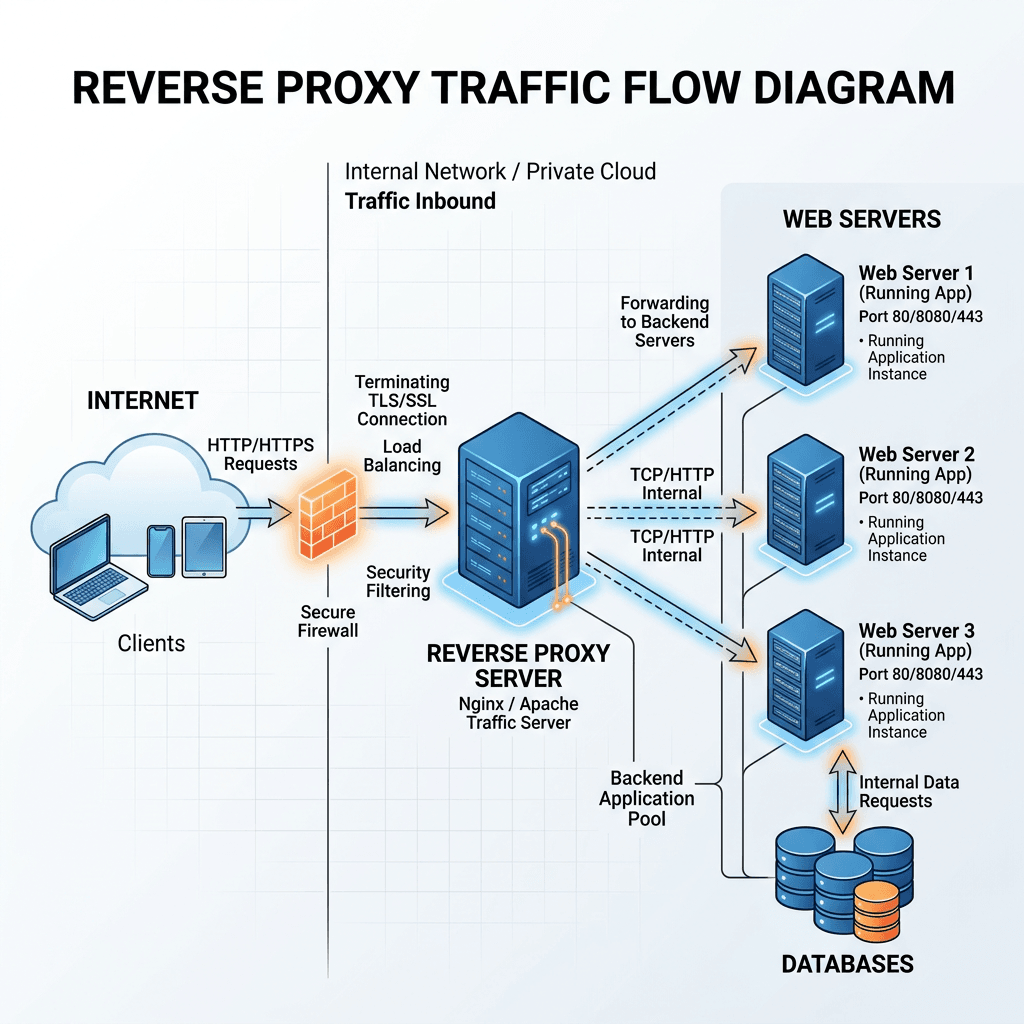
How to Set Up Reverse Proxies on Web Hosting
Learn when a reverse proxy makes sense, what hosting[…]

GDPR Compliant Hosting What Businesses Need to Know
Learn what GDPR-compliant hosting means for businesses.

How to Recognize Phishing Emails and Stay Safe
Phishing emails are fake messages designed to trick you[…]
NEED IT HELP?
TALK TO AN ARCHER IT SPECIALIST TODAY
Have an IT issue, need reliable support, or looking for a technology solution for your business? Get in touch with Archer IT Solutions today.
Email:
info@archer-its.com
Address:
16915 SE 272nd St, Suite 100-102, Covington, WA 98042