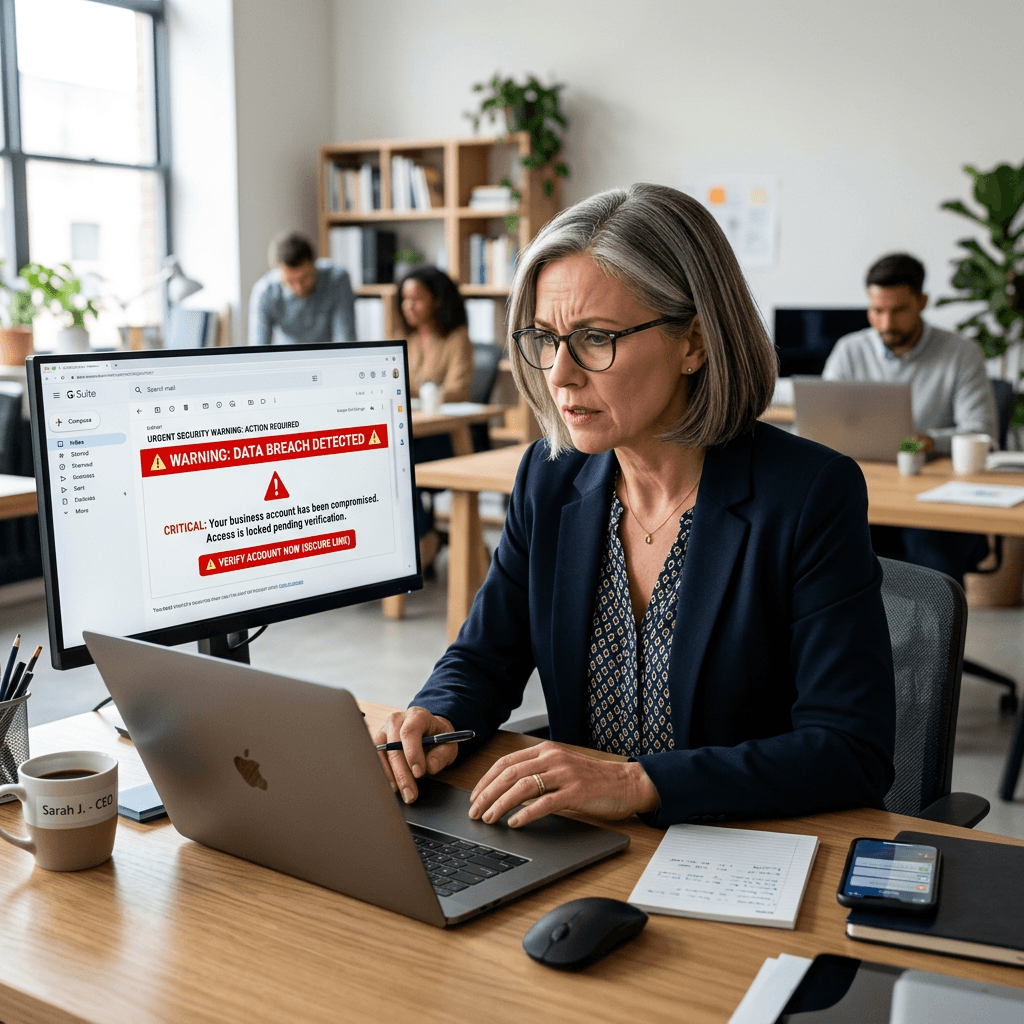
Phishing Emails: How to Spot Scams Before You Click
Phishing emails are fraudulent messages designed to trick you into revealing passwords, payment information, personal details, or access to online accounts. They often impersonate trusted organizations, banks, delivery companies, software providers, coworkers, or business partners.
A phishing email may look convincing because scammers can copy familiar logos, professional signatures, and branding. The safest approach is to slow down, inspect the message carefully, and verify unusual requests through a trusted channel before taking action.
For businesses, phishing protection is particularly important because compromised email accounts can expose customer information, business systems, financial accounts, and administrator credentials.
Quick Answer: What Is a Phishing Email?
A phishing email is a fake message designed to convince you to perform an action that benefits the attacker. This could mean clicking a malicious link, opening an attachment, entering your password on a fake website, sending money, or sharing confidential information.
Common warning signs include:
- An unusual sender address
- Urgent or threatening language
- Unexpected attachments
- Suspicious links
- Requests for passwords or payment information
- Requests to change banking details
- Unexpected requests for confidential information
The important thing to remember is that a professional-looking email is not necessarily a legitimate email.
What You’ll Learn
In this guide, you’ll learn:
- What phishing emails are
- How to identify suspicious senders and links
- Why scammers use urgency and fear
- How to handle unexpected attachments
- What to do if you click a suspicious email
- How businesses can reduce email security risks
What Are Phishing Emails?
Phishing emails impersonate legitimate people or organizations in an attempt to manipulate the recipient into taking an unsafe action.
Scammers may pretend to represent:
- Banks or financial institutions
- Shipping and delivery companies
- Software providers
- Government agencies
- Executives or coworkers
- Vendors or customers
- Online services such as Microsoft, Google, or Apple
For example, you might receive an email claiming that your Microsoft account has been compromised and asking you to “verify” your password. The email may look authentic, but the link could lead to a fraudulent login page.
Never assume an email is legitimate simply because it contains a familiar logo or professional formatting. These elements can be copied.
How to Spot a Phishing Email
One of the most effective ways to identify phishing is to consider the entire context of the message.
Ask yourself:
- Was I expecting this email?
- Does the request make sense?
- Does the sender normally contact me this way?
- Is the message pressuring me to act immediately?
- Is the sender asking for information they would not normally need?
Be particularly cautious when an email asks you to:
- Click a link to verify an account
- Open an unexpected invoice or document
- Enter your password
- Send money or gift cards
- Change banking information
- Download a file
- Share private business or customer information
If something feels unusual, pause before acting.
Check the Sender’s Email Address
One of the easiest phishing indicators to overlook is the sender’s actual email address.
The display name can be misleading. An email might show “Microsoft Support” or “Accounting Department” as the sender name, while the underlying email address belongs to an unrelated domain.
For example:
| Email Address | What to Consider |
|---|---|
billing@company.com | Could be legitimate |
billing@company-support.com | Could be a lookalike domain |
billing@company.co | Check carefully if the company’s actual domain is different |
companybilling@gmail.com | Potentially suspicious for official business communication |
Look for:
- Misspelled company names
- Extra words in the domain
- Unexpected domain extensions
- Unfamiliar domains
- Personal email addresses being used for official business requests
However, an unusual address alone does not prove an email is malicious. Verify the request independently before acting.
Be Careful With Urgent or Threatening Language
Phishing attacks frequently attempt to create a sense of panic.
The message might claim:
“Final warning”
“Your account will be closed”
“Payment required today”
“Immediate action needed”
“Unusual login detected”
These messages are designed to encourage people to act before they have time to think.
If you receive an urgent account warning, don’t automatically click the link in the email.
Instead, open your browser and manually visit the organization’s official website or use an official app to check whether there really is an issue.
Inspect Links Before Clicking
A phishing email may contain a link that directs you to:
- A fake login page
- A fraudulent payment form
- A malicious download
- A website designed to steal personal information
On a desktop computer, you can often hover over a link without clicking it to see its destination.
Look for:
- Misspelled domains
- Unfamiliar websites
- Suspicious shortened links
- Long strings of random characters
- Domains that don’t match the organization being represented
Important: HTTPS Does Not Automatically Mean Safe
A common misconception is that a website is trustworthy simply because its address begins with https://.
HTTPS helps encrypt data transmitted between your browser and the website, but it does not prove that the website itself is legitimate. A fraudulent website can also use HTTPS.
When you’re uncertain, don’t use the link in the email. Navigate directly to the organization’s known website instead.
Be Careful With Unexpected Attachments
Attachments can be another method used to deliver malware or steal information.
Be cautious with unexpected:
- Executable files
- ZIP archives
- Macro-enabled Office documents
- Unknown PDF files
- Password-protected files from unfamiliar senders
A particularly important warning sign is an attachment that asks you to enable macros, change security settings, or enter a password.
If the attachment appears to come from a coworker, customer, or supplier, verify with that person using a separate trusted communication method before opening it.
Common Types of Phishing Emails
Phishing doesn’t always look the same. Some common examples include:
1. Fake Password Reset Emails
These emails claim that someone attempted to access your account and provide a button such as “Secure Account” or “Verify Login.”
The link may take you to a fake login page designed to capture your username and password.
2. Fake Invoice Emails
A scammer may impersonate a supplier and send an invoice requesting payment or containing a malicious attachment.
3. Business Email Compromise
An attacker may impersonate an executive, supplier, customer, or business partner and request:
- A bank transfer
- Updated banking details
- Confidential documents
- Gift cards
These requests should always be independently verified.
4. Fake Delivery Notifications
These messages claim that a package could not be delivered or that shipping information needs to be updated. The included link may lead to a fraudulent payment or login page.
5. Account Suspension Warnings
These emails claim that an email, cloud storage, banking, or subscription account will be closed unless you act immediately.
7 Simple Ways to Protect Yourself From Phishing
A few consistent habits can significantly reduce the risk of falling for phishing attempts.
1. Pause Before Clicking
Don’t allow urgent language to rush your decision.
2. Check the Sender
Look at the complete email address rather than relying on the display name.
3. Inspect Links
Hover over links on desktop or avoid them altogether if you aren’t sure where they lead.
4. Avoid Unexpected Attachments
Verify unexpected files before opening them.
5. Use Strong, Unique Passwords
Avoid reusing passwords across different accounts. A password manager can help manage unique credentials.
6. Enable Multi-Factor Authentication
MFA provides an additional layer of protection if your password is compromised.
7. Verify Sensitive Requests
For requests involving money, passwords, banking details, or confidential information, use a known phone number, official website, or another trusted method to confirm the request.
Verify Sensitive Requests Separately
This is particularly important for businesses.
If an email asks you to transfer money, change bank details, disclose confidential information, or send credentials, don’t verify the request using the contact details provided in the suspicious email.
Instead:
- Call the person using a known telephone number
- Visit the company’s official website
- Use contact information from an existing account statement
- Speak with the person directly when possible
Businesses can also establish internal verification procedures, such as requiring additional approval for payments or phone confirmation before changing supplier banking details.
What Should You Do With a Suspicious Email?
Most email services provide options for reporting phishing or spam.
After identifying a suspicious message:
- Don’t click its links.
- Don’t open unexpected attachments.
- Report the message using your email provider’s reporting function.
- Avoid forwarding it to coworkers unless your organization has a designated security-reporting process.
- Delete it according to your organization’s policy.
If the message is connected to a financial, legal, or security incident, preserve a copy for appropriate review.
What to Do If You Clicked a Phishing Email
Don’t panic. Your next steps depend on what happened after you clicked.
If You Clicked but Didn’t Enter Information
Close the page and avoid interacting with it further. Run an appropriate security scan if necessary and notify your IT support provider or email administrator.
If You Entered Your Password
Change the password immediately using a trusted device.
If you reused that password on other accounts, change it there as well. Enable MFA and review recent account activity.
If You Shared Payment Information
Contact your bank or payment provider immediately and follow its fraud-reporting procedures. Monitor the relevant transactions.
If You Downloaded a Suspicious File
If you suspect the file may contain malware, disconnect the device from the network and avoid using it for sensitive activities until it has been assessed. Notify your IT support provider if the device is used for business.
Phishing Response Checklist
When an email seems suspicious, remember:
STOP → INSPECT → VERIFY → REPORT → SECURE → DOCUMENT
| Step | Action |
|---|---|
| Stop | Don’t click, reply, or open attachments |
| Inspect | Check the sender, links, wording, and request |
| Verify | Contact the person or company through a trusted method |
| Report | Use your email provider’s phishing-reporting option |
| Secure | Change passwords if you interacted with the message |
| Document | Record what happened and notify IT support if necessary |
This checklist can also be useful for employees who regularly handle invoices, customer information, payments, or account credentials.
Email Security for Website and WordPress Owners
Website owners should pay particular attention to the email accounts associated with:
- Their domain
- Hosting provider
- WordPress administrator account
- Payment platforms
- Business applications
If an attacker gains access to an administrator’s email account, they may be able to initiate password resets for other services.
To reduce the risk:
- Use strong, unique passwords
- Enable multi-factor authentication
- Review email forwarding rules regularly
- Keep WordPress, plugins, and themes updated
- Use secure hosting and reliable backups
- Limit administrator access to trusted users
For businesses that need help with their website infrastructure, Archer IT Solutions Web Hosting provides hosting and technical support services.
Helpful External Cybersecurity Resources
For additional cybersecurity guidance, these resources are useful:
- Federal Trade Commission — How to Recognize and Avoid Phishing Scams
- Google Safety Center
- Mozilla Privacy & Security
- Cybersecurity and Infrastructure Security Agency (CISA)
These resources provide general cybersecurity information. Businesses with specific security concerns may need a review of their email systems, devices, accounts, and backup procedures.
Frequently Asked Questions
What are phishing emails?
Phishing emails are fraudulent messages designed to trick people into providing passwords, payment details, personal information, or account access. They commonly impersonate trusted companies, coworkers, banks, and online services.
How can I tell if an email is phishing?
Look for unusual sender addresses, urgent language, unexpected attachments, suspicious links, spelling mistakes, and requests for sensitive information. When uncertain, verify the request independently.
Is it safe to open a phishing email?
Simply opening an email is generally less concerning than clicking its links or opening attachments, but suspicious messages should still be handled cautiously. Report the email and follow your organization’s security procedures.
What should I do if I entered my password on a phishing website?
Change the password immediately from a trusted device. Change it anywhere else it was reused, enable MFA, and review recent account activity. If it’s a business account, notify your IT support provider.
Can Archer IT Solutions help with phishing protection?
The source article states that Archer IT Solutions can assist with email security, managed IT services, device support, account recovery, website security, and employee guidance. Businesses can contact Archer IT Solutions for assistance.
Protect Your Business From Phishing
Phishing attacks often succeed because a message creates urgency before the recipient has time to verify it. Building a habit of pausing, inspecting, verifying, and reporting suspicious emails can reduce unnecessary risk.
For website and business owners, email security should also be part of a broader security strategy that includes strong authentication, secure hosting, regular updates, backups, and controlled administrator access.
If you need assistance with your website hosting or technical setup, explore Archer IT Solutions Web Hosting or contact Archer IT Solutions for support.


8 Responses
Great post,Thanks for sharing
Thank you for sharing these helpful phishing-prevention tips. The reminders to check the sender’s address, examine links carefully, and be cautious of messages that create sudden urgency are especially useful. Taking a moment to verify a request through an official website or trusted phone number can prevent a costly mistake.
Thank you for bringing attention to phishing awareness. Taking a moment to question an unexpected email is especially important when it requests login details or pressures someone to act quickly. I appreciate the focus on helping readers approach suspicious messages with greater care.
Phishing emails are getting much harder to recognize because many of them now look surprisingly professional. I have found that checking the sender’s actual email address and avoiding unexpected links or attachments are two of the easiest habits to develop. Taking a few seconds to verify a message independently can prevent a much bigger security problem.
One of the hardest things about phishing emails today is that many of them look surprisingly legitimate. Checking the sender’s actual email address and being cautious with unexpected links or attachments can prevent a lot of problems. I also think it is important to verify unusual requests through a separate method instead of simply replying to the message. Good reminders for anyone who uses email regularly.
Phishing emails have become much harder il: **jordan.mi**to recognize because some of them look almost identical to legitimate messages. Checking the sender’s address and avoiding unexpected links or attachments are simple habits that can prevent a lot of problems. I also think it’s important to verify unusual requests through another method before providing passwords, payment information, or other sensitive details. This was a useful reminder that taking a few extra seconds to check an email can make a big difference.
Phishing emails have definitely become harder to recognize. I received one recently that looked almost identical to a legitimate account notification, including the company logo and formatting. The thing that made me suspicious was that the message was trying to rush me into clicking a link.
Since then I’ve gotten into the habit of not using links in unexpected emails when they involve passwords, payments, or account problems. I open a new browser window and go directly to the company’s website instead. It only takes another minute and removes a lot of the uncertainty.
Checking the sender’s actual email address is another good habit. The displayed name might look legitimate while the address behind it has nothing to do with the company.
The urgency factor mentioned with phishing is especially important. Messages saying an account will be suspended immediately or that something must be verified right now should probably make people slow down rather than react faster. A few extra seconds of checking can potentially prevent a much bigger problem.
The advice about slowing down before clicking anything is probably the most useful part of this. Phishing emails seem designed to make you react first and think about it afterward.
I’ve started hovering over links before clicking them and checking the actual sender address instead of trusting the name that appears in the inbox. Those two things alone can reveal some pretty obvious problems. If an email says there’s an issue with an account, I usually just go directly to the website rather than following the link in the message.
Another warning sign for me is when an email unexpectedly asks for a password, payment information, or some type of verification. Even when the message looks professional, it’s worth taking an extra minute to confirm that it’s legitimate.
Good overview, especially for people who may not realize how convincing phishing messages have become.