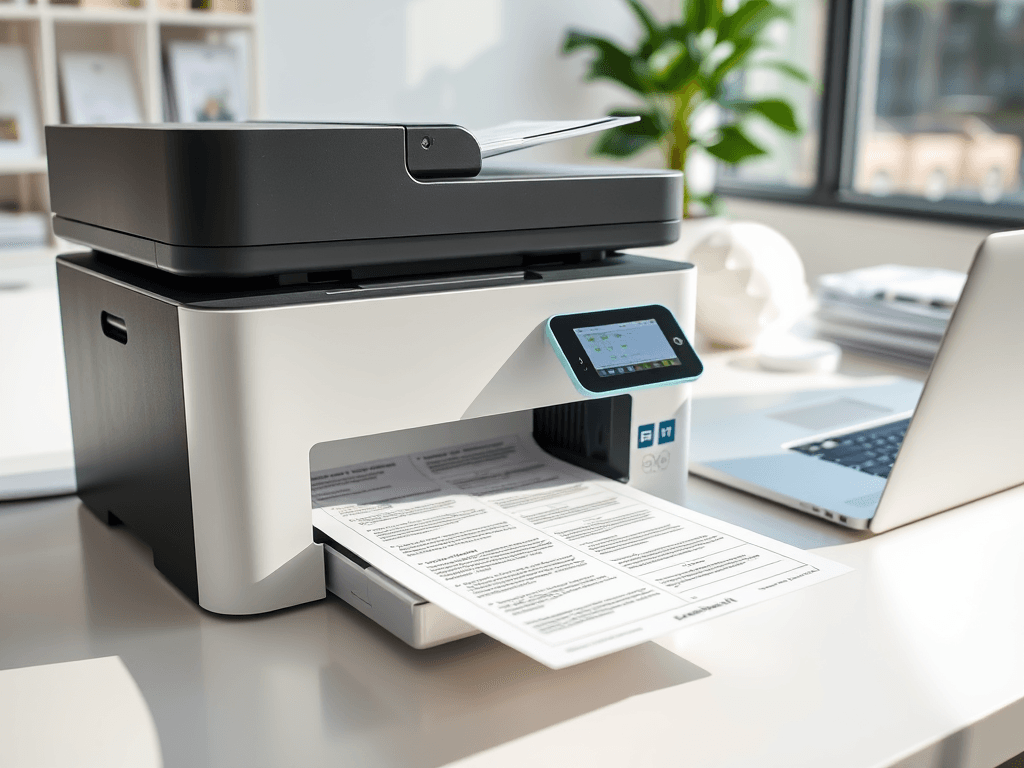
How to Print Double Sided: A Simple Printer Guide
Quick Answer
To learn how to print double sided, open your document’s print settings and look for options like Print on Both Sides, Duplex Printing, or Two-Sided Printing. If your printer does not support automatic duplexing, print odd pages first, flip the stack correctly, then print even pages.
If you have ever wasted paper, printed pages upside down, or spent too long trying to find the right printer setting, you are not alone. Knowing how to print double sided is a simple way to save paper, reduce costs, and make documents look more professional. For small businesses, website owners, and everyday users, it is one of those basic printer skills that delivers immediate value. In this guide, we will walk through the simplest ways to print on both sides, explain the difference between automatic and manual duplex printing, and show you how to fix the most common problems quickly.
How to Print Double Sided Without the Guesswork
The easiest way to understand how to print double sided is to first check whether your printer supports automatic duplex printing. Many office and business printers do, while basic home printers often require manual page flipping. You can usually find this setting in the print window under names such as Print on Both Sides, Duplex, or Two-Sided. If you are running a small office, using this feature regularly can cut paper use and present a more polished image to customers.
If your printer includes automatic duplexing, the process is straightforward. Open your document, select File > Print, choose your printer, and enable the double-sided option. You may also see choices like flip on long edge or flip on short edge. Long edge is best for standard reports and letters, while short edge works better for notepads or calendar-style prints. For many businesses, this simple setting saves time and helps standardize printed materials.
If your printer does not have duplex support, manual printing still works well once you know the pattern. First, print the odd-numbered pages. Then take the printed stack, place it back into the paper tray in the correct orientation, and print the even-numbered pages. It may take one or two test pages to get right, but after that, the process becomes easy. If your team needs help with printer setup, driver issues, or device optimization, Archer IT Solutions offers Local IT support and remote help for businesses that want fewer tech headaches.
How to print double sided step by step:
- Open your document
- Click Print
- Select your printer
- Look for Print on Both Sides or Duplex
- Choose Flip on Long Edge for normal documents
- Print a one-page test first
- If needed, use manual duplex by printing odd pages, then even pages
Pros of double-sided printing:
- Saves paper and printing costs
- Looks more professional
- Reduces storage space for documents
- Better for internal reports and client handouts
Cons of double-sided printing:
- Can confuse beginners at first
- Some printers do not support auto duplex
- Incorrect page flipping can waste time and paper
Automatic vs Manual Double-Sided Printing
| Feature | Automatic Duplex | Manual Duplex |
|---|---|---|
| Ease of Use | Very easy | Moderate |
| Speed | Faster | Slower |
| Paper Handling | Printer flips pages | User flips pages |
| Best For | Offices, frequent printing | Home users, basic printers |
| Error Risk | Low | Higher |
Image suggestion: Screenshot of a print dialog box showing “Print on Both Sides” enabled
Alt text: Print settings window showing how to print double sided on a printer
Helpful external resources:
Internal links:
- Learn more about our company on the Archer IT Solutions About page
- Need help fast? Submit a support request through our support ticket page
YouTube suggestion: Embed a short tutorial such as “How to Print Double Sided on Any Printer” to show manual and automatic duplex examples visually.
Fix Common Double-Sided Printing Problems Fast
Even when you know how to print double sided, things can still go wrong. The most common problems are pages printing upside down, blank second sides, paper jams, or the duplex setting not appearing at all. In many cases, the issue is not the printer itself but the selected layout option, outdated drivers, or the way paper is reloaded into the tray during manual duplex printing. A quick test with two pages can often reveal exactly where the problem starts.
If your pages are printing backward or upside down, check whether you selected flip on long edge or flip on short edge. This small setting makes a big difference. For example, a portrait document like a report usually needs long-edge flipping. If you use short-edge flipping instead, the back page may look inverted. It is a simple fix, but one that catches many beginners and small business users off guard.
Another common issue is when the duplex option is missing entirely. This often means the printer driver is generic or outdated. Visit the printer manufacturer’s website and install the full driver package. You should also confirm in your printer preferences that duplexing is enabled in the device settings. If you manage multiple office devices and need reliable setup, driver support, or printer troubleshooting, Archer IT Solutions can help through our contact page or with direct technical assistance for business users.
Common problems and fast fixes
- Problem: Back side prints upside down
Fix: Switch between flip on long edge and flip on short edge - Problem: No duplex option appears
Fix: Install the full printer driver from the manufacturer - Problem: Manual duplex pages are out of order
Fix: Print a two-page test and note tray orientation before full printing - Problem: Paper jams during duplexing
Fix: Use clean, dry paper and avoid overfilling the tray - Problem: Blank reverse side
Fix: Confirm duplex is enabled and page range settings are correct
Quick troubleshooting checklist
Before calling support, try these steps:
- Restart the printer and computer
- Update the printer driver
- Use standard paper size settings
- Check the document orientation
- Print a 2-page test first
- Make sure paper is loaded straight
- Review printer properties for duplex capability
For users who want better day-to-day reliability, it can also help to review related setup and maintenance advice. If your business depends on connected systems, printers, and workstations all running smoothly, our team also shares practical tech tips in supporting articles and service pages. You may also be interested in our web design services if your business is improving both its digital and office workflows, or browse our site for more IT guidance tailored to small businesses.
Image suggestion: Diagram showing correct paper orientation for manual double-sided printing
Alt text: Manual duplex printing diagram showing how to reinsert printed pages into the tray
FAQ
What is double-sided printing?
Double-sided printing, also called duplex printing, means printing on both sides of a sheet of paper. It helps save paper, lower printing costs, and create more professional-looking documents.
How do I know if my printer can print double sided?
Check your printer specifications or look in the print settings for Duplex, Two-Sided Printing, or Print on Both Sides. If you do not see those options, your printer may require manual duplex printing.
How do I print double sided manually?
Print the odd pages first. Then reinsert the pages into the tray in the correct direction and print the even pages. A short two-page test helps confirm the right orientation before printing a full document.
Why is my double-sided print upside down?
This usually happens because the wrong flip setting was selected. Try flip on long edge for standard portrait documents and flip on short edge for top-bound formats.
Is double-sided printing good for small businesses?
Yes. It reduces paper costs, cuts waste, and makes proposals, invoices, and internal reports look more organized. It is a simple improvement with long-term savings.
Learning how to print double sided does not have to be trial and error. Once you know where the duplex setting lives and how page flipping works, you can print smarter, save paper, and avoid common mistakes. For small businesses especially, small efficiency gains like this add up over time. If you need help with printer setup, driver installation, office device support, or dependable Local IT support, Archer IT Solutions is here to help. Visit our contact page or submit a request through our support portal to get expert assistance.


No responses yet