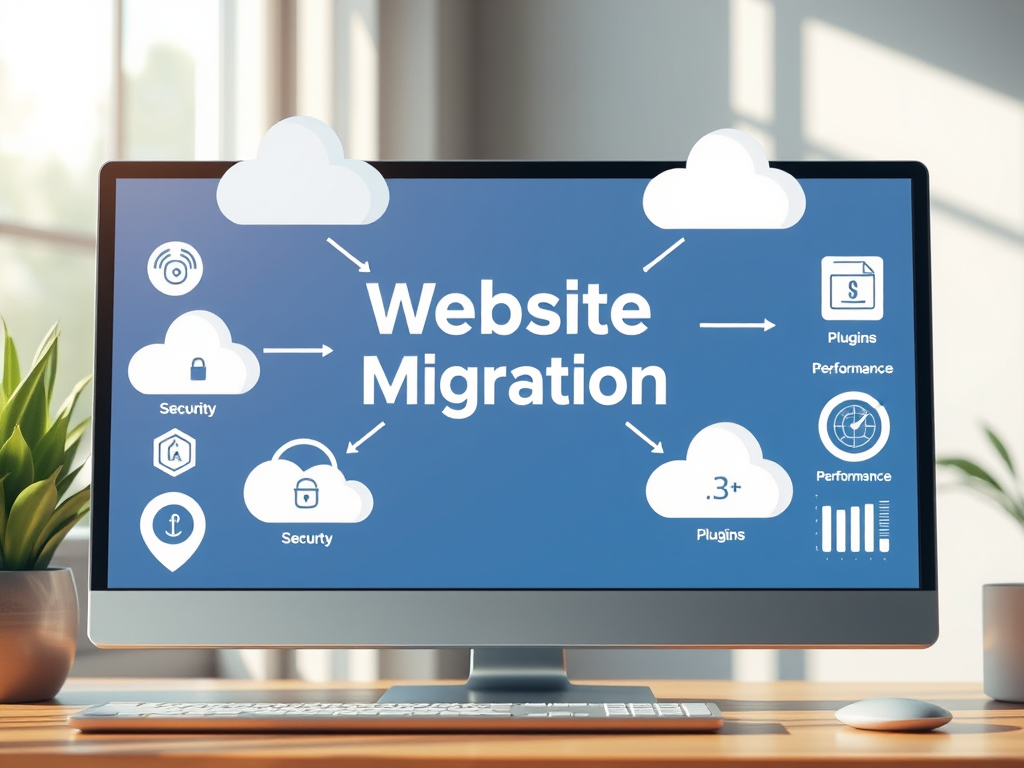
Migrating your website to a new hosting provider can often feel like moving homes — it’s not just about taking your belongings (in this case, your content) but ensuring all the fittings, utilities, and systems that make your site functional come along with you. The hosting environment contributes to your site’s performance, reliability, and flexibility. Thus, understanding which functionalities, features, and options to retain when switching hosts can save you from loss of data, slow loading speeds, or broken integrations. This article explores the essential website functions you should maintain during migration, the benefits backed by real-world data, troubleshooting guidance, and examples from businesses that have successfully transitioned to new hosts such as Archer IT Solutions and other resources.
Key Website Features Worth Keeping During Migration
When moving to a new hosting provider, the first instinct may be to focus only on transferring your pages, posts, and images. Yet, website functionality—including plugins, custom code, security settings, and performance configurations—plays a crucial role in user experience. Failing to migrate these aspects properly could lead to malfunctioning contact forms, lost user data, or decreased search engine rankings. Remember, “content is king,” but functionality is the throne it sits upon.
You’ll want to identify which parts of your current setup make your website run efficiently. These may include custom scripts, caching systems, permissions, SSL configurations, and access control. For example, if your site depends on specific security/firewall settings integrated at the hosting level, these must be replicated on the new host. Similarly, certain email routing or DNS configurations should remain consistent to preserve uptime and deliverability. Websites using dynamic CMS platforms such as WordPress, Joomla, or Drupal rely on databases and extensions that must remain compatible after the migration.
To simplify this process, take stock of your current site setup before initiating the move. Document your active functionality through a checklist that includes:
- Essential plugins or extensions (e.g., backup tools, SEO plugins, contact forms)
- Performance enhancement tools (e.g., CDN, caching systems)
- Security and authentication measures (SSL certificates, firewalls, two-factor authentication)
- Database configurations and user accounts
- Third-party integrations (CRM or e-commerce tools such as Mailchimp, Stripe, or Shopify gateways)
Doing so ensures you translate not just your website’s content but its operational DNA as well.
The Pros and Cons of Retaining Functionality
Keeping your current functionality and options when moving hosting comes with both advantages and challenges. On the plus side, retaining familiar systems ensures continuity for users and administrators alike, avoiding disruption in service. It also helps reduce the learning curve and minimizes training or redevelopment costs for your team. In addition, core performance elements such as caching strategies or content delivery networks (CDN) retain your optimized speed and SEO advantages.
However, there are also pitfalls worth recognizing. Some plugins or features may not be compatible with the new hosting platform’s server configuration. For instance, certain scripts might require specific PHP versions or database engines. Hosting environments differ in the technical stack they use—for example, Archer IT Solutions offers managed hosting platforms optimized for both Linux and Windows, but others may focus solely on one format. Hence, testing these functionalities in a sandbox environment before launching live is essential.
Key takeaways:
- Keeping functionality prevents downtime and user confusion.
- Watch for compatibility and licensing issues.
- Always test critical features before going live on the new server.
By carefully weighing the pros and cons, you can make an informed decision about which functionalities add value and which ones to replace.
Technical Elements to Prioritize
When deciding what technical elements to keep, pay attention to anything that directly impacts your website’s backend and performance. Features like automated backups and error logging tools are fundamental because they ensure data integrity and make post-migration troubleshooting easier. Tools such as UpdraftPlus, Jetpack, or Duplicator enable developers to clone and migrate sites safely without risking content or configuration mismatches.
Another major aspect is your site’s database settings. Always preserve your connection strings, prefixes, and user permissions to prevent access issues. Ask your hosting provider whether they support the same database engine version as your previous host (e.g., MySQL 8.0 versus MariaDB). Additionally, caching systems—server-side caching in particular—directly impact your website’s load time. Research from Google’s Web Vitals shows that reducing load time from three seconds to one second can improve conversion rates by up to 32%, making these optimizations worth maintaining.
Finally, if your site uses API integrations with external systems such as CRMs, marketing automation, or inventory management tools, ensure these connections migrate without disruption. Double-check your API keys and confirm firewalls allow data exchange between your site and these systems once hosted on the new service.
Real-Life Examples and Data on Retaining Core Functions
Take the case of a mid-sized e-commerce brand that migrated from a shared hosting package to a managed one provided by Archer IT Solutions. The company prioritized maintaining its payment gateway integrations, visitor analytics, and inventory management API links. Because these functions were well-documented and tested before migration, they experienced zero downtime and realized a 25% improvement in page load speed. The ability to retain key functionality while upgrading hosting power translated directly into higher customer satisfaction scores and conversion rates.
In contrast, another company that neglected to migrate its caching mechanism and CDN setup saw a 47% drop in page performance within the first month post-migration (data reference: Pingdom Performance Reports). The consequence was not technical failure but slower user experience, increased bounce rates, and temporary dips in SEO rankings. This demonstrates the measurable value of retaining your functional setup, not just your site’s visual or textual identity.
Independent research also supports this claim. WPBeginner’s hosting migration guide notes that 43% of website owners who moved hosting without transferring performance plugins later reverted to previous configurations to resolve issues. This data reinforces the importance of creating a pre-migration audit that includes functionality review—not just file or database transfer.
Maintaining Plugin and Extension Compatibility
One of the most common headaches website owners face during migration is plugin incompatibility. Plugins extend site functionality, but they are developed by third parties who may rely on specific server configurations. When hosting environments differ—for example, moving from Apache to NGINX-based servers—plugins may act unpredictably. Common symptoms include missing buttons, broken contact forms, or email notifications failing to send.
To mitigate these issues, start with a compatibility test on a staging environment. Hosting providers like Archer IT Solutions or SiteGround often allow staging sites within their managed hosting dashboards. Test critical plugins—security, SEO, analytics, and e-commerce—before the full switch. Always ensure that both the plugins and your CMS core are running the latest versions to minimize vulnerabilities.
If errors persist, consult documentation or developer forums. Websites such as Stack Overflow and WordPress.org support forums offer thousands of troubleshooting threads on plugin compatibility. This proactive approach prevents surprises post-launch and guarantees that your migration does not disrupt the customer experience.
Troubleshooting Common Post-Migration Problems
Even with careful preparation, post-migration issues can arise. One of the most frequent challenges involves redirect errors, where URLs point to old directories due to mismanaged .htaccess or permalink settings. Always regenerate or verify these settings from your CMS dashboard after migration.
Database connection problems are also typical, stemming from mismatched credentials or missing configuration constants in files such as wp-config.php. Double-check that your new hosting environment supports the same charset (e.g., UTF-8) and collation settings to prevent malformed characters or database corruption.
Another recurring issue involves email functionality. If your site relies on SMTP to send user notifications or order receipts, these connections may break during migration. Update your email authentication settings (SPF, DKIM, and DMARC) and verify that your new hosting provider allows outbound SMTP connections. Should you encounter unresolved issues, Archer IT Solutions Support Center responds to email requests (via support@archer-its.com) typically within 24 hours.
Real-Life Use Cases Beyond Businesses
Educational institutions and nonprofits often depend on open-source platforms that integrate multiple functionalities such as event calendars, donation plugins, and learning management systems. For example, Open Source Matters encourages Joomla site admins to retain all core extension references during migrations to maintain accessibility and feature consistency.
Similarly, community-driven blogs on Medium’s Technical Writers Collective advise authors migrating their self-hosted blogs to ensure RSS feed continuity and proper URL forwarding to preserve readership numbers. This underscores how even smaller technical details—like feeds or redirect chains—can affect brand engagement post-migration.
Whether it’s a retailer protecting payment gateways or a small nonprofit ensuring form integrations continue working, the principle remains: preserve what delivers functionality, not just format.
Visual Understanding of Migration Essentials
Below are some image suggestions to help visualize this process:
- Migration Workflow Diagram: Showing the stages—audit, backup, migration, testing, launch.
- Plugin Compatibility Chart: Highlighting which plugins tend to be affected when shifting between servers.
- Performance Comparison Graph: Demonstrating the benefits of site optimization carried over to a new host.
- Security Layer Diagram: Illustrating SSL, firewalls, and authentication settings migrated along with the site.
(These can be designed using Canva, Figma, or any preferred tool and embedded on your article page for clarity.)
Suggested Resources and Further Reading
If you’re preparing for a migration, consider reviewing these comprehensive external resources:
- Google PageSpeed Insights — test your current performance before and after migration.
- Mozilla Developer Network — learn about hosting environment fundamentals.
- WordPress Codex on Moving Servers — official guide for WordPress owners.
- Pingdom Tools — measure uptime and load speed metrics.
- UpTime Robot — automated monitoring for post-migration reliability checks.
These trusted sources provide insights for developers and non-developers alike to maintain site functionality and mitigate risks during the hosting transition.
A successful website migration is more than just shifting digital content—it’s about preserving the mechanisms that enable your online presence to thrive. Every plugin, integration, and configuration plays a vital role in delivering consistent performance and reliability to your users. By retaining critical functionalities, you not only maintain site stability but also optimize post-migration SEO, usability, and trust.
If you’re uncertain about which technical features to preserve or need professional guidance, partners like Archer IT Solutions can assist with structured migration strategies, managed hosting services, and ongoing support. Their Support Portal and on-site services ensure smooth processes tailored to small businesses and developers alike.
We encourage you to reflect on your site’s current setup—what functionalities make your operations seamless, and which ones could use optimization? The choices you make before migration will define not just your launch day success, but your website’s longevity and growth.
Fast, Reliable Web Hosting — Starting at $1.99/month
|
🔥 Most Popular Standard Plan | Domain Only | |
|
$1.99/month Limited-time offer | Secure your business name online | |
|
Affordable yearly pricing Easy setup Works with any hosting | |
Reseller Hosting (For Agencies & Developers)Start your own hosting business or manage client sites | ||
| Reseller 1 | Reseller 2 | Reseller 3 |
| $20/month | $37.50/month | $50/month |
|
|
|
| ✔ 99.9% uptime • ✔ Secure • ✔ Easy setup • ✔ Local support | ||
Stop settling for slow, unreliable hosting. With Archer IT Solutions, get a website hosting plans that deliver speed, security, and 99.9% uptime guarantee. Grab your domain and hosting package in one seamless plan, optimized for WordPress users, small and medium size businesses, and personal websites.
Enjoy affordable web hosting plans without compromises unlike the big guys. Complete with professional email, one-click CMS installs, and round-the-clock hosting support. Perfect for WordPress users.
Built for Real Businesses
Whether you’re launching your first blog or scaling a growing business, Archer IT gives you:
+ Speed that keeps visitors engaged
+ Reliability you can count on
+Tools that actually make sense
Launch your first personal blog or scale a growing small business site with hosting optimized for performance. Get the best web hosting for plus simple setup — all powered by secure Linux servers and easy Plesk control panel.
Why Choose Archer IT Hosting?
🔒 Free SSL Certificates (Security + SEO Boost)
📧 Professional Email Accounts Included
⚡ Fast Linux Servers (Optimized Performance)
🧩 One-Click WordPress, Joomla & Drupal Installs
💬 Real 24/7 Support — No Bots, Just Help
💾 Automatic Backups for Peace of Mind
Risk-Free Guarantee
Try it with confidence.
If it’s not right for you, get your money back within 15 days.🔥 Don’t Wait — Launch Your Website Today
Stop overpaying for slow hosting.
Get everything you need in one simple plan.
Your website stays online with uptime, protected by a free SSL certificate, and supported by real people around the clock. And if it’s not right for you? Our 15-day money-back guarantee makes it a no-risk choice. Take your business or personal project online with hosting that’s secure, affordable, and built to perform.
💬 Real Support. No Runaround.
Unlike big hosting companies, you get:
- Direct help from real people
- No ticket delays
- No upsell traps
Discover more from Archer IT Solutons
Subscribe to get the latest posts sent to your email.
Discover more from Archer IT Solutons
Subscribe to get the latest posts sent to your email.


No responses yet